Device Health Check - Notifications
How to Configure Device Offline Alerts
Overview The Device Offline Alerts feature (introduced in release 5.32) allows you to maintain visibility over your terminal estate. When enabled, the system will automatically email you if a device stops communicating for a specific period and send a follow-up confirmation when communication is restored.Compatibility This feature works for all T&A terminals, from legacy 785s to the new Synergy 10s.
Step 1: Enabling the Feature
To activate monitoring and customize your alert sensitivity:
Navigate to System Setup.
Select Devices.
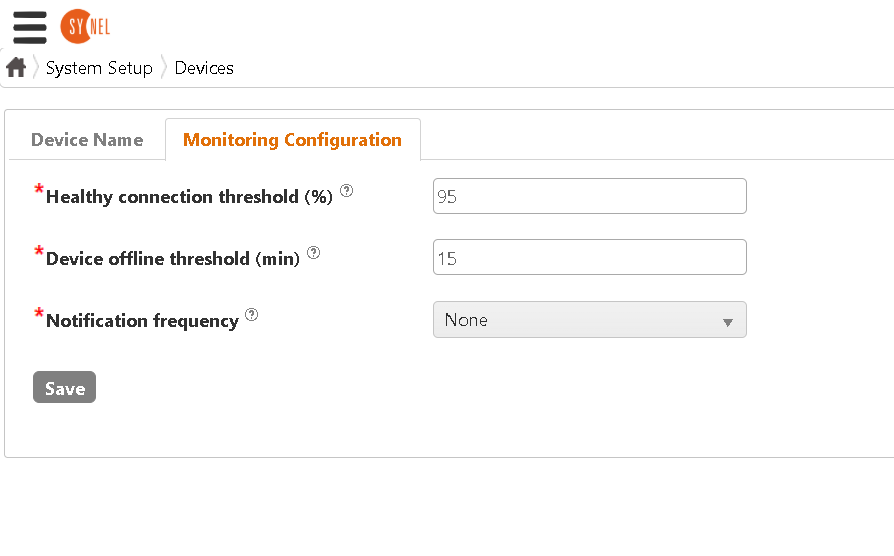
Click on the tab Monitoring Configuration.
You will see the configuration screen below:
Step 2: Understanding the Settings
You can customize two key thresholds to suit your site requirements:
Offline Threshold (Response Time): This defines how long a device must be "silent" before an alert is actually triggered.
Default: 15 minutes.
Note: You can adjust this if your network frequently has short dropouts to avoid false alarms.
Healthy Connection Threshold (Stability): This setting helps filter out noise by analyzing the success rate of device "heartbeats" before marking a device as officially offline or online.
Step 3: Receiving Alerts
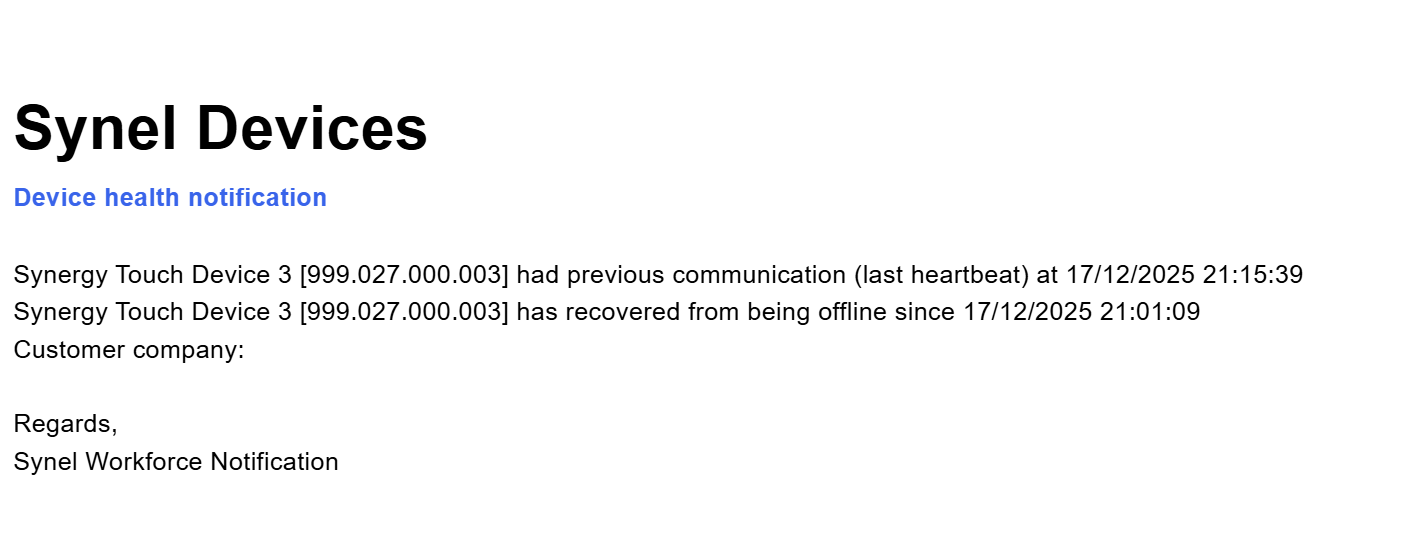
Once configured, if a device exceeds the Offline Threshold, you will receive an email notification immediately. When the device reconnects, a recovery email will be sent.
Need more help?
If you are unsure which threshold settings are right for your network environment, please contact support for a recommendation.