Synergy 10" Enrolment Guide
SynergyFollow these steps for a trouble-free enrolment process.
Enrolment Guide
On Synergy 10’ device go to the settings icon available at the top left corner of the screen.
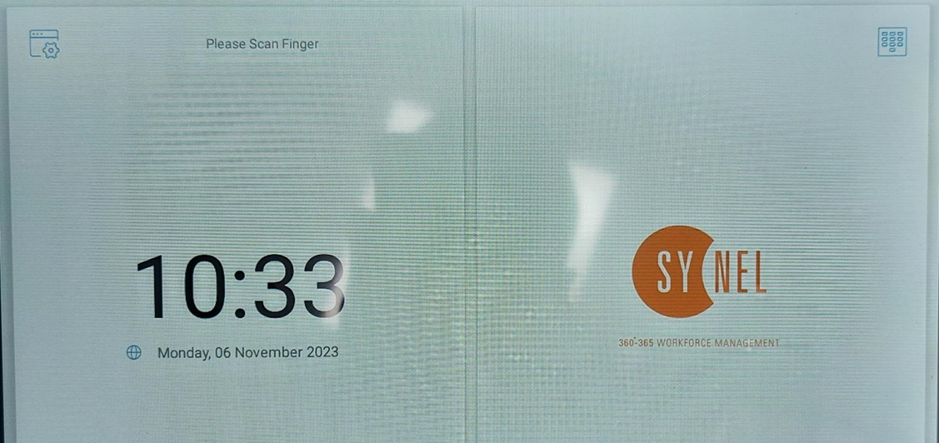
This will prompt a dialog box to put in the Admin code. Either Key in the available Admin code, or tap the Admin card provided.
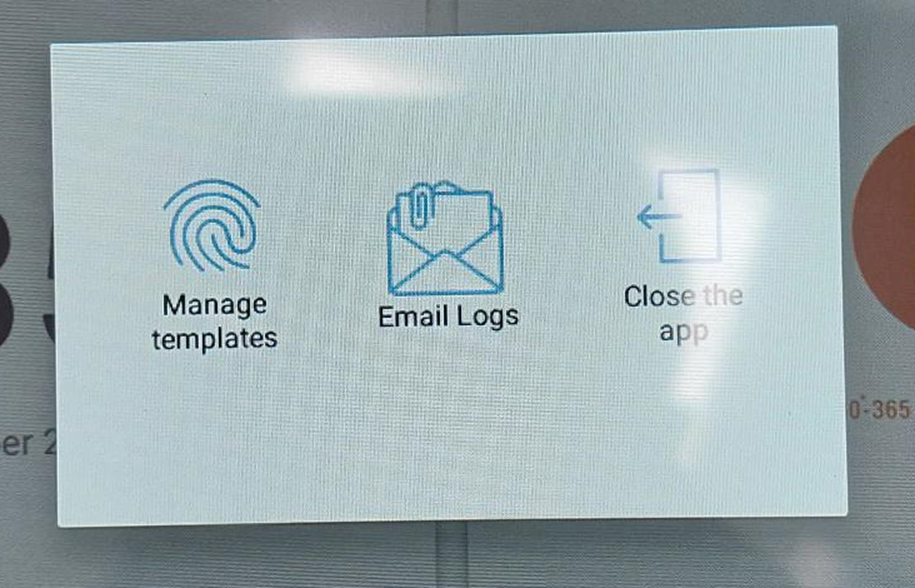
Once this has been entered the device will display a dialog box with options to:

To set up card for the employee:
Enrolment Guide
On Synergy 10’ device go to the settings icon available at the top left corner of the screen.
This will prompt a dialog box to put in the Admin code. Either Key in the available Admin code, or tap the Admin card provided.
Once this has been entered the device will display a dialog box with options to:
- Manage templates
- Email logs
- Close the App
Choose 'Manage templates'. This will bring up the list of employees available on the system. Next to each employee name there are the options to capture their card, pin and face on the Device.
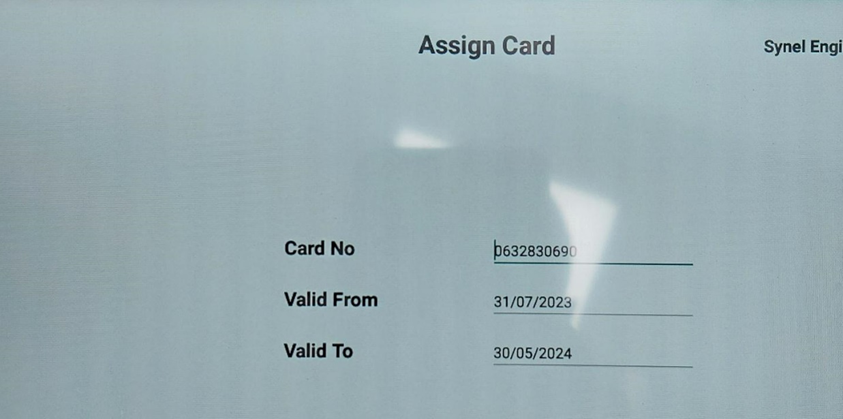
To set up card for the employee:
- Select 'Card No' next to the name of the employee you want to enrol.
- Tap the card on the reader to capture the card number.
- Select 'Pin' next to the name of the employee you want to enrol.
- Enter a pin number in and make sure it is unique.
Once the method of registration is updated, come back to the home screen. Employee can now register the scans using the card/fob or number.