
Epos Till Setup and Installation in Synergy Workforce
EPOS, SynergyEpos Till Setup and Installation.
A mechanism of using a Till unique key for identification and communication has been implemented.
This will deprecate the usage of Till ID + Till IP Address combination.
Till IP address is however kept as an input, but it is not required now to create a till in SWF, and can be used for information purposes.
SWF web applicationEPOS Till's unique key is auto-generated when creating a new till, therefore, there is no input for it in SWF -> EPOS -> Tills -> Add EPOS Till.Once the till is saved, the unique key is shown in Edit EPOS Tlll screen:
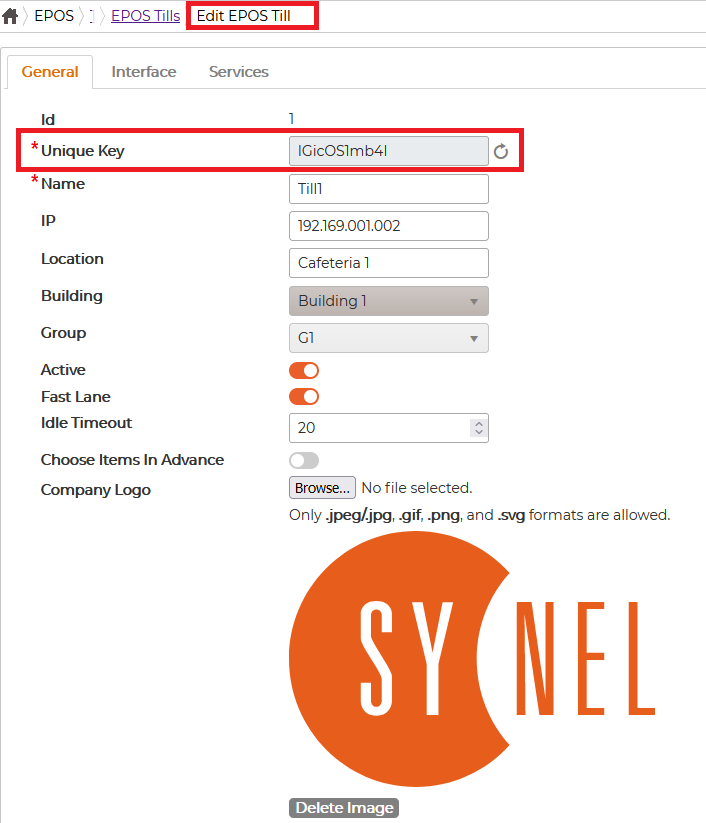
For the EPOS Tills that already exist, the unique key will be empty. In order to generate the key,Go to the Edit EPOS Till screen for the required tillSave the till.In order to re-generate the unique key:Go to the Edit EPOS Till screen for the required tillClick on a refresh icon next to the Unique key textboxSave the till
EPOS Till application
Once the till has a unique key generated in SWF, please edit the config files of both EPOS Till application and Till Sync service to add the following setting:
<setting name="CashlessSyncWS_TillUniqueKey" serializeAs="String"> <value>YourUniqueKey</value> </setting>
Replace "YourUniqueKey" with the actual unique key of the till copied from SWF. Refer to corresponding .config.example files.
Start the Till sync service and make sure the sync is working properly.
A mechanism of using a Till unique key for identification and communication has been implemented.
This will deprecate the usage of Till ID + Till IP Address combination.
Till IP address is however kept as an input, but it is not required now to create a till in SWF, and can be used for information purposes.
SWF web applicationEPOS Till's unique key is auto-generated when creating a new till, therefore, there is no input for it in SWF -> EPOS -> Tills -> Add EPOS Till.Once the till is saved, the unique key is shown in Edit EPOS Tlll screen:
For the EPOS Tills that already exist, the unique key will be empty. In order to generate the key,Go to the Edit EPOS Till screen for the required tillSave the till.In order to re-generate the unique key:Go to the Edit EPOS Till screen for the required tillClick on a refresh icon next to the Unique key textboxSave the till
EPOS Till application
Once the till has a unique key generated in SWF, please edit the config files of both EPOS Till application and Till Sync service to add the following setting:
<setting name="CashlessSyncWS_TillUniqueKey" serializeAs="String"> <value>YourUniqueKey</value> </setting>
Replace "YourUniqueKey" with the actual unique key of the till copied from SWF. Refer to corresponding .config.example files.
Start the Till sync service and make sure the sync is working properly.