Adding Software Users in Software security
These are the steps you will need to follow in order to successfully give a certain access level on middleware to an employee.
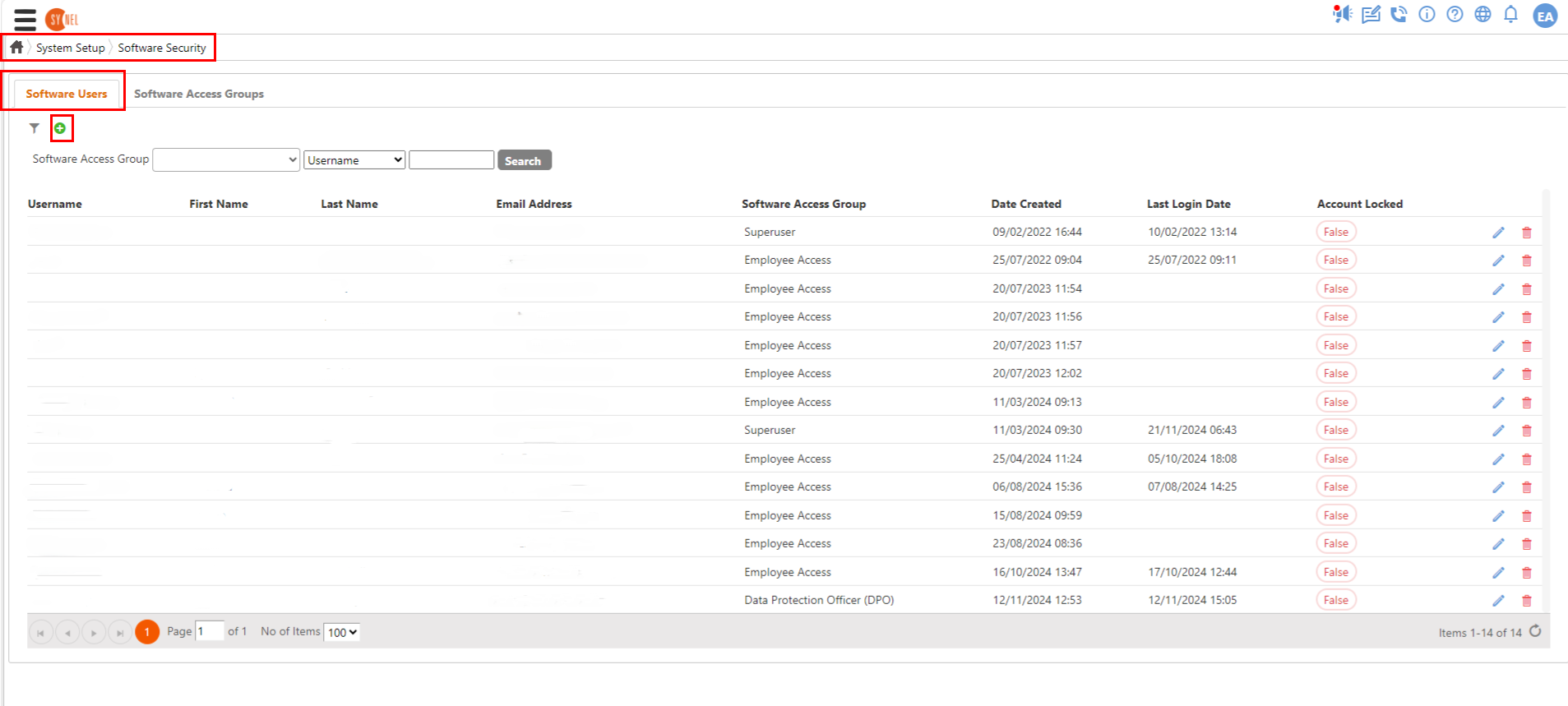
- Navigate to software users and select the sign.
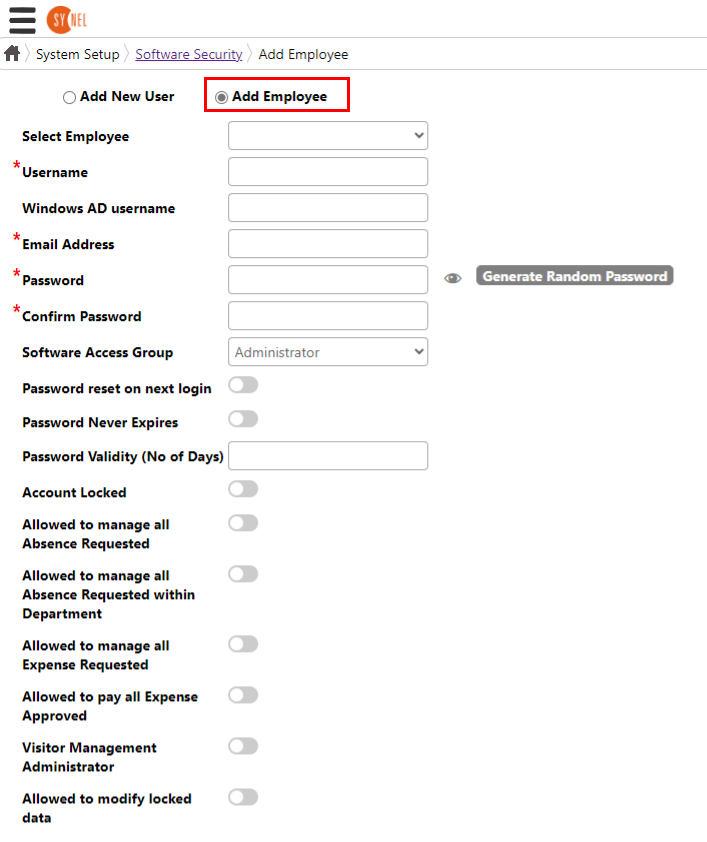
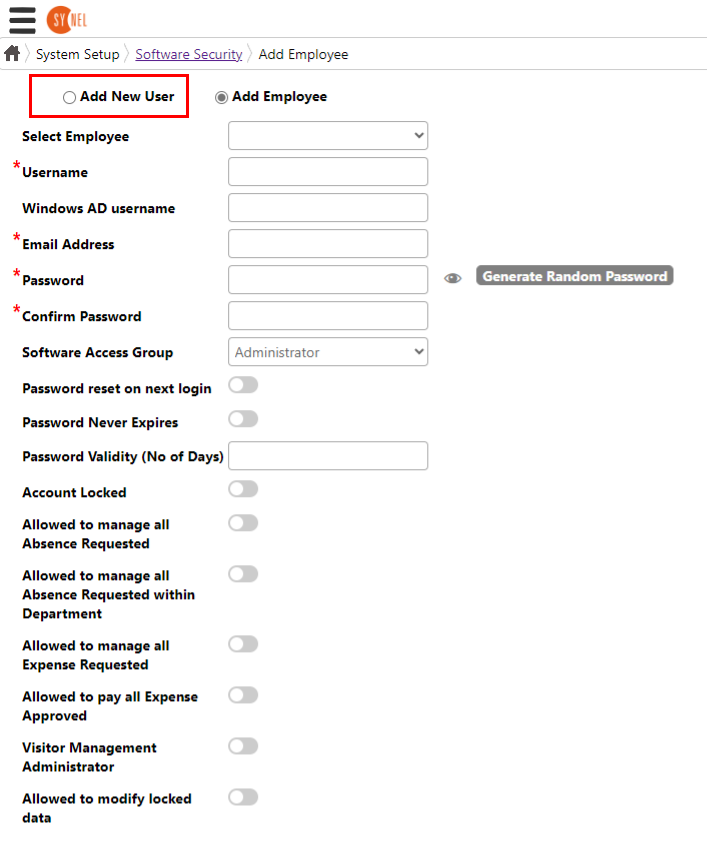
- This will open up the add employee page where you can search up the user if they are in personnel and create the access for them. However if they aren't in personnel you can add them as a new user. From personnel: From 'Add new user':
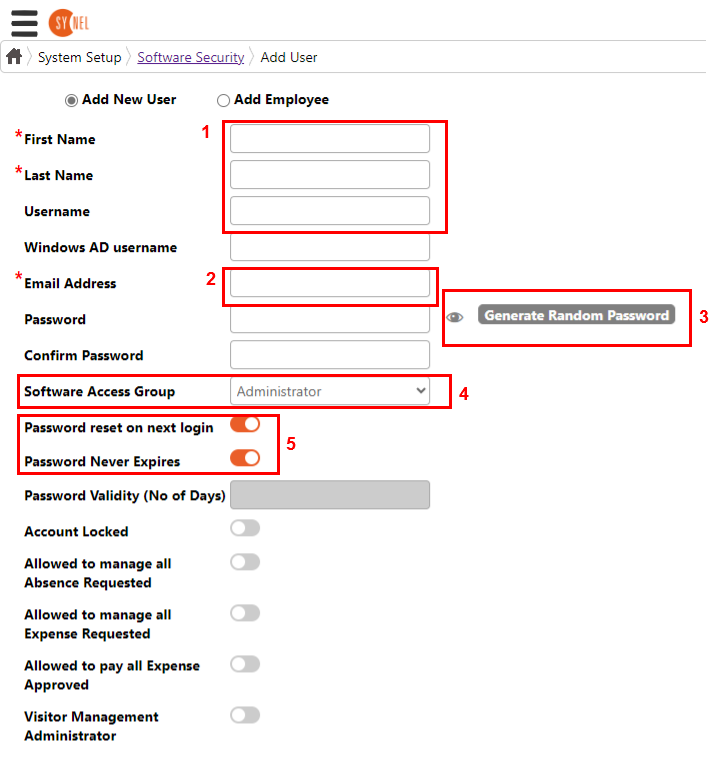
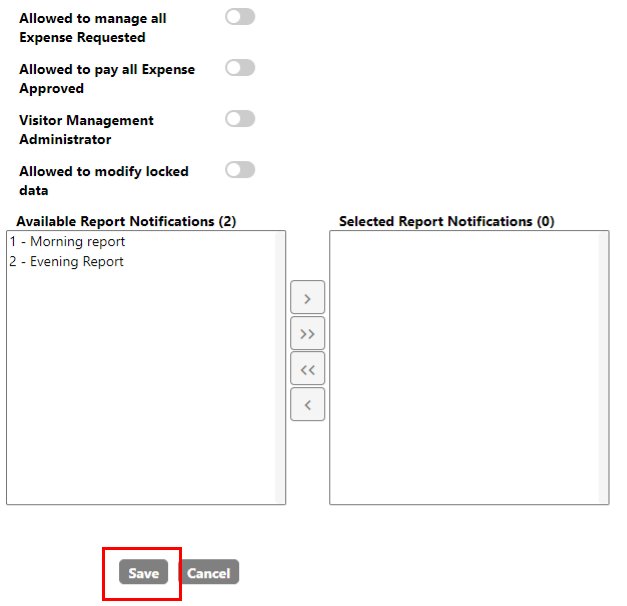
- Fill out the page. Click Generate a password, which will generate a password for the user. The system should send the employee his credentials, but please note them down in case he is unable to find them in his inbox or spam (copy + paste is best, as credentials are case-sensitive). In the 'Software access group' field select which level access you want to give the user. On step 5 in the image below, turn the switches on by clicking them (they will turn a orange colour).
- Lastly, scroll to the bottom of the page and click 'Save'.
After this is complete the employees will have access.