
Absence Tracking
Absence tracking allows managing your organisation's time off and absence policies through automation, visibility, and intuitive self-service.
Periodic absence tracking calendar must exist in the system to track absences by type
Go to Menu - Tracking - Absence Tracking
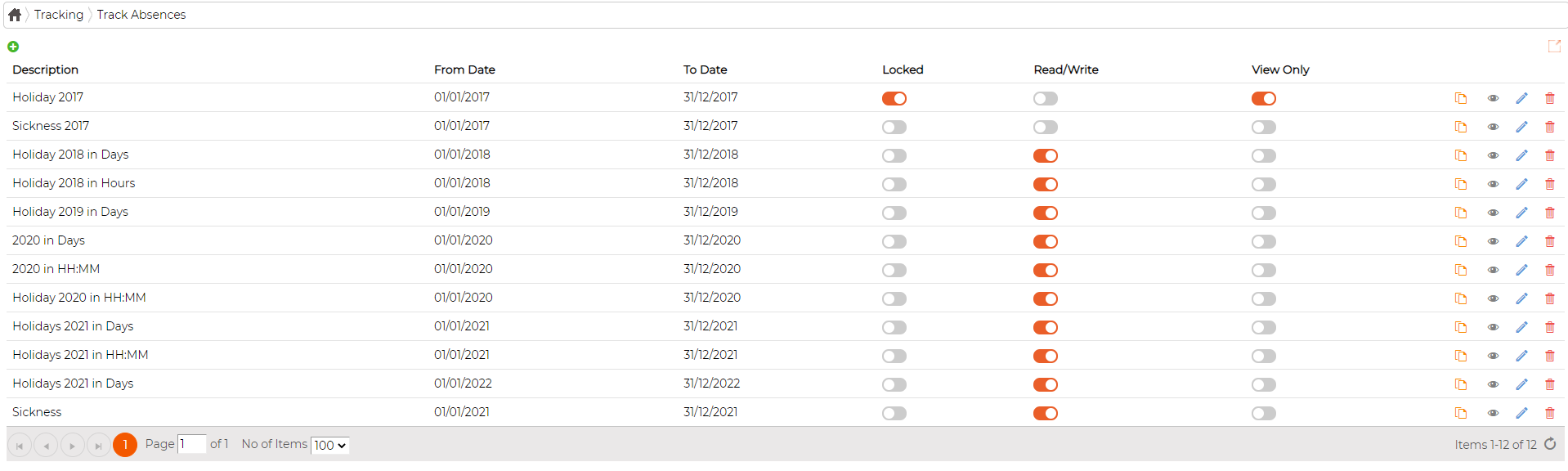
Create New Calendar
Click on icon to create new calendar
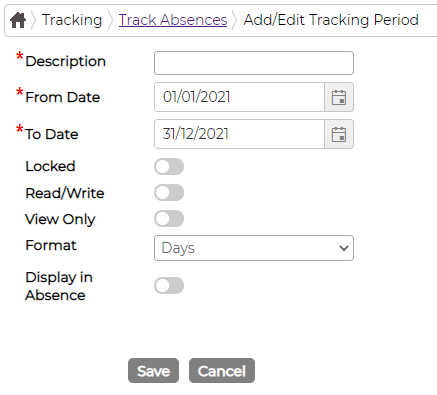
Description - Provide description for the calendar
From and To Date - This can be weekly, monthly, yearly or custom date range depending on the requirements.
Locked switch - Turn on if no further editing is allowed. Usually done for previous years.
Read/Write switch - Usually active for the current period
View Only switch - turn on for previous years
Format - Calendar and tracking of absence can be set either by days or by HH:MM
Display in Absence - Option to display balance in Absence Request screen for individual employees
Next User will need to allocate Absence Type to the calendar.
Go to Menu - Tracking and then Absence Allocation.
Select the calendar from drop down list and assign relevant absence type and the employees
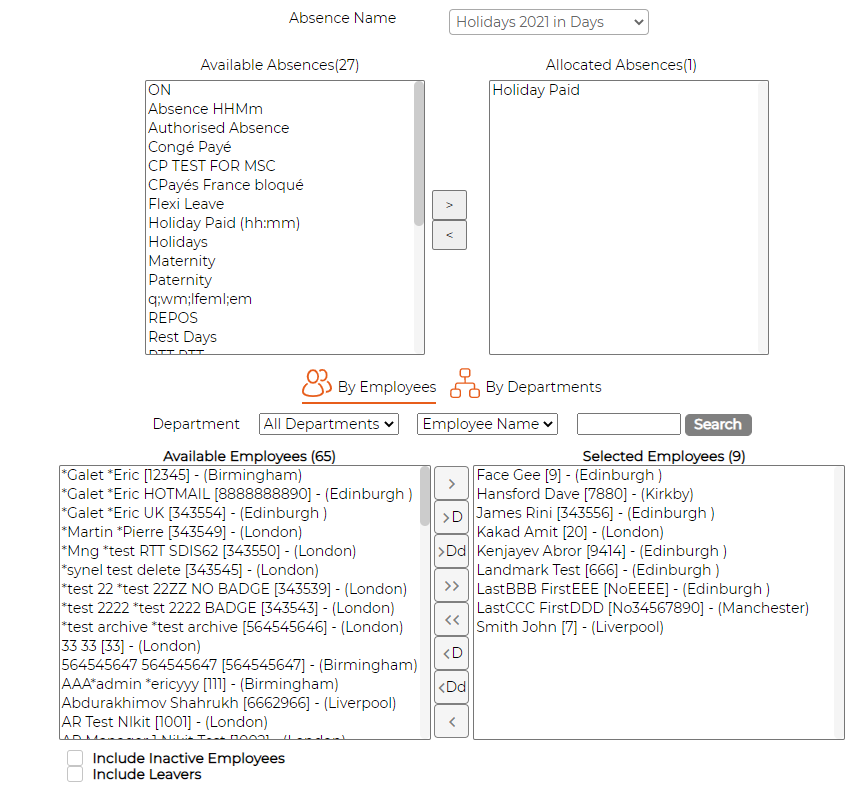
If absence type is missing from available list, then absence must be created first within Menu - Work Rules - Absences Go back to Absence Tracking Calendar screen and click on icon against the relevant item to view the details.
 icon allows filtering data on screen
 icon allows printing information to PDF
 icon allows printing information to Excel
 icon allows filtering employees on the selected list
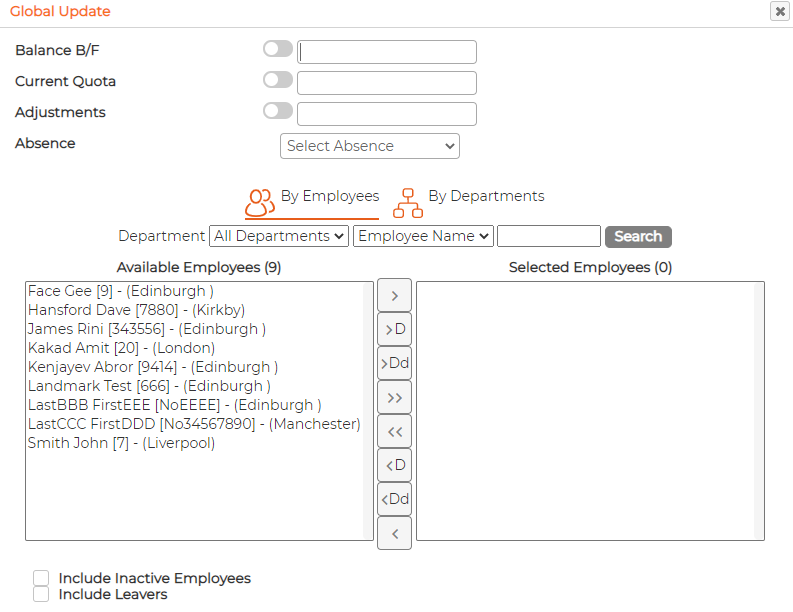
 icon allows updating data globally
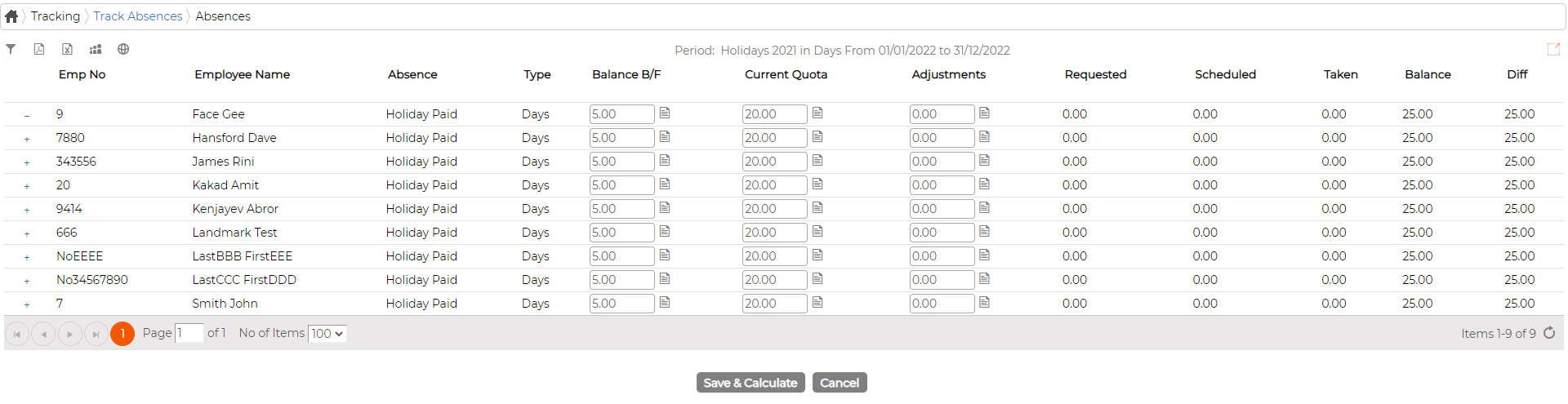
 icon against the employee, if clicked, it will display the detailed absence of an employee

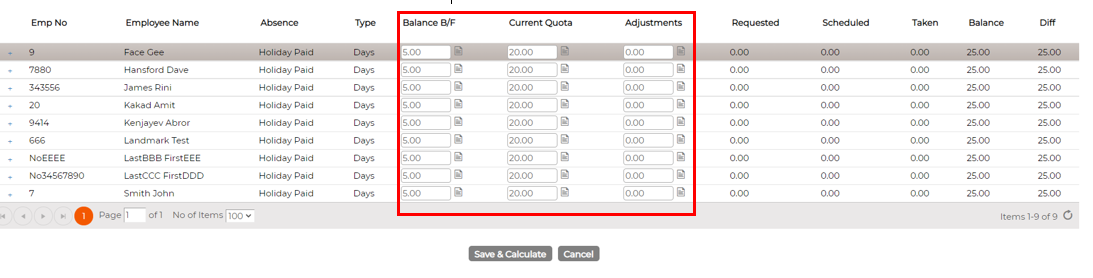
Balance Columns:
Balance B/F - displays information that was brought forward from period/year
Current Quota - current quota of the period/year
Adjustments - Allows user to add or reduce the absence amount of the period/year
Requested - Display the amount of absence requested from Employee Self service - Absence Request
Planned - displays the amount of absence booked and approved for future dates
Taken - displays the amount of absence booked, approved and taken till date
Balance - displays the absence balance till date (excluding planned)
Diff column - display the difference in balance (including planned)
Duplicate Absence Tracking Calendar
Click on icon to duplicate existing calendar
When duplicating, system will give 3 choices
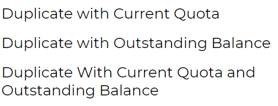
Duplicate with current quota - copies only the existing individual current quota for next period
Duplicate with Outstanding Balance - copies only outstanding balance into Balance B/F columns for individual employee for next period
Duplicate with current Quota and outstanding Balance - Copies both existing current quota and outstanding balance for individual employee for the next period.
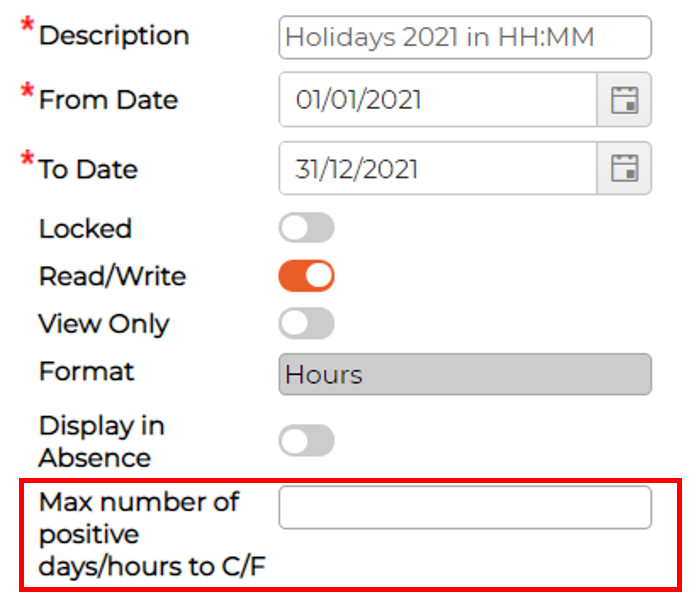
Additionally, when duplicating with outstanding balance, user has additional choice to limit the no of days/hours when caring forward for next period
Viewing/Editing balance data
Depending on the user access level, when viewing the data, user has the option to edit existing information including notes and click "Save and Calculate" button to update
Periodic absence tracking calendar must exist in the system to track absences by type
Go to Menu - Tracking - Absence Tracking
Create New Calendar
Click on
icon to create new calendar
Description - Provide description for the calendar
From and To Date - This can be weekly, monthly, yearly or custom date range depending on the requirements.
Locked switch - Turn on if no further editing is allowed. Usually done for previous years.
Read/Write switch - Usually active for the current period
View Only switch - turn on for previous years
Format - Calendar and tracking of absence can be set either by days or by HH:MM
Display in Absence - Option to display balance in Absence Request screen for individual employees
Next User will need to allocate Absence Type to the calendar.
Go to Menu - Tracking and then Absence Allocation.
Select the calendar from drop down list and assign relevant absence type and the employees
If absence type is missing from available list, then absence must be created first within Menu - Work Rules - Absences Go back to Absence Tracking Calendar screen and click on
icon against the relevant item to view the details.
icon allows filtering data on screen icon allows printing information to PDF icon allows printing information to Excel icon allows filtering employees on the selected list icon allows updating data globally
icon against the employee, if clicked, it will display the detailed absence of an employee
Balance Columns:
Balance B/F - displays information that was brought forward from period/year
Current Quota - current quota of the period/year
Adjustments - Allows user to add or reduce the absence amount of the period/year
Requested - Display the amount of absence requested from Employee Self service - Absence Request
Planned - displays the amount of absence booked and approved for future dates
Taken - displays the amount of absence booked, approved and taken till date
Balance - displays the absence balance till date (excluding planned)
Diff column - display the difference in balance (including planned)
Duplicate Absence Tracking Calendar
Click on
icon to duplicate existing calendar When duplicating, system will give 3 choices
Duplicate with current quota - copies only the existing individual current quota for next period
Duplicate with Outstanding Balance - copies only outstanding balance into Balance B/F columns for individual employee for next period
Duplicate with current Quota and outstanding Balance - Copies both existing current quota and outstanding balance for individual employee for the next period.
Additionally, when duplicating with outstanding balance, user has additional choice to limit the no of days/hours when caring forward for next period
Viewing/Editing balance data
Depending on the user access level, when viewing the data, user has the option to edit existing information including notes and click "Save and Calculate" button to update