
Departments
SynergySynergy Workforce allows defining departments with multiple parent-child hierarchy levels
There is no limit to how many folders you can have in the system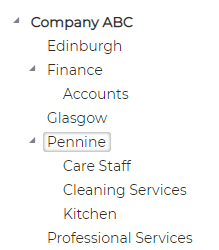
Departments are managed under Menu - Personnel - Settings - Departments Tab

Add Department
Click on icon to add department
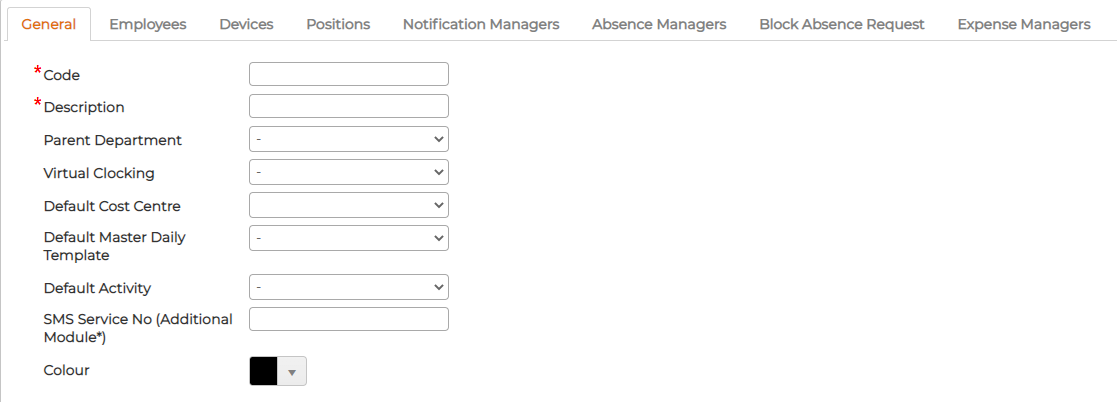
General Tab
1. Code - Insert Code
Code can be auto generated by pressing F2 on keyboard or insert accounting code manually if preferred. 2. Description - Provide description of the department 3. Parent Department - Define Parent level (If applicable)
Allows building the parent-child hierarchy of the company structure 4. Virtual Clocking - Assign Virtual Clocking device (Optional) Any employees belonging to the department will automatically get assigned to virtual clocking device assigned at a department level.
Very useful especially when you have employees hybrid working and their time zone differs based on the country they reside with.
5. Default Cost Centre - Assign default Cost Centre (Optional) Any employees belonging to the department will automatically get assigned to the default cost centre assigned at a department level. 6. Default Master Daily Template - Assign Master daily Template (Optional)
Any employees belonging to the department will automatically get assigned to the default master daily template assigned at a department level. 7. Default Activity - Assign default Activity (Optional)
Any employees belonging to the department will automatically get assigned to the default activity assigned at a department level. Additional Module Time Costing must be set and enabled! 8. SMS service no - Insert employee mobile no for the notifications to be sent via SMS Service (Optional)
Additional SMS service must be purchases, set and enabled! 9. Colour - Define the Colour for the department (Optional)
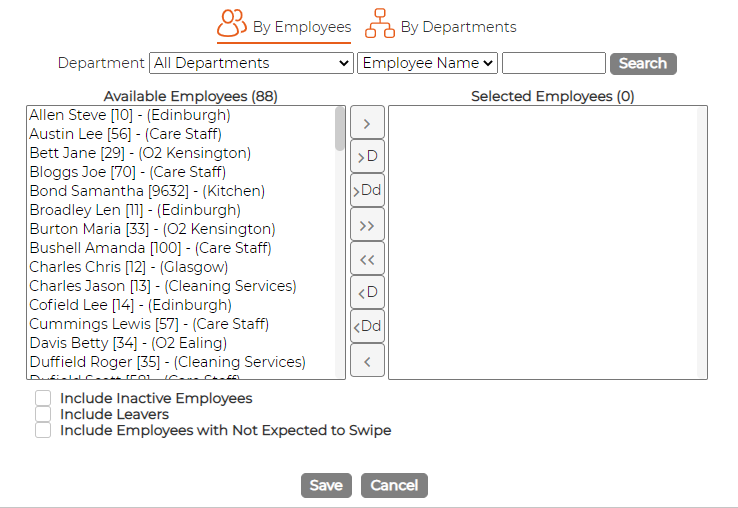
Employee Tab
Allows allocating or moving employees globally from 1 department to another
Devices Tab
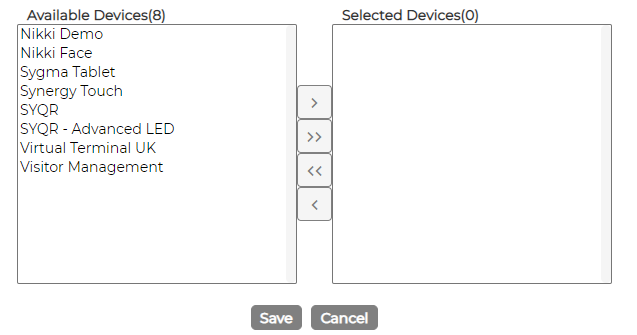
Allows allocating devices to employees at department level (Optional) By Allocating devices, employees can only use those devices that are allocated to them
If they try to swipe on any other devices, they would get message "Not Permitted"
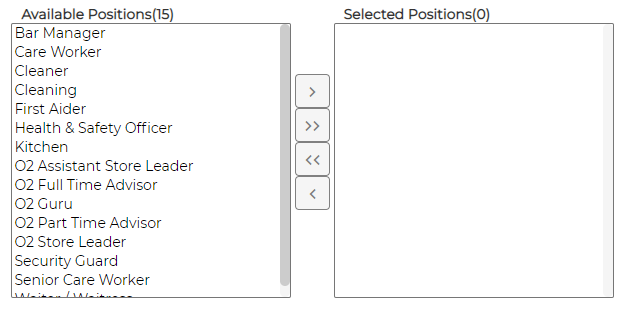
Position Tab
Allows allocating positions to the employees at department level (Optional)
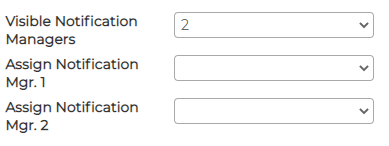
Notification Managers Tab
Allows allocating Notification Managers to employees at department level (Optional)
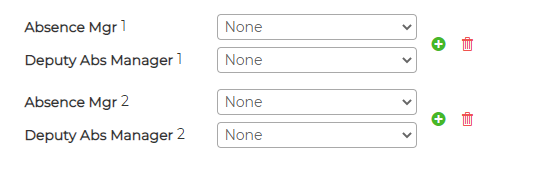
Absence Manager Tab
Allows allocating Absence Managers to employees at department level (Optional)
Block Absence Request Tab
Allows blocking absence request from employees within department when the limit has reached for the set period

Expense Manager Tab
Allows allocating Expense Approval and Payment Managers to employees at department level (Optional)

Fire Marshal Tab
Allows allocating Fire Marshals to employees at department level (Optional)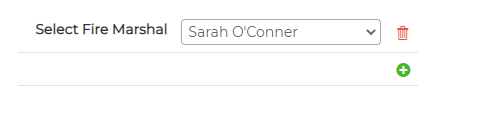
Edit Department
Click on icon against the department to amend existing information
Delete Department
Click on icon against the department to delete.
System will not delete department if it is a Parent of another department or it has employees (active, leaver or inactive) assigned.
l
There is no limit to how many folders you can have in the system
Departments are managed under Menu - Personnel - Settings - Departments Tab
Add Department
Click on
icon to add department General Tab
1. Code - Insert Code
Code can be auto generated by pressing F2 on keyboard or insert accounting code manually if preferred. 2. Description - Provide description of the department 3. Parent Department - Define Parent level (If applicable)
Allows building the parent-child hierarchy of the company structure 4. Virtual Clocking - Assign Virtual Clocking device (Optional) Any employees belonging to the department will automatically get assigned to virtual clocking device assigned at a department level.
Very useful especially when you have employees hybrid working and their time zone differs based on the country they reside with.
5. Default Cost Centre - Assign default Cost Centre (Optional) Any employees belonging to the department will automatically get assigned to the default cost centre assigned at a department level. 6. Default Master Daily Template - Assign Master daily Template (Optional)
Any employees belonging to the department will automatically get assigned to the default master daily template assigned at a department level. 7. Default Activity - Assign default Activity (Optional)
Any employees belonging to the department will automatically get assigned to the default activity assigned at a department level. Additional Module Time Costing must be set and enabled! 8. SMS service no - Insert employee mobile no for the notifications to be sent via SMS Service (Optional)
Additional SMS service must be purchases, set and enabled! 9. Colour - Define the Colour for the department (Optional)
Employee Tab
Allows allocating or moving employees globally from 1 department to another
Devices Tab
Allows allocating devices to employees at department level (Optional) By Allocating devices, employees can only use those devices that are allocated to them
If they try to swipe on any other devices, they would get message "Not Permitted"
Position Tab
Allows allocating positions to the employees at department level (Optional)
Notification Managers Tab
Allows allocating Notification Managers to employees at department level (Optional)
Absence Manager Tab
Allows allocating Absence Managers to employees at department level (Optional)
Block Absence Request Tab
Allows blocking absence request from employees within department when the limit has reached for the set period
Expense Manager Tab
Allows allocating Expense Approval and Payment Managers to employees at department level (Optional)
Fire Marshal Tab
Allows allocating Fire Marshals to employees at department level (Optional)
Edit Department
Click on
icon against the department to amend existing informationDelete Department
Click on
icon against the department to delete.System will not delete department if it is a Parent of another department or it has employees (active, leaver or inactive) assigned.
l