
VM Kiosk Setup - Samsung Tablet
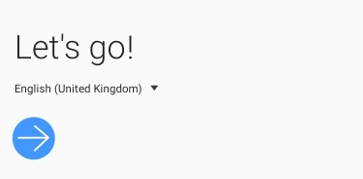
1. Select default language – English (United Kingdom)
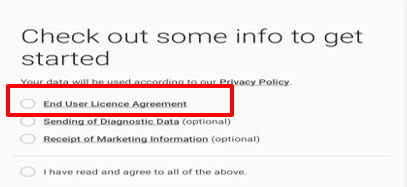
2. Agree to just End User License Agreement and click Next
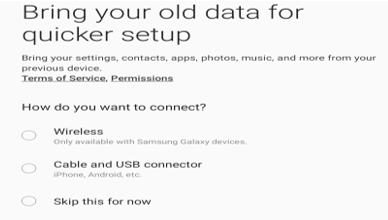
3. Skip the step to bring old data
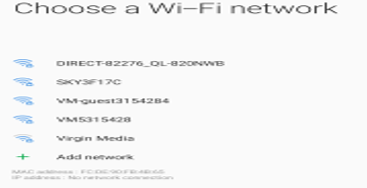
4. Select Wi-Fi network for the device and enter password, make sure auto connect is on and the click on connect
Once connected, click on Next to proceed further.
5. You will need Google account to Sign IN and agree their terms.
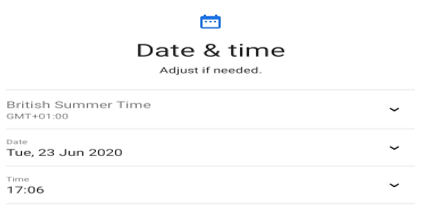
6. Adjust date and time and click Next
7. Do not protect the tablet. Let customer decide
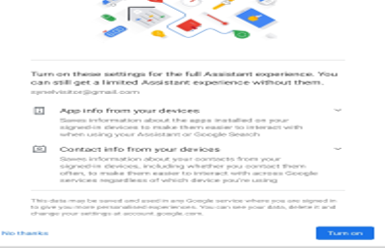
8. Do not Turn on these settings on Next screen
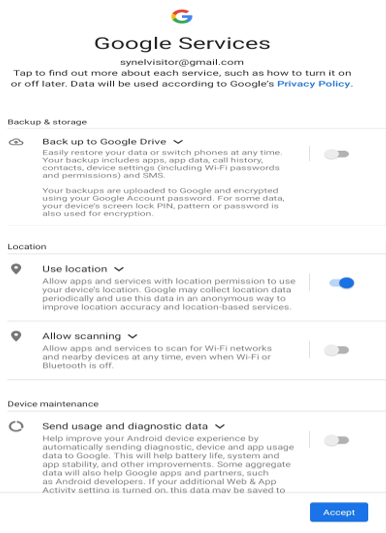
9. Do not enable backups on Google drive and switch off Allows scanning and Send usage data and diagnostic data on next screens
10. Do not create Samsung account or sign in. Skip the step 11. Click on Finish when you see All done 12. Update the Android to latest version and wait for the operation to finish
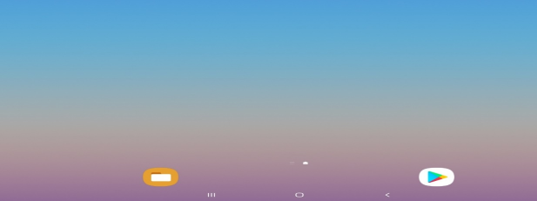
13. Delete additional Home screens and widget so that Tablet is remained with just 1 home screen and only relevant application shortcuts on it.
14. Adjust brightness, mute the speaker, disable auto rotate so it always stays Landscape mode, disable Navigation bar and Daily board
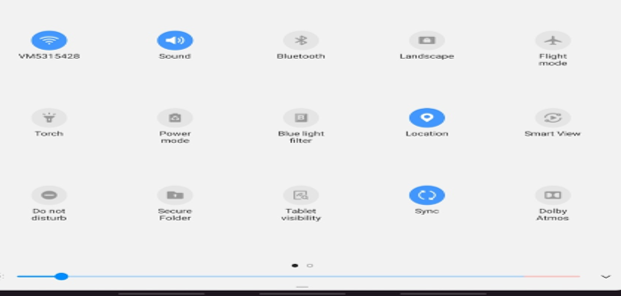
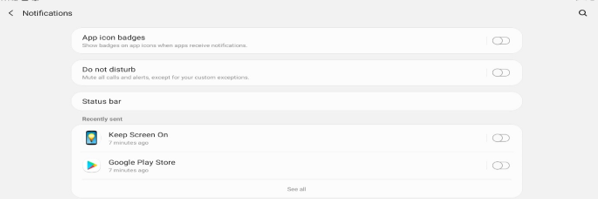
15. Check and make sure everything below options are turned off
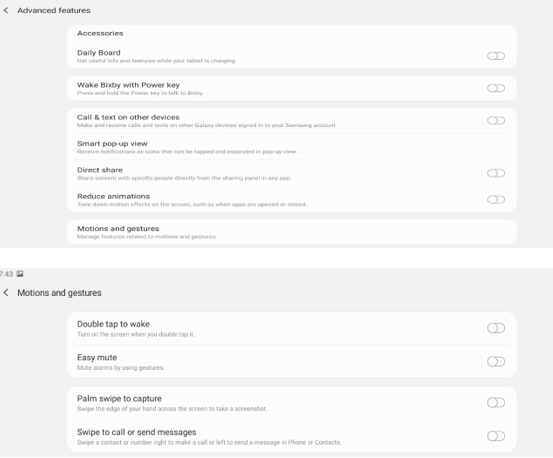
16. Keyboard settings – Enable Alternative characters
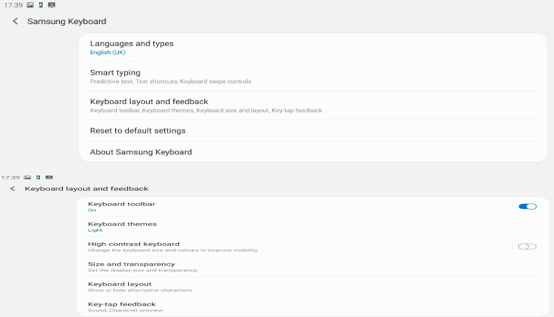
17. Uninstall Apps
Samsung Apps - Smart Things, Email, Internet, Samsung Flow, Samsung Members, Google Folder, Drive, Play Movies & TV, Photos. Hangouts, Calculator, Music.
18. Disable Apps
Disable following application - YouTube, Maps, Gmail, Google, Microsoft Folder, Word, Excel, PowerPoint, OneDrive, Skype, Bixby
19. Hide Apps
Hide Apps – select all the apps except My Files, Play Store, and settings
20. Screen Timeout
By default, device has max setting of 30 min.
However, we need to keep our app running always.
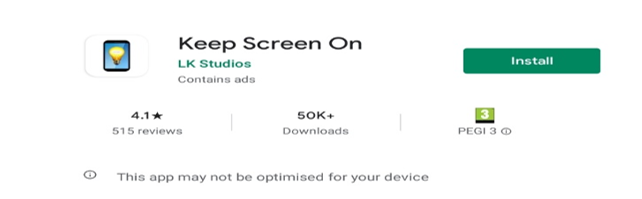
Therefore, open Play store and download the app “Keep Screen On” or similar.
Open the app once downloaded and turn on the feature.
The app will avoid device from going into sleep mode
21. Search and install Synergy App (SYQR) from Play store
22. Link tablet to customer site At this stage, you must have all the Visitor settings created in Synergy Workforce GUI.
You must have device defined as well VM admin user must be created as well with pin code
Launch application and insert the company code or URL
If connection is successful, it will prompt user to insert username and password
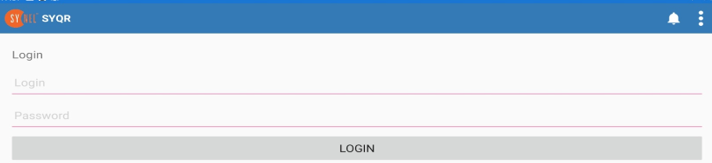
If username/password matches, it will prompt user to select device link and default language for the application
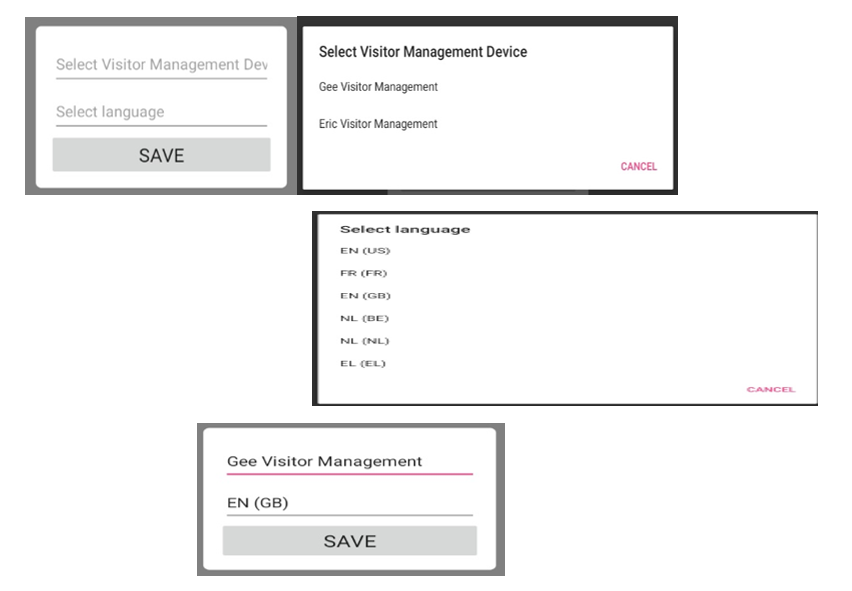
Let device sync Next click on settings icon to close the application User will be prompted to insert pin code and press OK If it matches, it will exit the application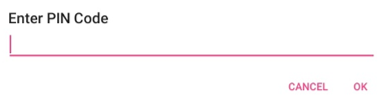
Next tidy up the home screen so that you only see following applications only on tablet Finally execute the Synergy App again and leave it running
2. Agree to just End User License Agreement and click Next
3. Skip the step to bring old data
4. Select Wi-Fi network for the device and enter password, make sure auto connect is on and the click on connect
Once connected, click on Next to proceed further.
5. You will need Google account to Sign IN and agree their terms.
6. Adjust date and time and click Next
7. Do not protect the tablet. Let customer decide
8. Do not Turn on these settings on Next screen
9. Do not enable backups on Google drive and switch off Allows scanning and Send usage data and diagnostic data on next screens
10. Do not create Samsung account or sign in. Skip the step 11. Click on Finish when you see All done 12. Update the Android to latest version and wait for the operation to finish
13. Delete additional Home screens and widget so that Tablet is remained with just 1 home screen and only relevant application shortcuts on it.
14. Adjust brightness, mute the speaker, disable auto rotate so it always stays Landscape mode, disable Navigation bar and Daily board
15. Check and make sure everything below options are turned off
16. Keyboard settings – Enable Alternative characters
17. Uninstall Apps
Samsung Apps - Smart Things, Email, Internet, Samsung Flow, Samsung Members, Google Folder, Drive, Play Movies & TV, Photos. Hangouts, Calculator, Music.
18. Disable Apps
Disable following application - YouTube, Maps, Gmail, Google, Microsoft Folder, Word, Excel, PowerPoint, OneDrive, Skype, Bixby
19. Hide Apps
Hide Apps – select all the apps except My Files, Play Store, and settings
20. Screen Timeout
By default, device has max setting of 30 min.
However, we need to keep our app running always.
Therefore, open Play store and download the app “Keep Screen On” or similar.
Open the app once downloaded and turn on the feature.
The app will avoid device from going into sleep mode
21. Search and install Synergy App (SYQR) from Play store
22. Link tablet to customer site At this stage, you must have all the Visitor settings created in Synergy Workforce GUI.
You must have device defined as well VM admin user must be created as well with pin code
Launch application and insert the company code or URL
If connection is successful, it will prompt user to insert username and password
If username/password matches, it will prompt user to select device link and default language for the application
Let device sync Next click on settings icon to close the application User will be prompted to insert pin code and press OK If it matches, it will exit the application
Next tidy up the home screen so that you only see following applications only on tablet Finally execute the Synergy App again and leave it running