Cascade Integration Examples
Also covers: Cascade Integration
This document briefs detailed information on Cascade Integration We have various clients using this integration successfully
- Client 1 (G F Smith)
- Client 2 (Breezemount)
- Client 3 (Gresham)
- Client 4 (Teconnex)
1. Client 1 (G F Smith)
1.1. Export to FTP
- Workdayload.csv
- Timesheetimport.csv
1.1.1. Workdayload.csv
TimeLOG Web to export employees working pattern/expected hours every day for same day at 06:00am (proposed time) Future Days to be included = 30 Past Days to be included = 1
EmployeeID Date DurationDays DurationMins AM PM 1 15/08/2018 1 450 1 1 2 15/08/2018 0 0 1 1 3 15/08/2018 1 450 1 1 4 15/08/2018 1 390 1 1 * AM and PM columns are static and will always contain the value 1
Description Cascade TimeLOG Web Data Type Comments Employee ID Employee number Alphanumeric Unique Identifier Date Date DateTime Day to be imported DurationDays Daily Template Decimal 1 Working Day 0 non-work day (Day Off) DurationMin Duration in Minutes (Expected Hours) Int No of minutes to be worked for the day - Expected Hours (converted to minutes) AM Absence Half Day Bit 1=True - does this shift cover the first half of the Day PM Absence Half Day Bit 1=True - does this shift cover the second half of the Day
1.1.2. Timesheetimport.csv
TimeLOG Web exports calculated hours daily for each employee. Future Days to be included = -1 Past Days to be included = 49
EmployeeID EventDate TimesheetCode Duration 1 15/08/2018 Basic 7.5 1 15/08/2018 OT150 0.29 2 15/08/2018 Basic 3.75 2 15/08/2018 Hol 3.75 3 15/08/2018 Basic 3.75 3 15/08/2018 Absence 3.75
Description Cascade TimeLOG Web Data Type Comments EmployeeID Employee number Alphanumeric Unique Identifier EventDate Date NVARCHAR dd/MM/yyyy Date Hours Worked TimesheetCode Pay Categories NVARCHAR Calculated Hours (See Below) Duration Hours from each Pay Category Decimal (18,2) Decimal hours for the pay category
Cascade have advised that the max length for the Timesheet Code is 5 characters TimeSheetCode must be inserted as Export Code within Pay Categories
Pay Category TimeLOG TimesheetCode Cascade Basic Hrs Basic OT 150 OT150 OT 200 OT200 Holiday Hol Absence Abs
1.2. Import from FTP
- Absenceload.csv
- Employee.csv
1.2.1. Absenceload.csv
Cascade will output the .csv file containing a list of actions that have occurred against an employee relating to Holiday/Absence
At present, Synergy Workforce will only handle Full day and Half Day for the absence reasons. In future, they will advise us how to handle partial absence coming from Cascade
The format of the output file will be as per the below;
Cascade TimeLOG Web Data Type Comments ActionDate - Text(dd/mm/yyyy) Date change was made in Cascade Operation - Text Either DELETE/NEW based on the operation that should occur in TimeLOG i.e. if a holiday is removed from Cascade it will be delete if add it will be new Date Date Text(dd/mm/yyyy) The date the Absence/Holiday to occur EmployeeID Employee number Alphanumeric Unique Identifier Firstname - Text I'm assuming these are not required by TimeLOG but will be on the csv file Surname - Text I'm assuming these are not required by TimeLOG but will be on the csv file DurationDays Alphanumeric Duration in days of the absence record - will be 1 or Zero - Zero's can be ignored as these are none working days DurationMins The duration in mins of the absence record to be input to TimeLOG Integer Time to be imported in to TimeLOG Category Category of the Absence (adjustment field?) Text Sick/Holiday Reason Reason of the Absence Text Not required in TimeLOG
Sample File (see Worked examples in Cascade file for more detail) ActionDate Operation Date EmployeeID Firstname Surname DurationDays DurationMins Category Reason 29/08/2018 NEW 31/08/2018 9002 Katie Quinn 1 450 Holiday 30/08/2018 DELETE 31/08/2018 9002 Katie Quinn 1 450 Holiday 31/08/2018 NEW 30/08/2018 9002 Katie Quinn AM 225 Sick 01/09/2018 NEW 30/08/2018 9002 Katie Quinn PM 225 Sick
1.2.2. Employee.csv
Cascade will output employee.csv file containing following information
Employee No Badge No Last Name First Name Department Start Date Leave Date 1234 1234 Smith John Sales 01/10/2018 1200 1200 Smith Sarah Sales 01/01/2018 30/09/2018
- Synergy Workforce to check existing information against the .csv file and insert if new record if found
- Synergy Workforce to check existing information against the .csv file and update record if needed
- Synergy Workforce to insert leave date against employee if present within .csv file
2. Client 2 (Breezemount)
2.1. Export to FTP
- WorkdayList.csv
- AbsenceList.csv
2.1.1. WorkdayList.csv
Synergy Workforce must provide employee's worked hours information within CSV file Future Days to be included = -1 Past Days to be included = 10
Sample file below Date EmployeeID DurationDays DurationMinutes 31/05/2018 1 1 600 31/05/2018 2 1 621 31/05/2018 3 0 0 31/05/2018 4 1 567 31/05/2018 5 0 0 31/05/2018 6 1 600 31/05/2018 7 1 600 31/05/2018 8 0 0
EmployeeID Column = Employee No DurationDays Column = 1 means working day (including Absences assigned) and 0 means Non Work Day (Day OFF) DurationMinutes Column = No of minutes worked for the day (Net Hours)
2.1.2. AbsenceList.csv
Synergy Workforce must provide employee absence information within CSV file Future Days to be included = -1 Past Days to be included = 10
Sample below: Date EmployeeID DurationDays DurationMinutes Category Sick Status Reason 27/05/2018 1 1 600 Holiday Holiday 27/05/2018 2 1 0 Work Day Work Day 28/05/2018 3 1 0 Work Day Work Day 27/05/2018 4 0 0 Non Work Day Non Work Day 29/05/2018 5 1 0 Work Day Work Day 28/05/2018 6 0 0 Non Work Day Non Work Day 27/05/2018 7 1 0 Work Day Work Day 27/05/2018 8 0 0 Non Work Day Non Work Day 27/05/2018 60 1 600 Sick Uncert. Unknown causes/Not specified
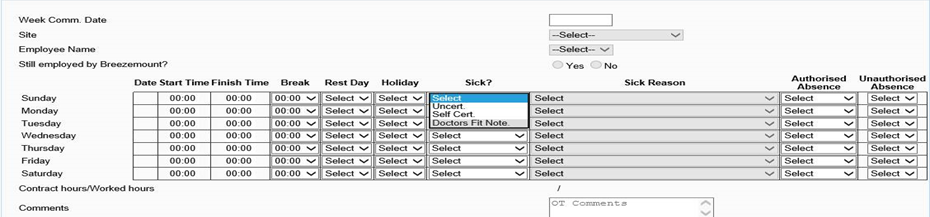
EmployeeID Column = Employee No DurationDays Column= 1 means working (including Absences) and 0 means Non Work Day (Day OFF) DurationMinutes Column = No of minutes worked (including Paid Absence) for the day (Net Hours) Category Column: All the Categories must be defined as following within Synergy Workforce Day OFF Template = Non Work Day All other Daily Templates assigned to Employees = Work Day Absences = Currently Cascade Software has 3 drop down selection when inserting Sickness for an employee
Additional Notes: Screenshot from Cascade Software Unfortunately, we don't have above facility within Synergy Workforce Therefore, it is agreed that we will create following Absence Types (separated by Semicolon) within Synergy Workforce:
- Sick; Uncert.; unknown causes/not specified
- Rest Days; Uncert.; unknown causes/not specified
- Holidays; Uncert.; unknown causes/not specified
- Authorised Absence; Uncert.; unknown causes/not specified
- Unauthorised Absence; Uncert.; unknown causes/not specified
- Suspension; Uncert.; unknown causes/not specified
- Paternity; Uncert.; unknown causes/not specified
- Maternity; Uncert.; unknown causes/not specified
Absence Description field within Synergy Workforce must allow to fit the above Characters When user assign any above Sick category, Synergy Workforce must export the information into 3 different columns within csv file (Separated by semicolon)
Example, if user assigns "Suspension; Uncert.; unknown causes/not specified" against an employee, the export format will need to be: Date EmployeeID DurationDays DurationMinutes Category Sick Status Reason 27/05/2018 1 1 0 Suspension Uncert. Unknown causes/not specified
- If employee scheduled to work and no swipes or blocked exception, duration Mins will be 0
- if employees scheduled to work and no swipes and no absence, duration mins will be 0
- If employee scheduled and Paid absence applied, take the amount of Net hour into duration min
- if employee scheduled and Unpaid absence applied, take the amount of expected hour into duration min
- if employee scheduled and half day worked and half day booked absence, the duration min needs to be inserted accordingly in 2 separate files
WorkList AbsenceList Duration Days Duration Minutes Duration Days Duration Minutes Type DAY OFF 0 0 0 0 WorkDay 1 Rounded minutes worked 1 0 Full Day Absence 1 Minutes based on basic hours according to template 1 Minutes based on basic hours according to template As defined Half Day Absence Half Day Worked 1 HALF of Minutes based on basic hours according to template + Rounded minutes worked 0.5 HALF of Minutes based on basic hours according to template As defined 0.5 0 Half Day Absence Half Day Holiday 1 Minutes based on basic hours according to template 0.5 HALF of Minutes based on basic hours according to template Authorised (as the absence is defined) 0.5 HALF of Minutes based on basic hours according to template Holiday (as the absence is defined)
There will be occasions when two half day absences generate two lines in the file and other occasions when there is half day worked and half day absence, it will be just one line in the absence file, although always one line in the workday list. Example and revised table below:
Example Two half days absent with different reasons Absent report Workday report Half day work half day absent Absent report Workday report
3. Client 3 (Gresham)
3.1. Export to FTP
- Weekly Payroll Export
- Daily Absence Export
3.1.1. Weekly Payroll Export
Weekly Payroll Export Week is from Sun to Sat Export runs automatically on every Tuesday at 4am for previous week Sun to Sat. Can also produce export manually from TLW GUI under Cascade Export Holiday split from Basic for export but counts towards the 40 hours to OT. File will be called payrollexport.csv No header line required in the output.
Column Format: Emp No, Holiday Paid, Hours (Basic), OT1, OT2, OT3 1,8,32,0,0,0 2,0,40,8,0,0 3,0,40,8,2,0
3.1.2. Absence List Daily Export
Export as absencelistdaily.csv Category = (Workday or Non Work Day), (Sick (just say sick if sick)
Column Format: Date,EmployeeID,DurationDays,DurationMinutes,Category,Sick Status 06/05/2019,1,0,0,Work Day, 07/05/2019,1,0,0,Work Day, 08/05/2019,1,0,0,Work Day, 09/05/2019,1,0,0,Work Day, 10/05/2019,1,0,0,Work Day, 11/05/2019,1,0,0,Non Work Day, 12/05/2019,1,0,0,Non Work Day, 06/05/2019,10001,0,0,Work Day, 07/05/2019,10001,0,0,Work Day, 08/05/2019,10001,0,0,Work Day,
4. Client 4 (Teconnex)
4.1. Export to FTP
- Clock Data Export
4.1.1. Clock Data Export
Export Format: EmployeeID - the employee's id number Date - the date of the clock on or clock off event Time - the time of the clock on or clock off event EventType - Clock on (value '1') or Clock off (value '2').
EmployeeId Date Time TypeId 1 12/12/2016 09:00 1 1 12/12/2016 12:30 2 1 12/12/2016 13:00 1 1 12/12/2016 17:00 2 2 12/12/2016 09:00 1 2 12/12/2016 12:30 2 2 12/12/2016 13:00 1 2 12/12/2016 17:00 2
Requirement:
- Managers can insert/update swipes manually on TLW.
- Manual swipe codes will be same as normal IN and OUT.
- No breaks are being used. so, no need to export them.
- A twice daily refresh (time tbc 1 AM 1 PM) of clocking's from Synel into Cascade (last 10 days of data)
- All new clocking's in line with expected shifts to be pulled in - 1 line per clock e.g. 1 for clocking in and 1 for clocking out
- Where a clock has been missed (no record) for a previous day within the 10-day period this clocking is pulled into Cascade e.g. No clocking for 9:00am Monday shift (blank record) so when the Monday pm refresh takes place no record is imported but when the Tuesday am refresh takes place this has been manually entered to 09:00am we will need this to pull through.
- If a clocking has been overridden e.g. 9:00am Monday clock which has been pulled through on the Monday pm refresh has now changed to 09:05am by the time the Tuesday am refresh takes place this does not pull through as it will cause an ERROR.
To summarise if a clocking has been MISSED within the last 10 days this needs to pull through. If it is an OVERRIDE, we do not want this to pull.