
Synergy EPOS Till - Dual Screen with Touch responsive Setup
EPOS, SynergyPOS Model 350 has dual screen
1. Main screen for the operator
2. Secondary screen for the Diner to view the items and transactions made by operator
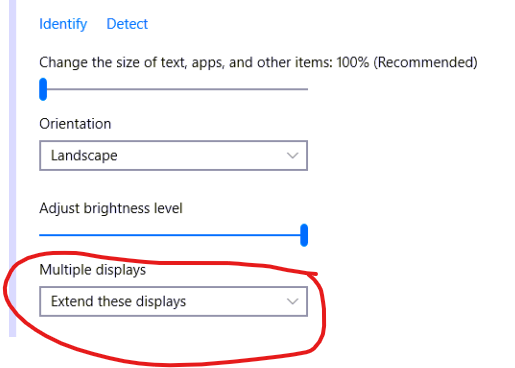
In order to enable the dual screen, go to Display Settings and select Extend these displays.
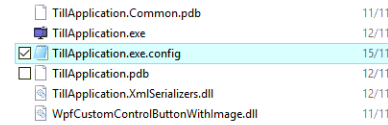
Within TillApplication.exe.config, set the value to True

However sometimes the touch on main screen become irresponsive when you do this.
How to Setup Touch when the Computer is in Extended mode
When the computer is in extended mode, it does not know which monitor is a touch screen.
Therefore, a short setup is required to have the computer recognize a touch screen panel.
1. To get started, open the Control Panel and select Tablet PC Settings.
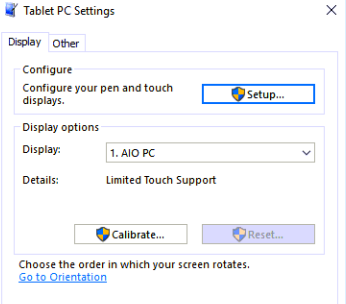
2. Click on Calibrate icon if visible or click on Setup icon
3. Next, your main screen will go white and display instructions for going through the calibration process.
It’s a simple process. A cross hair will appear on the screen and each time you tap it will move to a different spot.
Continue through the entire process, and when you’re finished, you’ll be prompted to save the results.
The touch screen should now be more responsive and accurate when you interact with it.
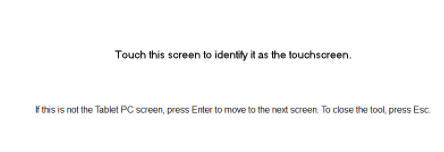
When you see above message, touch the main screen.
Next it will go white on Main screen and display the similar thing on smaller screen.
At this stage, you need to press Enter Key since you cannot touch it.
For this either you need to be connected remotely or have physical keyboard connected so that you press enter key
Once done, it will go back to
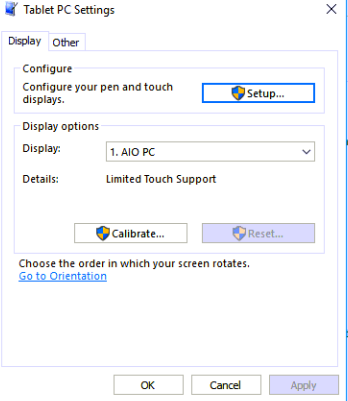
Click OK to exit and Test the EPOS application with main screen as Touch screen
1. Main screen for the operator
2. Secondary screen for the Diner to view the items and transactions made by operator
In order to enable the dual screen, go to Display Settings and select Extend these displays.
Within TillApplication.exe.config, set the value to True
However sometimes the touch on main screen become irresponsive when you do this.
How to Setup Touch when the Computer is in Extended mode
When the computer is in extended mode, it does not know which monitor is a touch screen.
Therefore, a short setup is required to have the computer recognize a touch screen panel.
1. To get started, open the Control Panel and select Tablet PC Settings.
2. Click on Calibrate icon if visible or click on Setup icon
3. Next, your main screen will go white and display instructions for going through the calibration process.
It’s a simple process. A cross hair will appear on the screen and each time you tap it will move to a different spot.
Continue through the entire process, and when you’re finished, you’ll be prompted to save the results.
The touch screen should now be more responsive and accurate when you interact with it.
When you see above message, touch the main screen.
Next it will go white on Main screen and display the similar thing on smaller screen.
At this stage, you need to press Enter Key since you cannot touch it.
For this either you need to be connected remotely or have physical keyboard connected so that you press enter key
Once done, it will go back to
Click OK to exit and Test the EPOS application with main screen as Touch screen