SWF - Suprema 2 Devices Maintenance Menu
SWF, SupremaSuprema Devices Maintenance Menu
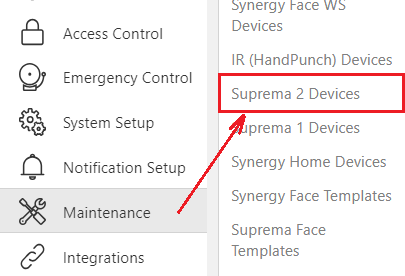
There is a menu 'Maintenance' > 'Suprema 2 Devices' that allows full control over deleting and syncing persons and access control data to the Suprema devices.
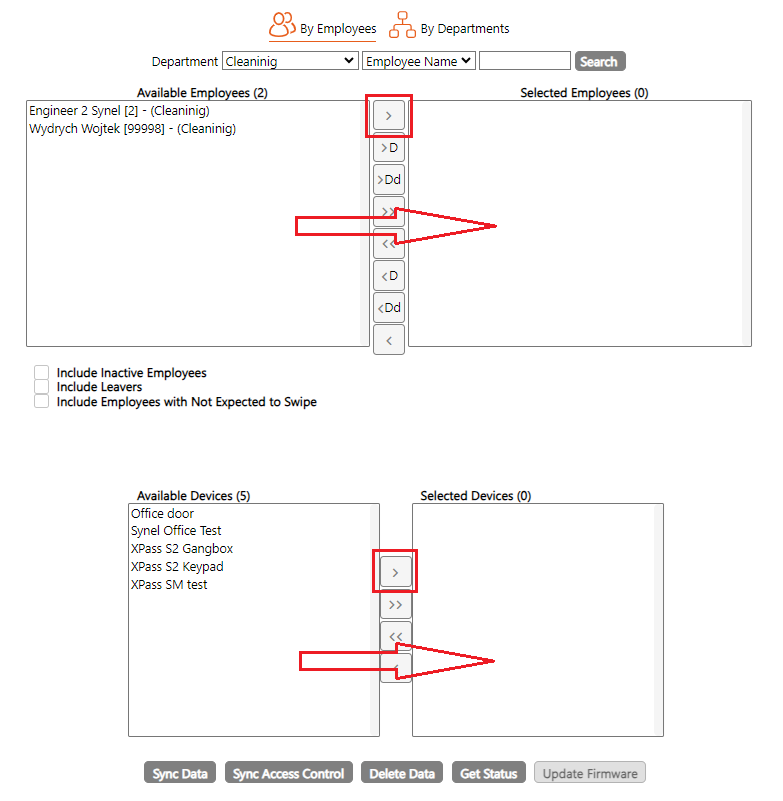
The screen has two selection boxes, one for Employees and the other for Devices. The Employees selection box has a search filter above it. There are action buttons at the bottom of the screen for actions in this menu.
- To delete ALL Access Control data (Security Groups, Timezones etc.) from one or more devices. SSelect one or more devices and move to the 'Selected Devices' box to the right Click 'Delete Data' button at the bottom of the screen. A warning will appear. Click the 'OK' button to confirm and continue with the action.
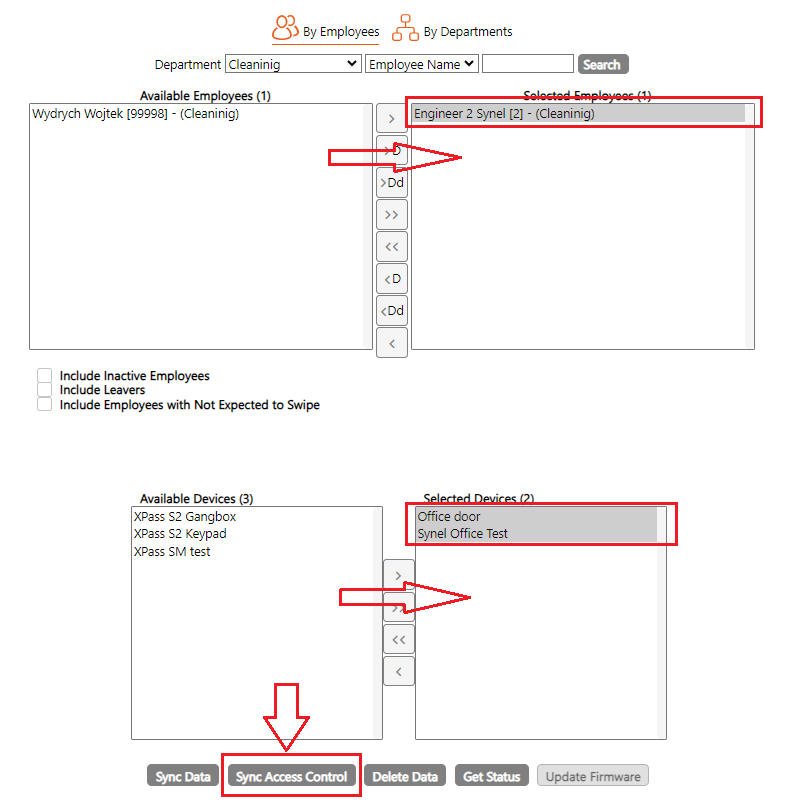
- To delete ALL data for one or more Employees Select one or more devices and move to the 'Selected Devices' box to the right Select one or more Employees and move to the 'Selected Employees' box to the right Click 'Delete Data' button at the bottom of the screen. A warning will appear. Click the 'OK' button to confirm and continue with the action.
- To Sync data TO the devices use the same method as above but use the 'Sync Access Control Data' button at the bottom to sync the Employees selected to the devices selected
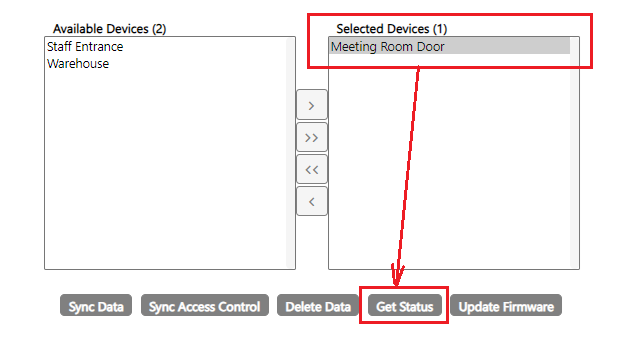
You can also check the connected status of the devices by selecting the Device in the lower box and moving it to the right pane and then click on Get Status button. This will show you that the device is connected successfully and the Device time.