Activities Module
The Activity module (also known as Time Costing) allows for calculating the general cost and the time invested in each activity undertaken by an organisation. With the help of the Activity module you can evaluate the cost of a given project, taking into account three principle parameters: the amount of hours invested in the project, the amount of items used in a project and any additional costs that relate to your project.
Recording your Activities can be done in number of ways. You can program the TimeLOG Web terminals or smart phones to recognize various activities so that when employees swipe their badges their hours are recorded to a specific activity. Alternatively, you can enter the clock-in data, i.e. the hours worked on a specific activity, manually in the GUI.
Creating Activities
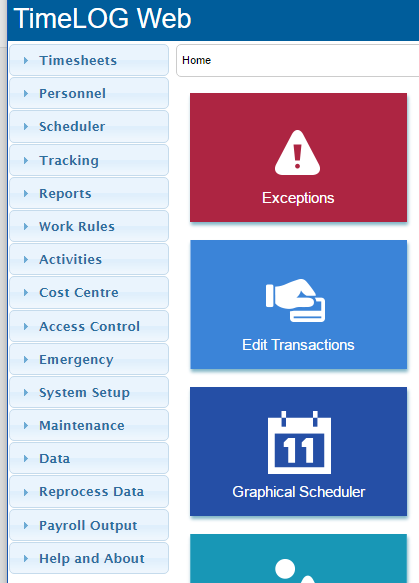
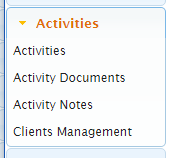
Allows user(s) to create new Activities on your system To view it click the Activities (1) button on the left hand menu.
Activities - Add, Edit, Duplicate or Delete your Activities
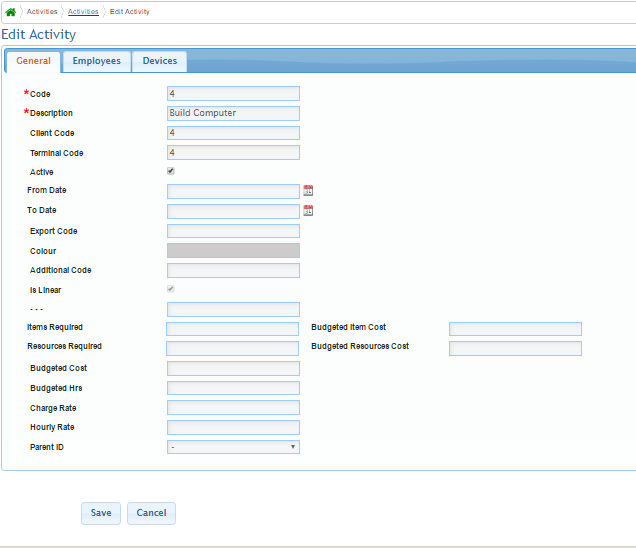
Click on Add Activity (i) and complete the General Tab
- Code - the reference number used to identify the activity within TimeLOG and is mandatory.
- Description - A plain text explanation of the activity eg. "Welding Units" also mandatory all other fields are now optional.
- Client Code - An optional means for identifying an activity to the clients system
- Terminal Code - The number used to clock onto the activity on a physical terminal (only mandatory if using physical terminals). Usually Code, Client Code and Terminal Code would all be the same number unless the client wishes to use Alpha Numeric codes on their reports as Terminal code must be numeric only.
- Active - enables or disables the activity in the system preventing people from clocking on it.
- From Date / To Date - The anticipated live dates for an Activity
- Export code - To be used when creating export reports (if not using client code)
- Colour - Used on graphical reports to represent the Activity
- Additional Code (for future use)
- Is Linear (for future use)
- Items Required - Number of units to be produced
- Resources Required - Estimate of raw materials required
- Budgeted Cost - Forecast of expected cost
- Budgeted Hours - Forecast of expected duration
- Charge Rate - The rate you will bill a client for this Activity
- Hourly Rate - The rate it costs you to perform this Action per hour
- Parent ID - The ID of the Activity preceding this Activity in a linear activity
- Budgeted Item Cost - Forecast cost to produce one item
- Budgeted Resource Cost - Forecast of expected cost per item resources
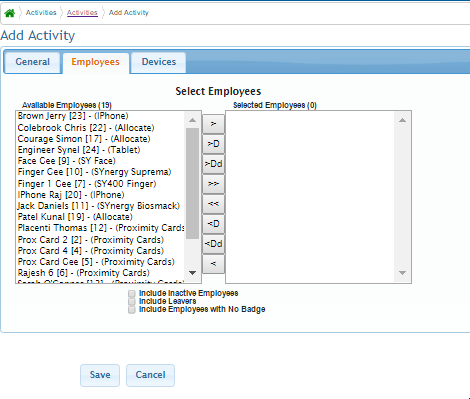
Employees (ii) - Allows you to restrict activities to certain members of your staff, if you select employees from the list on the left and move them to the right using > (individual), >D (all in same Department) or >> (Everyone). Only the selected employees will be allowed to perform this activity, if you leave it blank then the activity is applicable to all your staff.
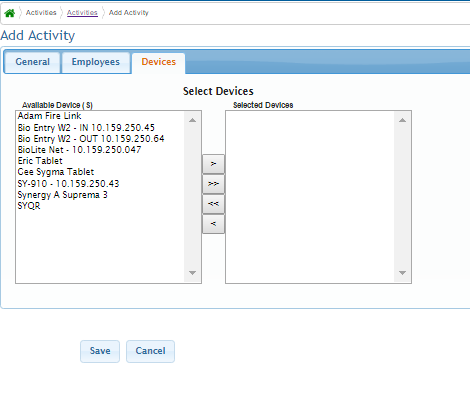
Devices (iii) - like the Employees tab, The Devices tab works on the same logic. Terminals selected will be allowed to offer the activity for use where as a blank list means the activity is available on all capable terminals.
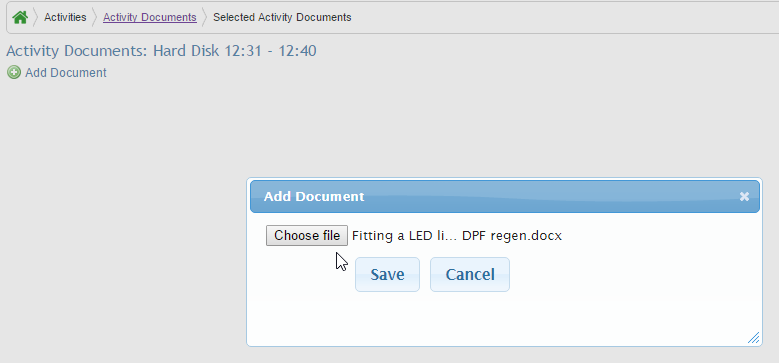
Activity Documents - Attach a document to an Activity such as an instruction manual. Choose a file, browse to the file and Save. The document is saved into the database.
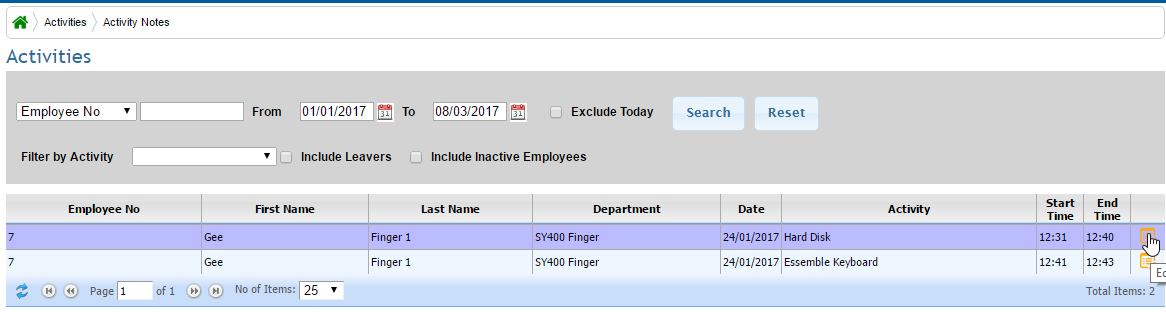
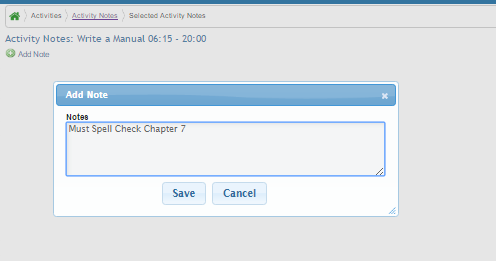
Activity Notes - From here you can record your notes about the activity eg. Notes about machine or processing errors. Search and select the Activity by date and employee, Click the Yellow Edit Icon Click Add Note and Enter Text to associate with this activity
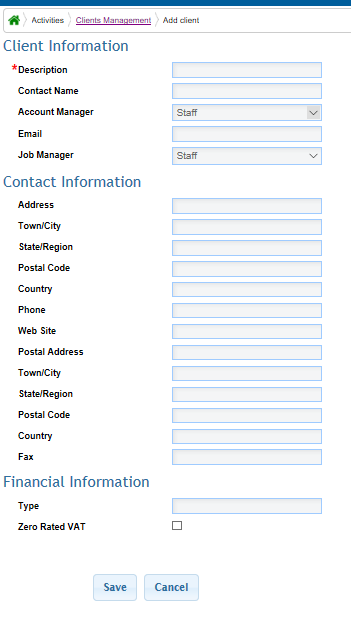
Clients Management - If you provide Goods & Services to others record their details here. Only the description field is mandatory the rest are all optional.