
SY910 - Troubleshooting Checklist
SY910There are many ways to ensure that your machine is up and running and doesn't need further assistance to fix it. Here are common issues that can be fixed with a few simple steps.
The checklist:
The checklist:
- Check that the cable is plugged into the socket accordingly.
- Check the other end is plugged into a live Network Point.
- Confirm that the icon of the network socket is white Online as apposed to Red Cross 'Offline'.
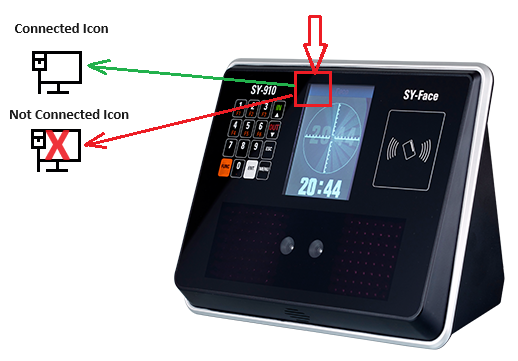
- Rebooting the clocks could start to send data through. To do this, unplug it at the 3 pin mains adapter or the jack on the back for 5 minutes and then reconnect.
- Can employees clock in and out on the clock or is the power completely off on the clock? Check the power is live.
- Confirm if an error message appears on the screen? If so, what does the message say?
- Confirm the firewall is configured to allow outbound traffic on TCP Port 3636.
- Confirm all IP Details:
- Menu > Enter id for Manager enrolled and verify Face > 5 System Settings > 2 Communications > 1 Network 3 > set IP Address (or use DHCP).
- If the device is functioning correctly but has difficulty reading faces, check that there are no bright lights on directly behind the person that are in the device field of view.