Universal Import
Contents
About
TimeLOG Web supports number of industry standard file formats. This document describes how to create Import File structure (Unicode Txt) using Microsoft Excel and import it using TimeLOG Web GUI
File Structure
Minimum Columns required: [Emp No] [Last Name] [First Name] [Department No] [Badge No] [Start Date] [Active]
Create Import File
Open Microsoft Excel
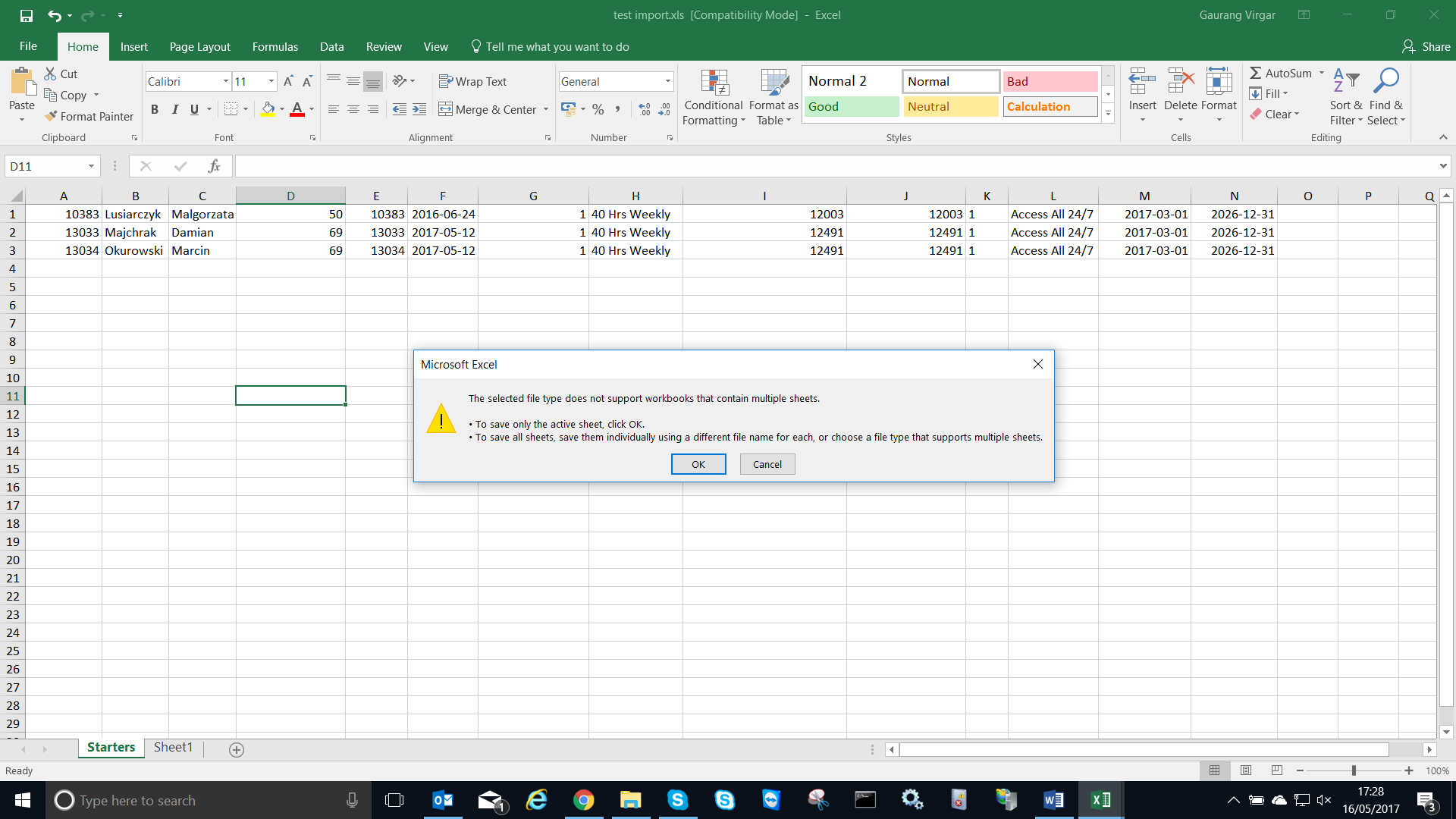
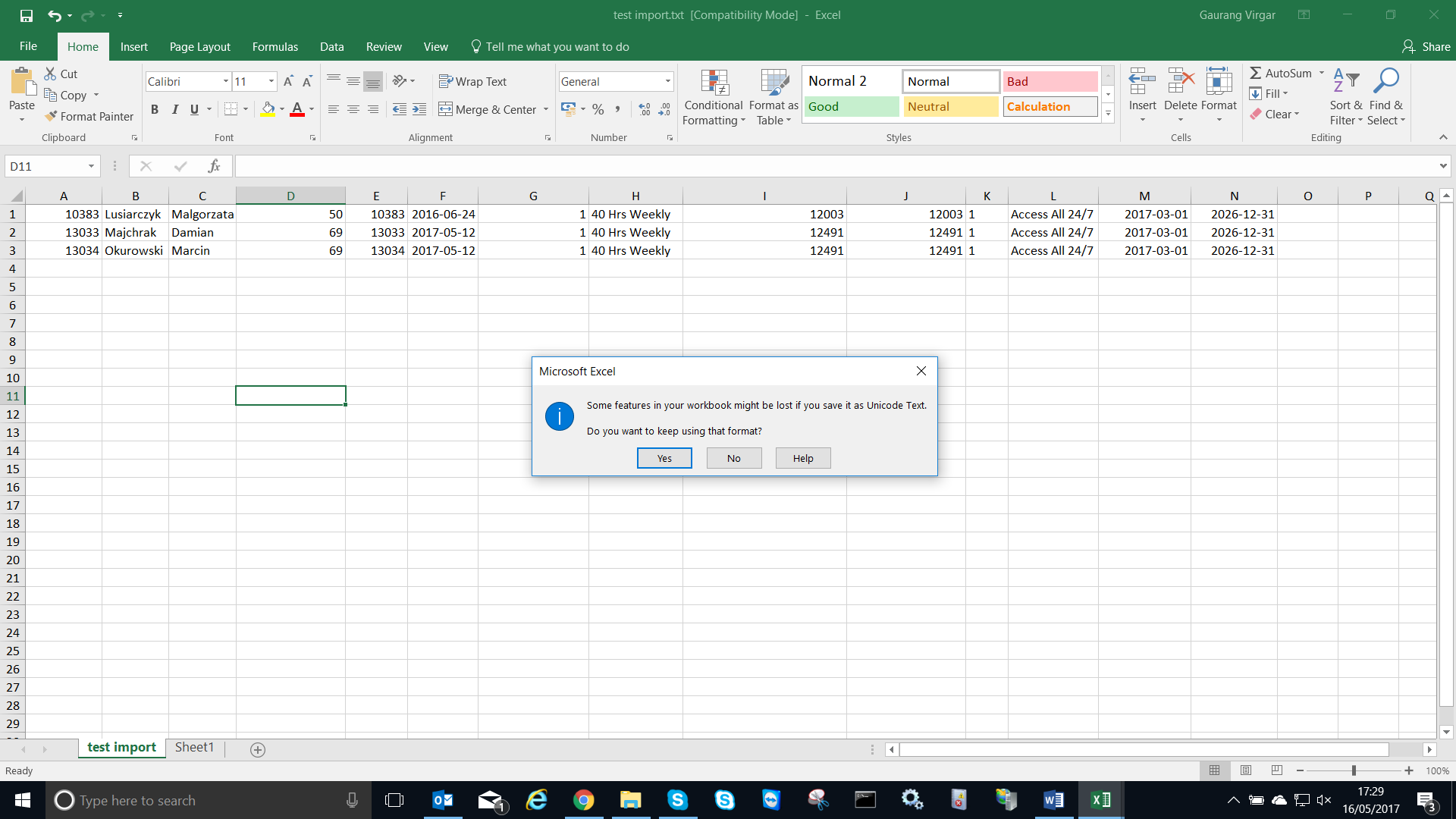
Create the Column Headers like below (as required)
Fill in the details for each respective column
- Employee No - Refers to Employee number or Payroll no of an Employee. Employee no Must be unique. Duplicated value in the file will cause import to fail!!
- Lastname - Refers to Last name of an employee
- First Name - Refers to First name of an employee.
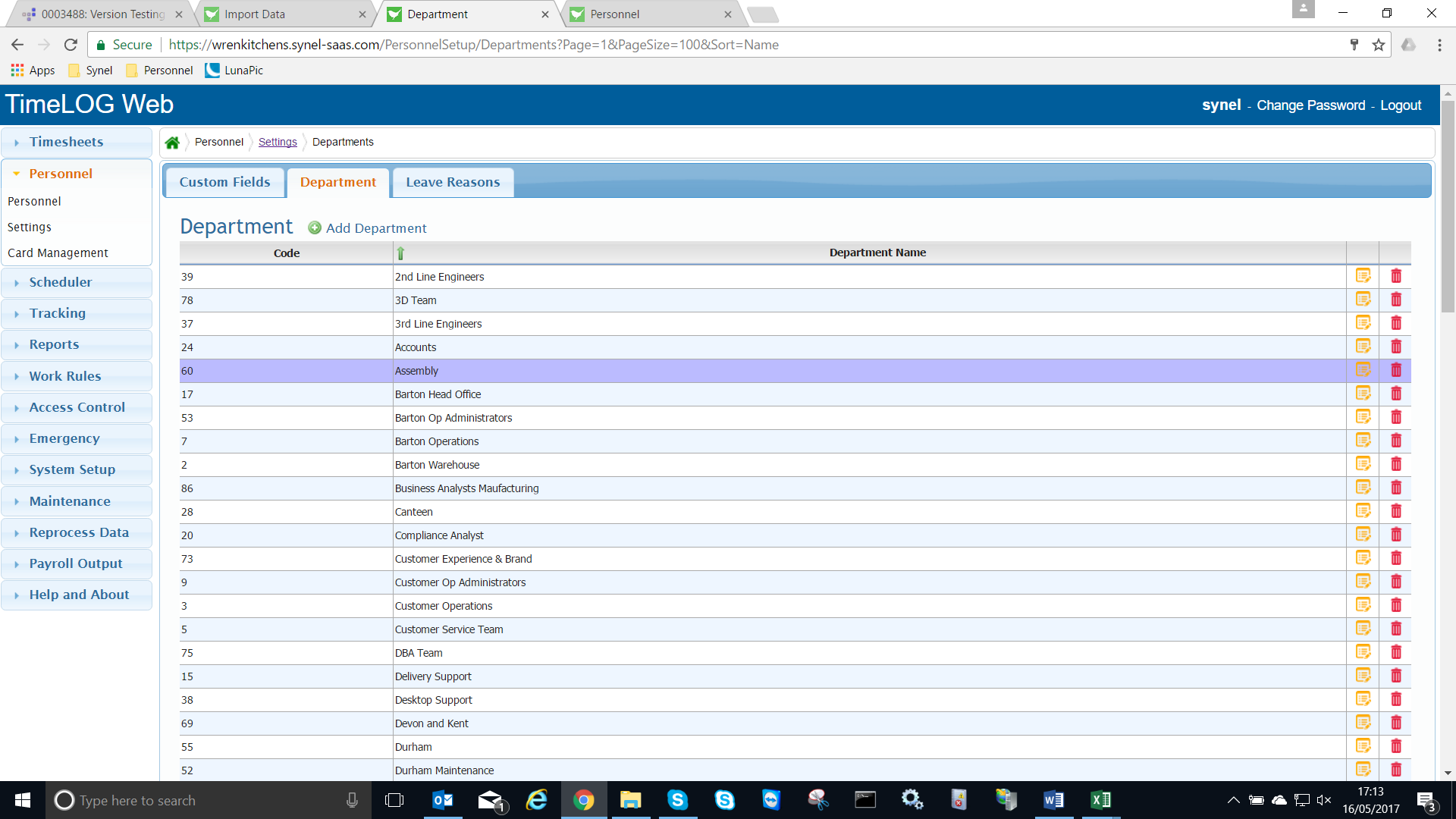
- Department Code - Refers to Department of an Employee. Go to Menu - Personnel Settings - Departments to find respective code of the department. | | Department must exist within TimeLOG Web prior to importing file!! If Department doesn't exist than please create the relevant department prior to importing the file
- Badge No - Refers to Biometric Template no of an Employee. Usually it is same as Employee no
- Start Date - Refers to Employee start date in the business.
- Active - Value must be 1 for all employees
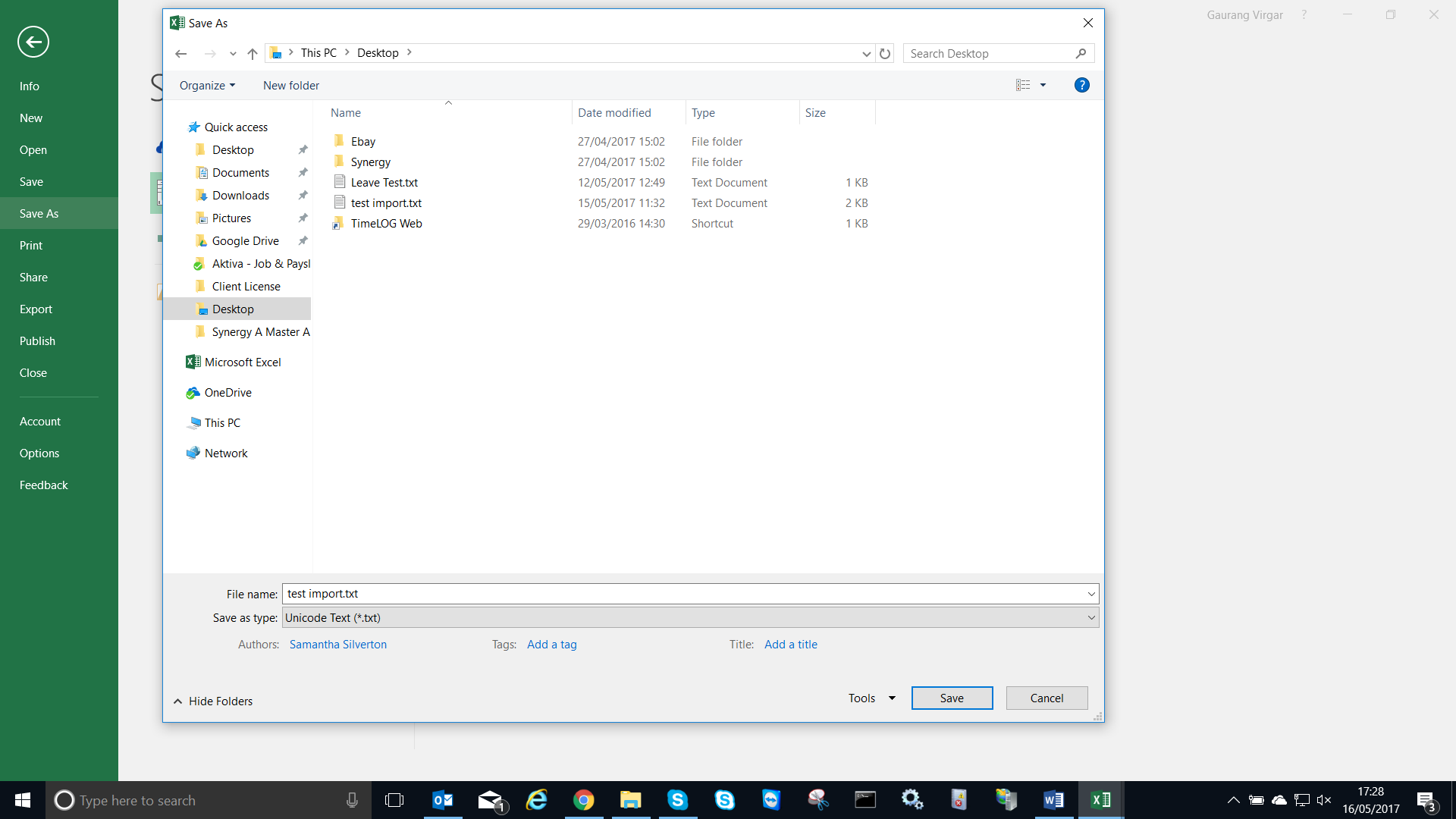
Next Click File and Save As
- Select the File Location
- Change Save as Type - Unicode Text (*.txt)
- Give a File Name - example "Employee Import 13062017.txt"
- And Click Save
- On next warning screen, Click OK button
- Click Yes on the warning screen
- Close the file
Import Employee File to TimeLOG Web
Open TimeLOG Web
- Go to Menu - System Setup - Import Data
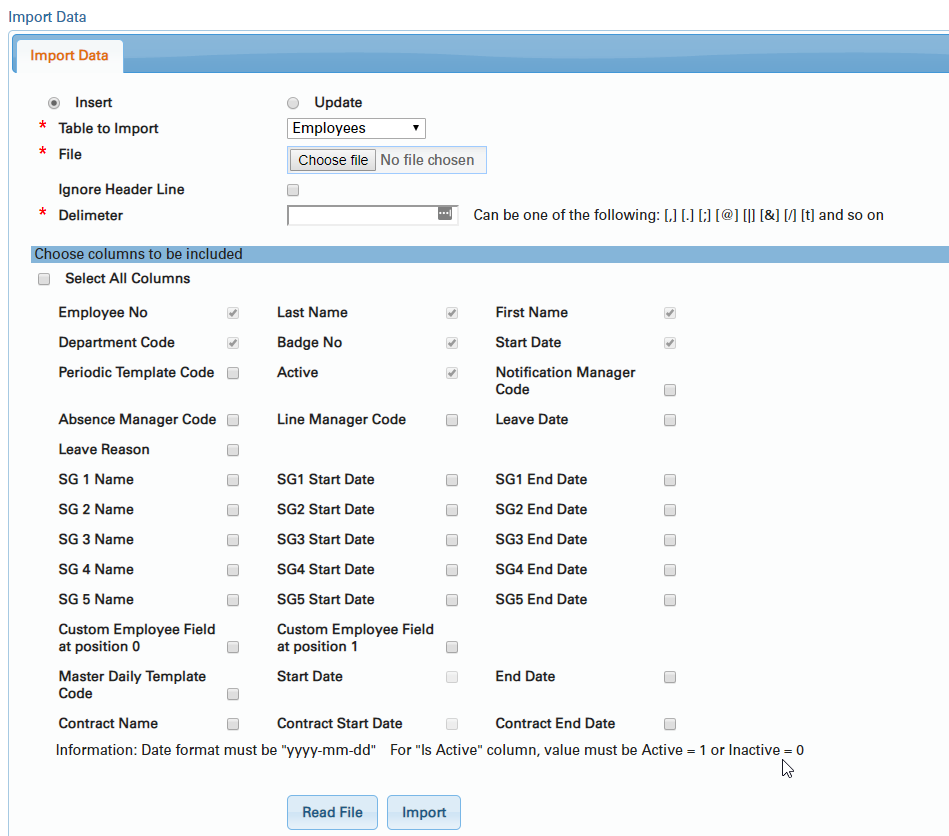
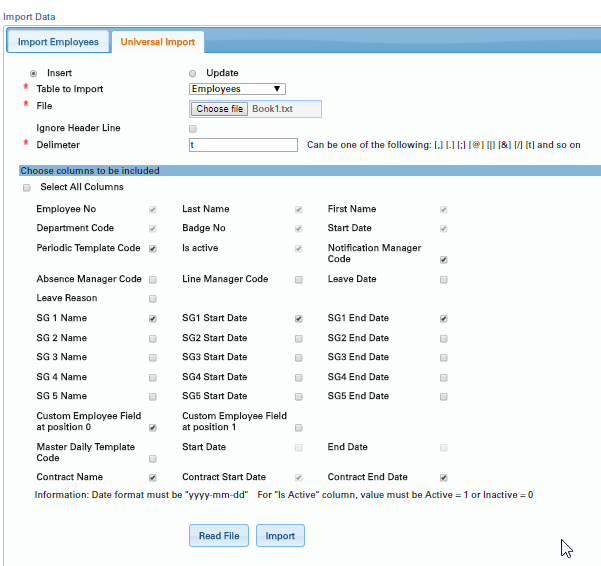
- Select radio button "Insert"
- Select "Employees" table from down list
- Browse and Select the Unicode File created earlier
- Insert Delimiter value - t
- Tick the corresponding fields (same as columns created in import file) and click on Read button
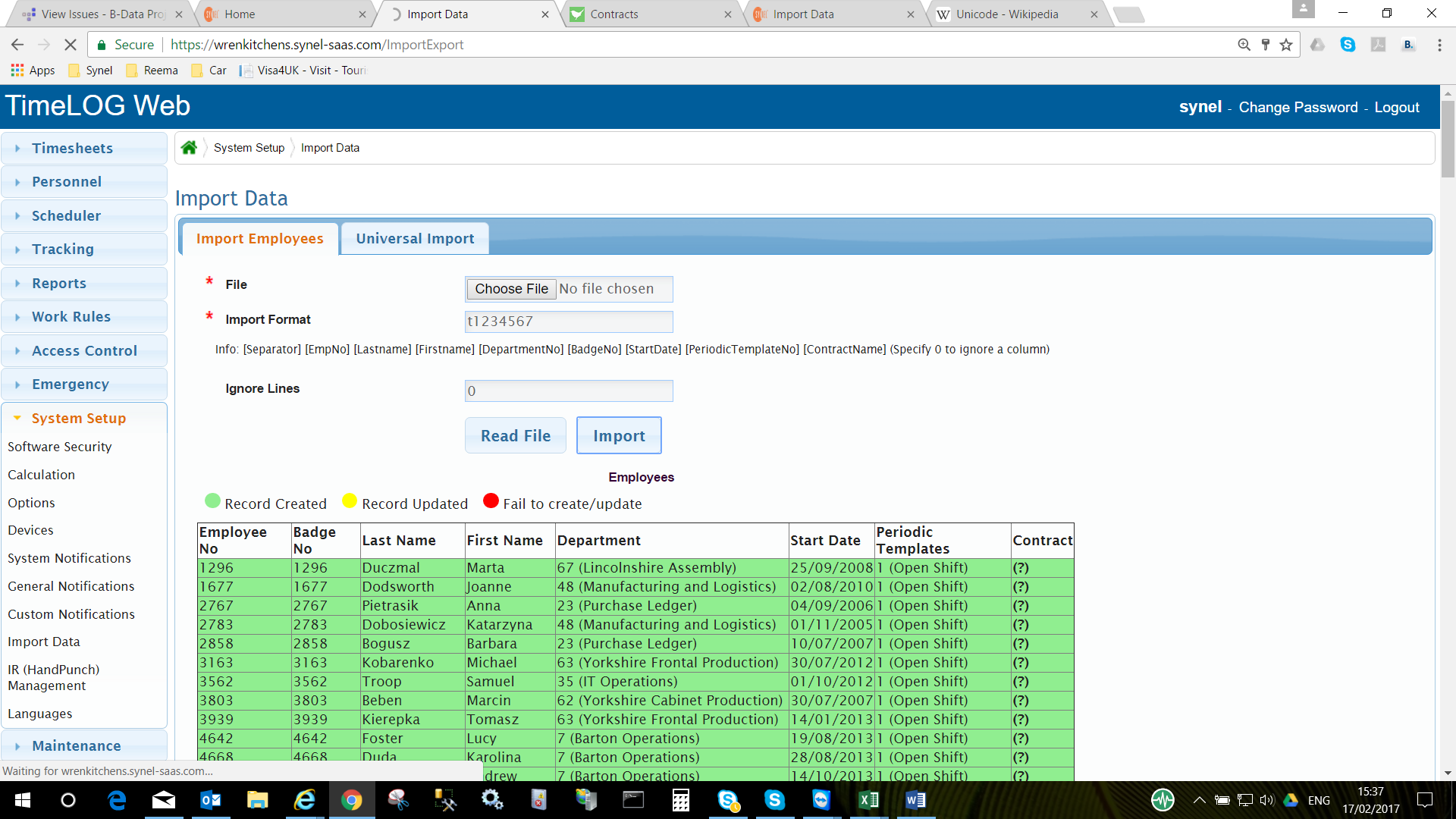
On Successful reading, bottom section should show all information in Green colour. Scroll down to make sure there are no lines in red colour or any field except Employee no with (?) mark in the bracket!
If all looks OK, click on Import button and wait until it finishes uploading employees.
Browser Tab will continue to show rotating circle until the import has been completed! |