
Periodic Templates (Shift Cycles)
Periodic template allows users to create weekly, fortnightly, monthly or a period with X no of days

Add Periodic Template
Click on to add a new periodic template and select the desired duration as shown below
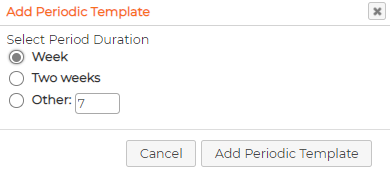
Depending on the selection made, User can start adding further details:
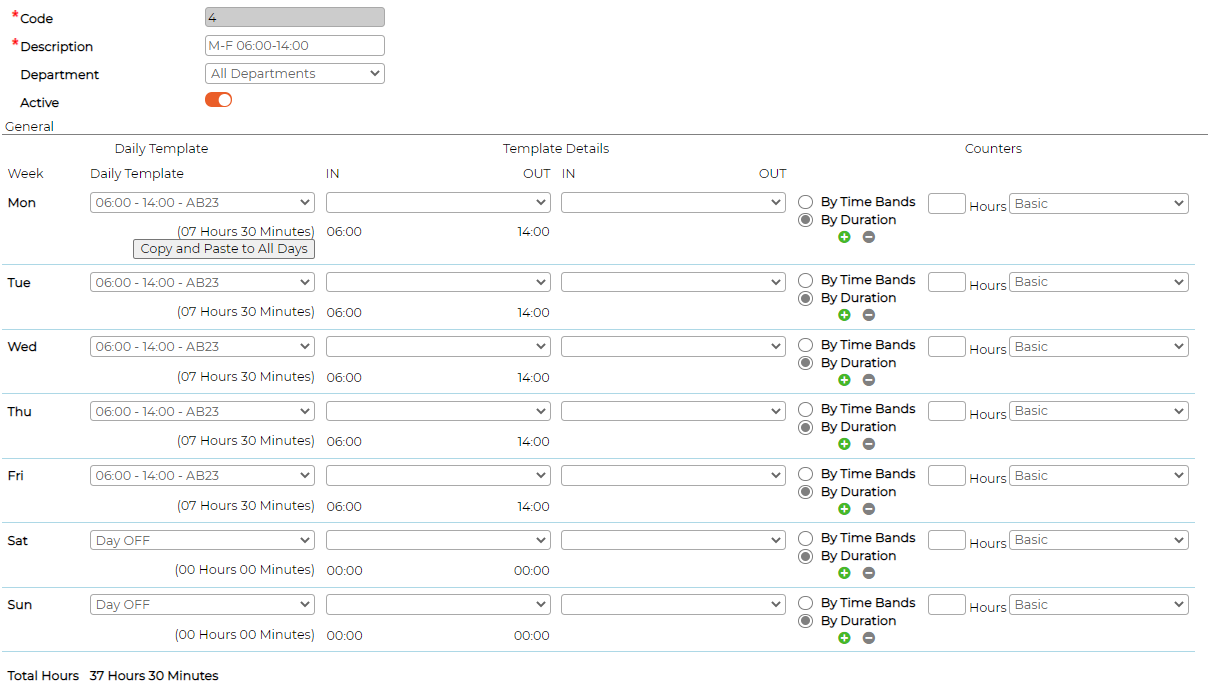
1. Code - Insert code manually or generate automatically by pressing CTRL + F2 key on keyboard
2. Description - Give a description to periodic template
3. Department - Select department from the drop-down menu (optional)
if selected, periodic template will only be available to users who has access permission to respective department
4. Active - Switch ON/OFF
5. Monday or on first day - select desired daily template from the drop-down menu
Select absence type from the drop-down menu (First half of the day) if required
Select absence type from the drop-down menu (Second half of the day) if required
Select time distribution either "By Time Bands" or "By Duration" for the day
HH:MM field - Leave blank if you have already defined above in respective daily template
6. Click "Copy and Paste to All Days" to apply the same shift/template to all the days available
Edit Periodic Template
Click on icon against the periodic template to edit parameters
Duplicate Periodic Template
Click on icon against the periodic template to duplicate.
Deactivate Periodic Template
Click on edit icon against the periodic template to edit parameters and switch off "Active"
Delete Periodic Template
Click on icon against the periodic template to delete the template
System will not allow deleting template if its currently in use or have been used in past.
Add Periodic Template
Click on
to add a new periodic template and select the desired duration as shown belowDepending on the selection made, User can start adding further details:
1. Code - Insert code manually or generate automatically by pressing CTRL + F2 key on keyboard
2. Description - Give a description to periodic template
3. Department - Select department from the drop-down menu (optional)
if selected, periodic template will only be available to users who has access permission to respective department
4. Active - Switch ON/OFF
5. Monday or on first day - select desired daily template from the drop-down menu
Select absence type from the drop-down menu (First half of the day) if required
Select absence type from the drop-down menu (Second half of the day) if required
Select time distribution either "By Time Bands" or "By Duration" for the day
HH:MM field - Leave blank if you have already defined above in respective daily template
6. Click "Copy and Paste to All Days" to apply the same shift/template to all the days available
Edit Periodic Template
Click on
icon against the periodic template to edit parametersDuplicate Periodic Template
Click on
icon against the periodic template to duplicate.Deactivate Periodic Template
Click on
edit icon against the periodic template to edit parameters and switch off "Active" Delete Periodic Template
Click on
icon against the periodic template to delete the templateSystem will not allow deleting template if its currently in use or have been used in past.