
People First Integration
People First HR & Payroll System (MHR) Integration
The scope
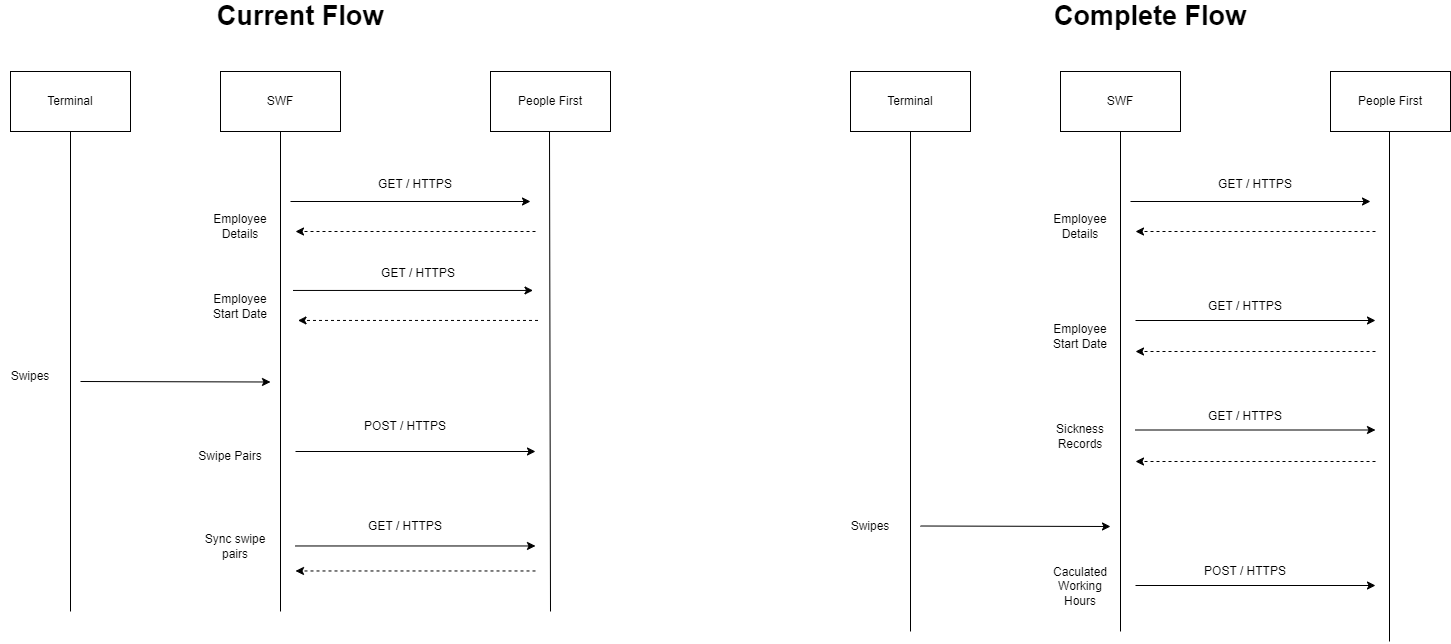
The initial scope delivered for the demonstration of the bio-metric device authentication flow consists of fetching the employee population and writing back the raw clocking pairs. For the complete solution, we will expand the integration to write back the calculated working hours and fetch absences and sickness.The Use Cases
Current Flow
1. Fetching Population - the first step is to pull a subset of active employees details.
2. Fetching Employee Start Date
3. Push swipe pairs
4. Sync pair records - validate that we are not sending duplicated swipes
Complete Flow
1. Fetching Population - the first step is to pull a subset of active employee details.
3. Fetching Sickness records - Pulling Sickness requests and balance.
4. Sync time pairs - Pulling employee records in a scheduled interval and updating differential.
5. Sending calculated work hours.
Resources, Operations & Data Model
Sandbox account: https://pfmhr0555-c0000817.people-first.com/Employees - Fetching the list of employees
GET /api/v1/hrm/odata/peopleResponse
- { "value": [ { "Id": "1", "PersonalReference": "ABC123", "FirstName": "John", "LastName": "Doe", "StartDate": "2024-04-22" }, { "Id": "2", "PersonalReference": "DEF456", "FirstName": "Jane", "LastName": "Smith", KnownAs: "Tommy" } ], "@odata.nextLink": "https example.com/api/people?page=2" }
Employee Start Date
GET /api/v1/hrm/people/{personId}Response
- { "data": { "person": { "startDate": "2024-03-22" } } }
Employee Swipes - Timepairs
GET /api/v1/ta/actualshifttimepairs/person/{personId}?viewStartDate= {yyyy-MM-dd}&viewEndDate={yyyy-MM-dd}Response
- { "meta": { "actualShiftTimePair.timePairType": { "values": [ { "value": "Regular", "id": "1" }, { "value": "Overtime", "id": "2" }, { POST /api/v1/ta/actualshifttimepairs/person/{employeeId} - Create Time Pair for employee: Troubleshooting If synchronization between SWF and People First does not operate as expected, HorioPeopleFirstIntegrationService logs should be reviewed. Logs will be located at same directory with logs for other SWF related services (normally C:\horio-newlook\Install\Logs\) .The following are known cases why synchronization may not be fully completed and can be seen from the logs of the service: "value": "Holiday", "id": "3" } ] } } }
Fetching standard time pair by ID
GET api/v1/ta/actualshifttimepairs/person/{employeeId}/resourceTemplate?annotate=tResponse
- { "meta": { "actualShiftTimePair.timePairType": { "values": [ { "value": "Regular", "id": "1" }, { "value": "Overtime", "id": "2" }, {"value": "Holiday", "id": "3" } ] } } }
Pushing Time Pairs
POST /api/v1/ta/actualshifttimepairs/person/{employeeId}Response
- { "startDateTime": "2024-04-22T08:00:00", "startTimeZone": "UTC", "endDateTime": "2024-04-22T16:00:00", "endTimeZone": "UTC", "timePairType": "Regular" }
People First Site Settings
The first thing to do is to define in People First Customer Account a new inbound integration.We will need a user with elevated permissions or ask the customer to configure and share the details with us.
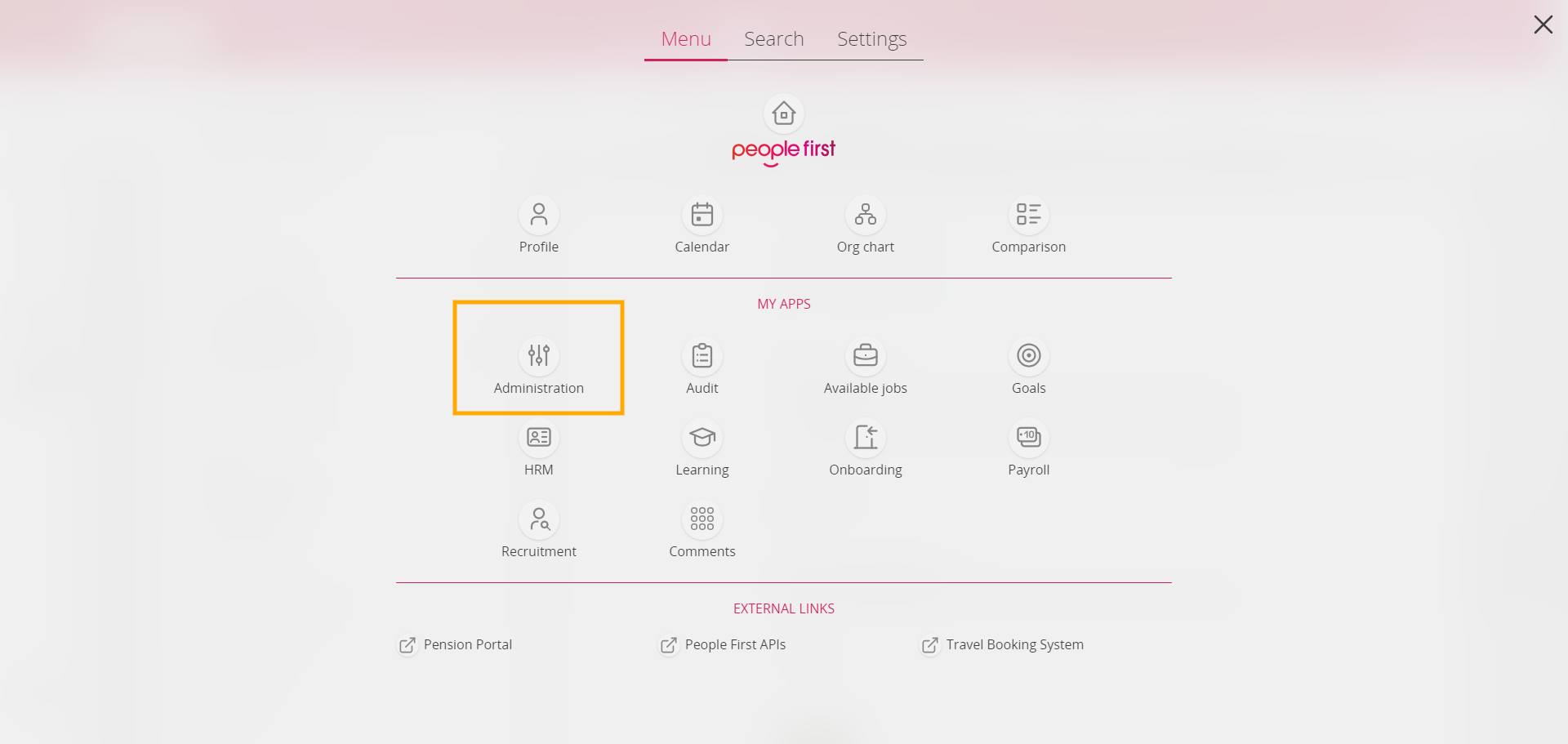
After authenticating to the customer site, click the doted icon at the top left and select 'Administration'
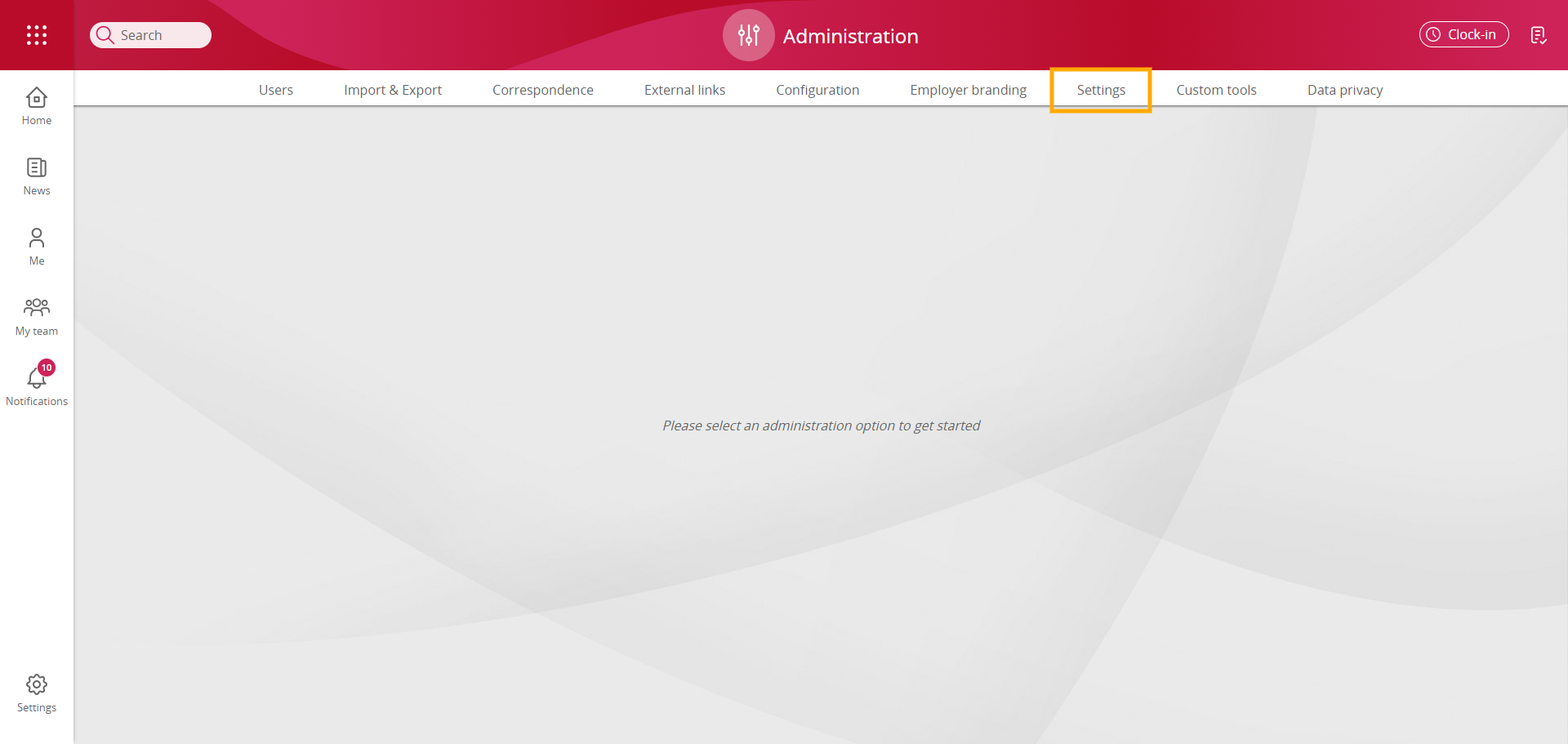
From the top navigation bar select 'Settings'
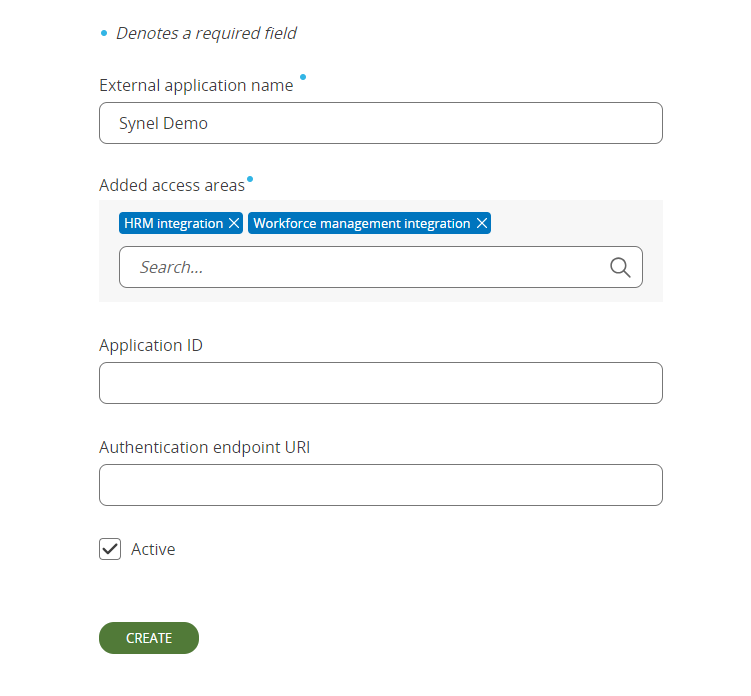
From the side navigation, create an 'Inbound integration'
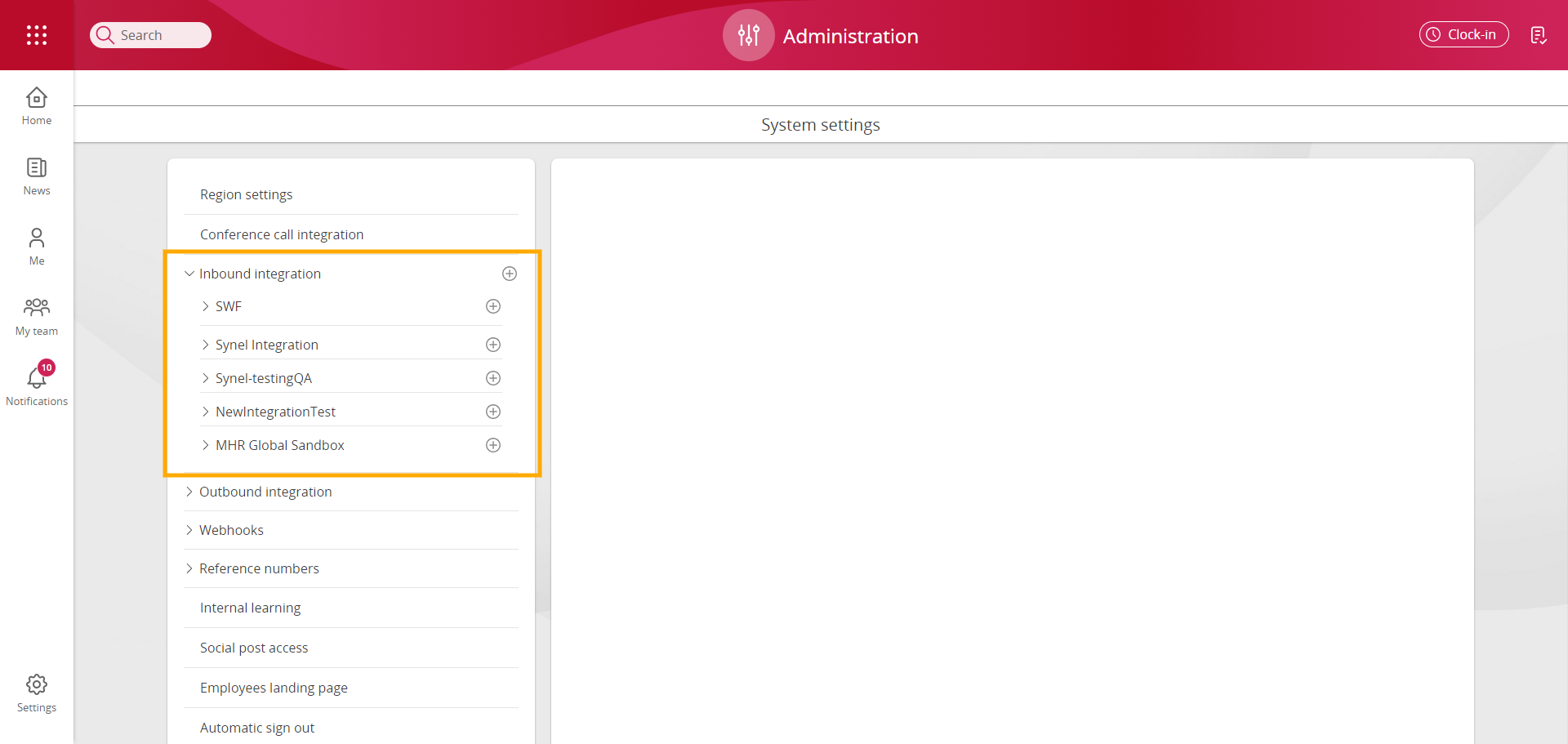
The mandatory fields are Application Name and Access Area
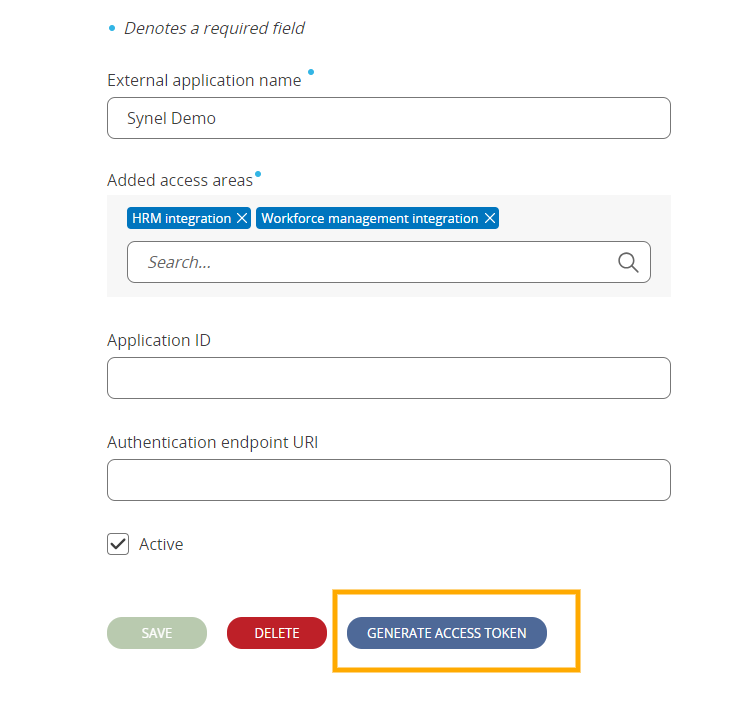
Click to generate the token.
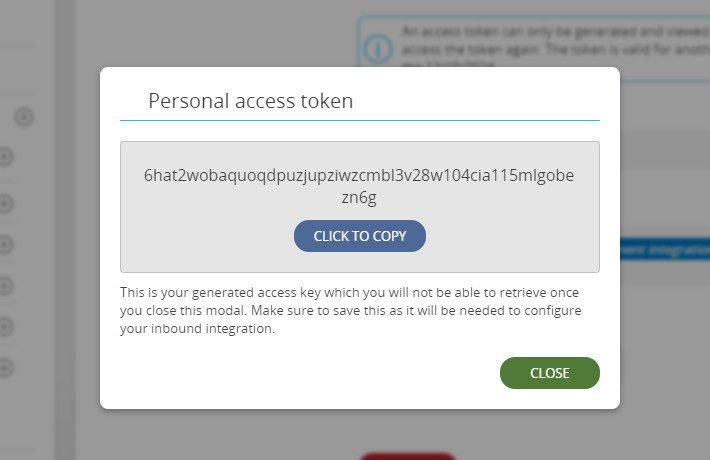
Copy the token and keep it safe, you will need it later to configure SWF site.
The configuration part on People First Completed!
Next...
Server Service Configuration
Download HorioPeopleFirstIntegrationService.exe.config file in the Attached tab.Amend the SQL connection details to correspond to customers SQL server:SQL_SERVER_HOST
USERNAME_FOR_SQL_SERVER
PASSWORD_FOR_SQL_SERVER
Copy the file into this directory C:\horio-newlook\Install\

SWF Settings
People First Demo site: https://mhrglobal.synel-saas.comEach new instance / customer will need to be configured with a unique Token.
- Log to the customer's site
- Go to integrations --> People First Integration
- Is Active: Switch on
- Api base URL: https://pfmhr0555-c0000817.people-first.com/
- Token: Past the token generated from People First Site
- Schedule Type: Daily Time / Interval in minutes
- Sync Interval: Daily hours / Minutes
- Past days Number: Historical period in days to be synced
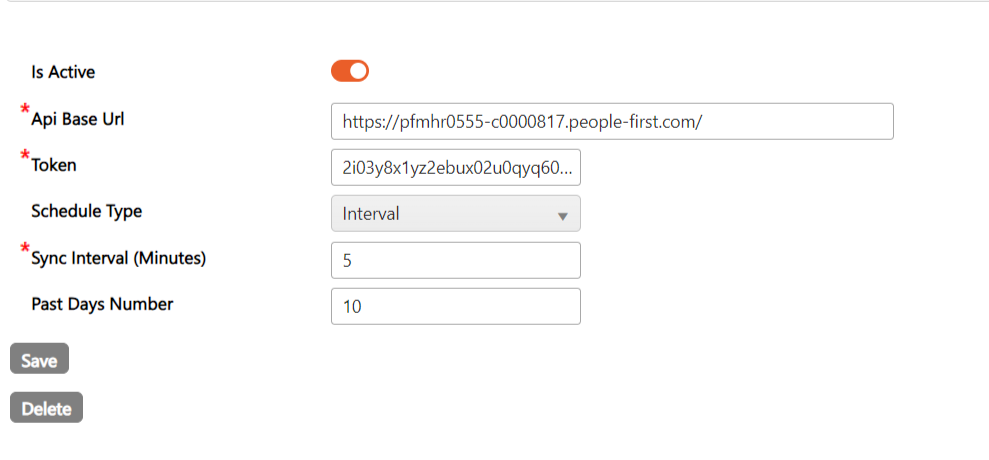
After saving the details make sure to Restart the service HorioPeopleFirstIntegrationService
Troubleshooting
The first place to look when things are not working as expected is the the service log: C:\horio-newlook\Install\LogsCommon errors:
- Inactive Integration --> Ensure that the active option is switched on
- Time zone was not found --> Check that the time zone is set correctly in System Setup -> Options
Make sure that there are default daily template (with code 99), default weekly shift (with code 99) and calculation settings defined in SWF