ER2 TLW - Mem Crash and Reset SY7XX
ER2, SY7XX, TLWSyncMaster IT Technical
SY7xx Terminal Technician Mode Setup
SY7xx Technician Mode (Setup)
Enter into Technician Mode by either:
- Swiping an authorized badge or
- Pressing the line up/down keys six times simultaneously If the terminal is not programmed key-in 6 times 0.
Use the Enter key to scroll between screens, and the line up/down keys for moving between options within the selected screen. To return to the previous screen use the key. To exit technician mode doubleclick the Enter key.
Technician mode enables setting up:
- Station ID settings
- Network connection settings
Once the technician mode settings are entered into the system and the user exits the Technician menu, the settings are automatically saved to the terminals Flash memory. If a "Mem Crash" occurs, the terminal loads the parameters saved in the Flash memory.
Scroll through all the settings using 'Enter Key' and adjust only the following settings for use with the Sync Master software
- Step 1: Enter Technician Mode: The display screen flashes for a five seconds interval and displays the version then flips to display the TECHNICIAN MODE and time and date alternately, (time&date are adjusted from the PC).
- Step 2: Enter SET mode: When you enter Technician mode you receive either an EXIT option or a SET. Select the SET option.
- Step 3: Set date and time: The date is in DD.MM.YYYY format
- Step 4: Adjust station ID: The Station (terminal) ID is the terminal's address on a communication line. It enables multiterminal communication. This should always be set to zero '0'ascroll to the required Station ID number.
Network Connection
B or F = 10/100Base card:
- My IP Address Press line up/down to view the TCP/IP address of the terminal. Use the numeric keys to enter the IP Address.
- Gateway Address Press line up/down and key-in the required gateway address.
- Remote Address Press line up/down to view the TCP/IP address of the personal computer on which the SyncMaster runs. Use the numeric keys.
- Subnet Mask The subnet mask is the network address plus the bits reserved for identifying the subnetwork. Use the numeric keys to determine the terminal's subnet mask affiliation within your local net.
- My Port TCP/IP enables connecting multiple applications via the same address. The port number selected here is the application identification number used by the computer when communicating with the terminal. SyncMaster uses the default port number = 3734
- Host Port SyncMaster Listener uses the default port number=3735. Use the numeric keys to change the port number.
- Disconct Sec Disconnect seconds defines the number of waiting seconds before reverting to offline mode. Always set to 05 secs fot this setting.
- DHCP (Y/N) To automatically assign a dynamic IP address to your terminal choose Y. Note: Always use 'N' here
- MAC Send (Y/N) Confirms sending the terminal network MAC address to the host. After exiting technician mode the terminal sends the host a "Hardware configuration network" message informing it of its MAC address, IP etc. Always set to 'N'
Step 5: Exiting Technician mode - After setting the previous parameters you get the following options:
- Save Param - Saves your specified setting.
- Exit - Exits Technician mode.
Hard Reset (Mem Crash)
To invoke a hard reset also known as Mem Crash follow these steps.
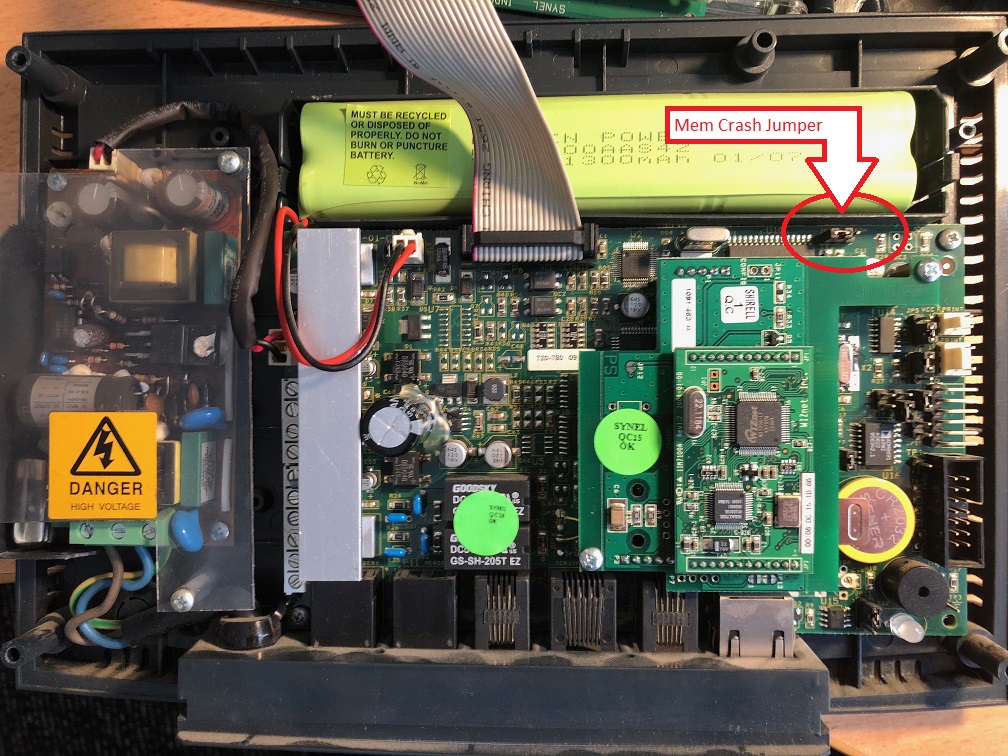
- Open the terminal and review the main board.
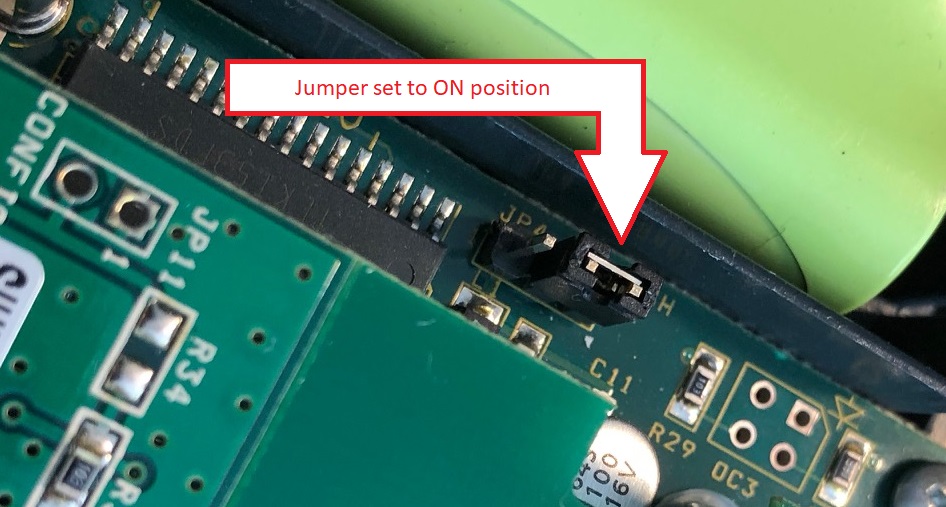
- Find the Jumper marked as Mem Crash (see image #1)
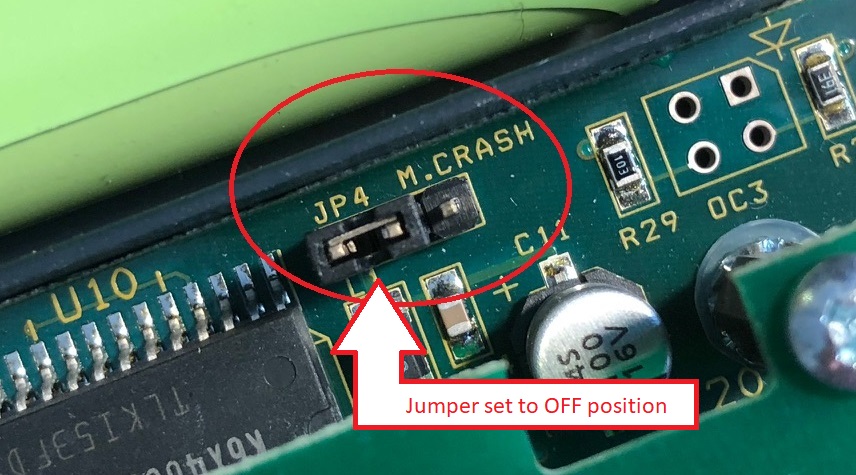
- The Jumper will be 'OFF' so move the jumper to 'ON' i.e. connecting the two pins
- Power up the terminal and wait for approx. 30 seconds, WARNING: do not touch any of the internal components while the case of the terminal is open as electrical shock may occur.
- Remove power and reset the jumper to 'OFF'
- Close the terminal again and reconnect power.
- Follow the steps for after mem crash below.
After Mem Crash
If the memory crashes the following message will appear on the display: " MEM CRASH: " You will need to clear the terminal's memory and return the terminal to the NO PROGRAMMING state according to the procedure below.
- Press 6 times on the 0 key. An asterisk appears for each time that this key is pressed.
- Press once on the Enter key.
- Press 3 times on the OUT key.
- Press twice on the F2 key.
- Press 3 times on the OUT key. The message CLEAR MEMORY? will appear on the display.
- Press once on the F2 key for confirmation. The message MEMORY CLEARED will appear on the display.
This will cause the terminal to enter the technician mode. The message on the display will alternate between TECHNICIAN MODE and the date and time in the following format: DD/DW hh:mm:ss where DW represents the day of the week.
If you make an error during steps 3 through 6, the terminal will revert to the state just prior to step 3. If you find yourself unable to complete this operation, exit the technician mode by pressing the IN key until F2/OUT appears on the display, then press the OUT key. Then begin again from step 1.