
Submit Expenses
System allows employees to submit both expense and mileage claims
Employee must be permitted to screen Menu - Expenses - Expenses Activities in order for them to submit claimExpense module must be setup and enabled. Employees must have respective Expense Approval and Payment manager allocated before they can submit the claimEmployees:

Submit New Claim
1. Click on icon to start new claim
2. Employee gets 2 options:
a. Expense Claim
b. Mileage Claim

3. Fill in respective data and
a. Save Expense - to come back again later to review/make amendments and submit
b. Save and Submit - Save and submit the expense claim
Expense Approval Manager will get notified via email to review the expense submitted
Cancel Claim
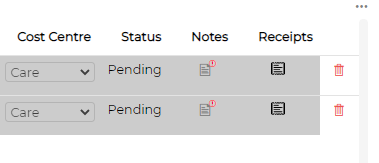
Employees can cancel/delete expense claim if manager has yet to approve/reject the item.
To cancel the claim, simply click on Submitted items, scroll to the right and click on delete icon against the item to cancel the claim
Employee must be permitted to screen Menu - Expenses - Expenses Activities in order for them to submit claimExpense module must be setup and enabled. Employees must have respective Expense Approval and Payment manager allocated before they can submit the claimEmployees:
- Submit new claim
- Submit new mileage claim
- Save claims
- View saved and submitted claims
- Edit saved claims
- Upload receipts
Submit New Claim
1. Click on
icon to start new claim2. Employee gets 2 options:
a. Expense Claim
b. Mileage Claim
3. Fill in respective data and
a. Save Expense - to come back again later to review/make amendments and submit
b. Save and Submit - Save and submit the expense claim
Expense Approval Manager will get notified via email to review the expense submitted
Cancel Claim
Employees can cancel/delete expense claim if manager has yet to approve/reject the item.
To cancel the claim, simply click on Submitted items, scroll to the right and click on delete icon against the item to cancel the claim