Synergy Workforce with Synergy Touch
Synergy1. Setup Device
Power ON the device supplied with power supply Device will bootup with Chinese logo Replace it with Synel Logo Go to H:\TimeLOG Web\Synergy Touch and copy folder "a20_repair" onto root of USB stick Make sure there is nothing else in the USB stick Insert USB Stick into Synergy Touch device Power OFF and Power ON the device Wait for device to come on. Device will automatically find the files from USB stick and reboot by itself When it reboots, you will find the Synel logo appearing on device Remove the USB stick immediately after device has rebooted
Install English Google Keyboard
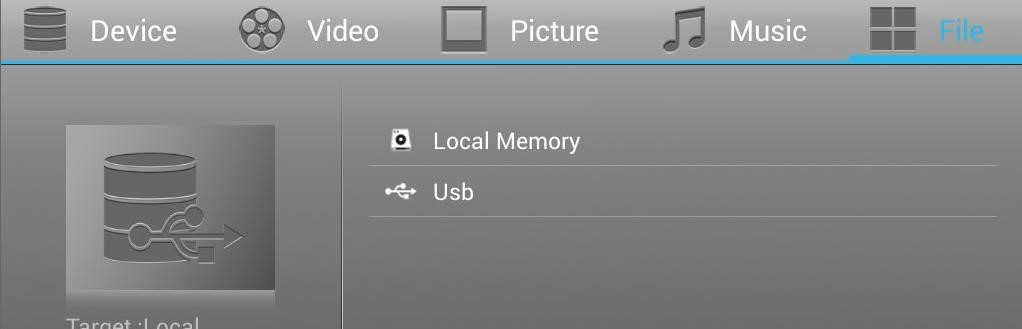
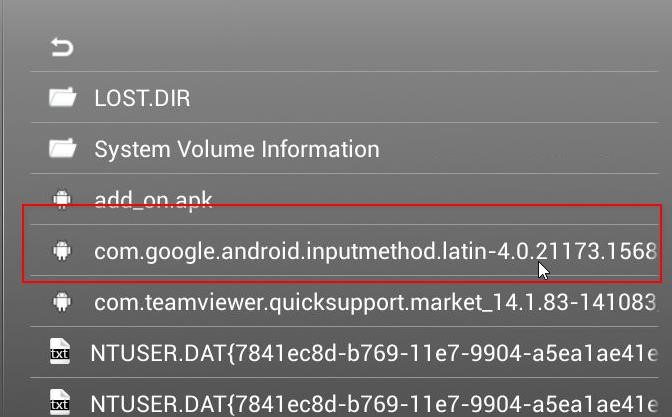
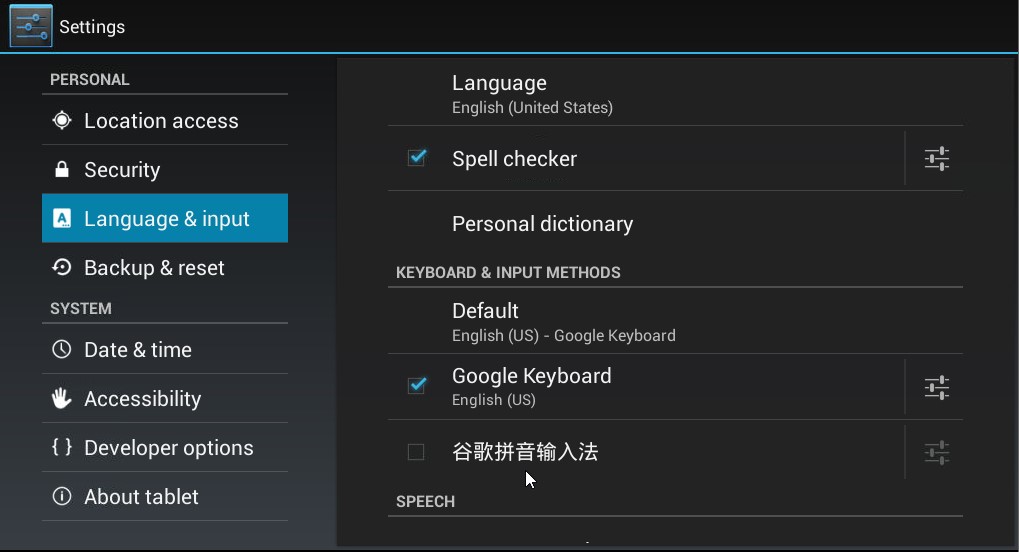
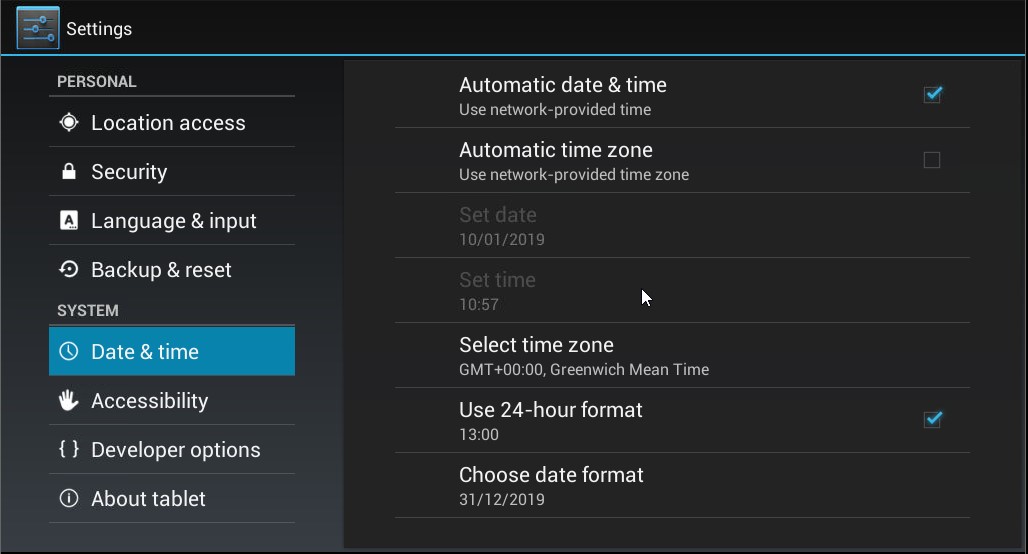
By default, device comes with Chinese keyboard Go to H:\TimeLOG Web\Synergy Touch and copy the file "com.google.android.inputmethod.latin-4.0.21173.1568296-21173minAPI14.apk" onto USB stick Plug in the USB stick to device From main menu, go to File Browser then File Manager and then select USB stick Click on the file "com.google.android.inputmethod.latin-4.0.21173.1568296-21173-minAPI14.apk" to install the Google keyboard Once installed, you will need to configure the keyboard Open the installed application Click on Enable in Settings and change it from Chinese keyboard to Google Keyboard (click ok on the warning to proceed) Switch input method and any additional settings related to keyboard to English UK and click finished While in Settings also set the Date & Time format to Correct Country defaults and Enable Automatic Time Updates
Wi-Fi Network
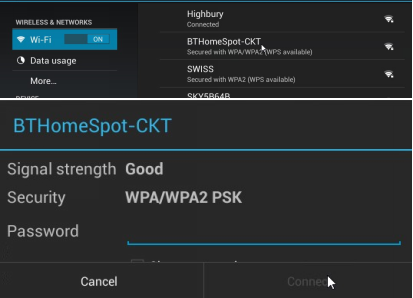
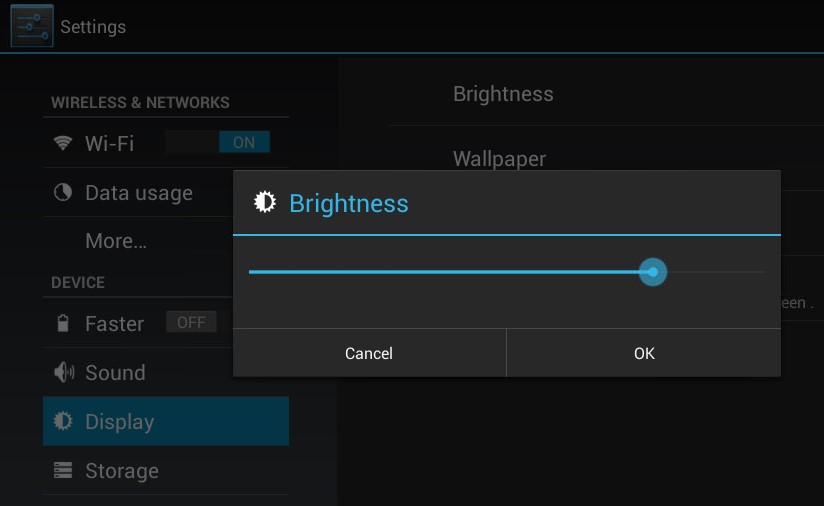
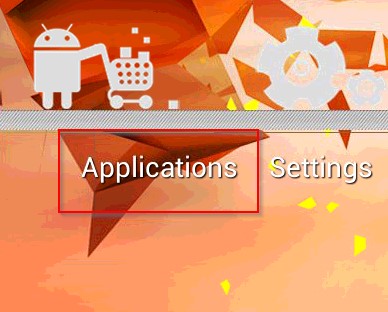
From home screen, go to Application and then settings Select Wi-Fi network you want to connect and insert passphrase and click Connect Make sure the device is connected Finally go to Display and increase the brightness.
Installing TeamViewer
Return to the Homepage by Exiting the Kiosk. Go to File Browser USB In the following order ONLY!!
- Run: add_on.apk Select Install Done.
- Run: com.teamviewer.quicksupport.market_14.1.83-141083_minAPI14(armeabi-v7a,x86)(nodpi)_apkmirror.com.apk h. Install Open. Swipe Left until Done Appears
Using TeamViewer
To use TeamViewer you must Exit the Kiosk application and go to Applications Then Quick Support Give the ID number to the software support agent. Allow the remote request when received
Install Synergy Touch Application
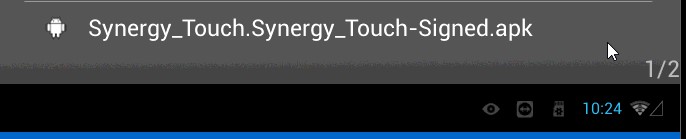
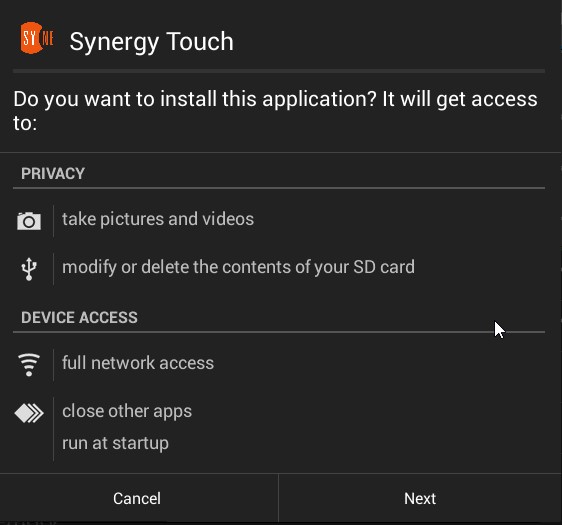
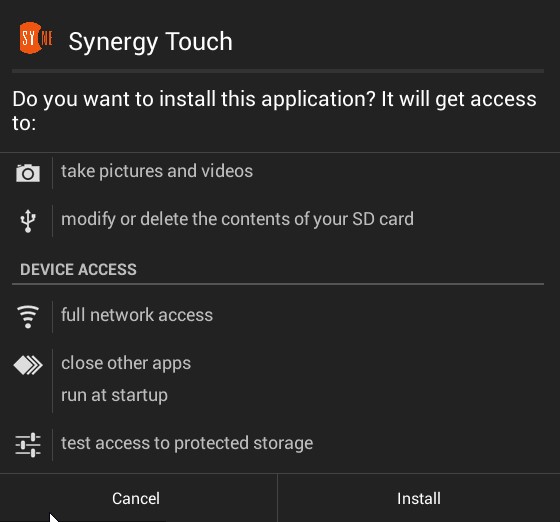
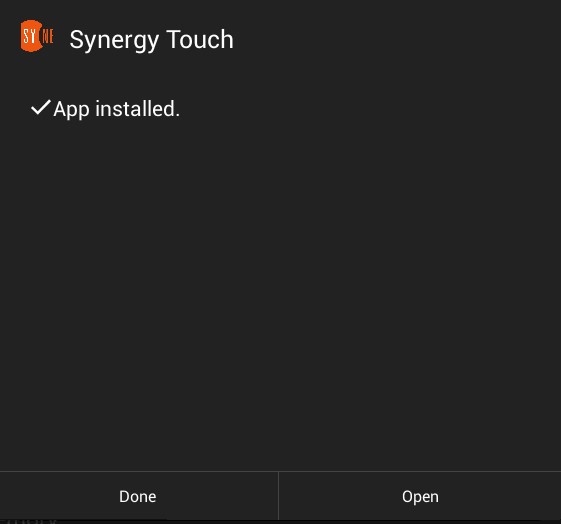
Go to H:\TimeLOG Web\Synergy Touch and copy the file "Sygma_Touch.Sygma_Touch-Signed.apk"to the USB stick Go to File Browser, USB stick and click on the Application to install Next Install Open
5. Configure Synergy Touch with TimeLOG Web
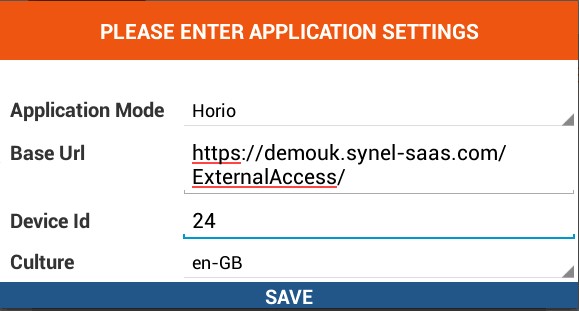
A. When application is launched first time, device will ask to configure the URL and device ID B. Insert the Base URL and Device SQL ID and click Save Device will continue to launch the application. When launched Successfully, it will ask User to either scan finger, card or insert PIN depending on the device settings in TimeLOG Web
When application is launched first time, you will see bottom bar still visible which allows user to get out of the application or do various other things We must hide that bottom line. To hide, close the Synergy Touch application Go to Home - Applications and then select Shell Type following commands exactly and press enter key
su mount -o remount /system busybox sed -i 's/alwayshide=false/alwayshide=true/' /system/build.prop reboot
If you want to enable the bottom bar, execute the command below:
mount -o remount /system busybox sed -i 's/alwayshide=true/alwayshide=false/' /system/build.prop reboot
To force the LAN to reconnect each time type
su busybox sed -i '1i sleep 10' /mnt/app/mac.sh reboot
6. Error Messages
- Code:102 means Finger template no found or doesn't match
- TeamViewer - "Not ready. Please check your connection" Either the tablet is not online or the client's firewall is blocking the connection, The client must allow port 5938 TCP & UDP in both directions.