
Request Absences
Absence request feature eliminates the need of filling in the paper when requesting absences i.e. Holidays.
Everything gets recorded electronically and the system updates screens and balances automatically based on manager decision.
The system can be setup for all or specific employees who can have access to GUI and can request absence only.
Employees can request absences either through Absence request Widget or via Menu - Scheduler - Request Absence screen
Before employee can request absence, Absence manager must be set and allocated to the respective employees
Absence Request Widget
User can simply enable/disable the widget on their home page and start requesting absence via the widget
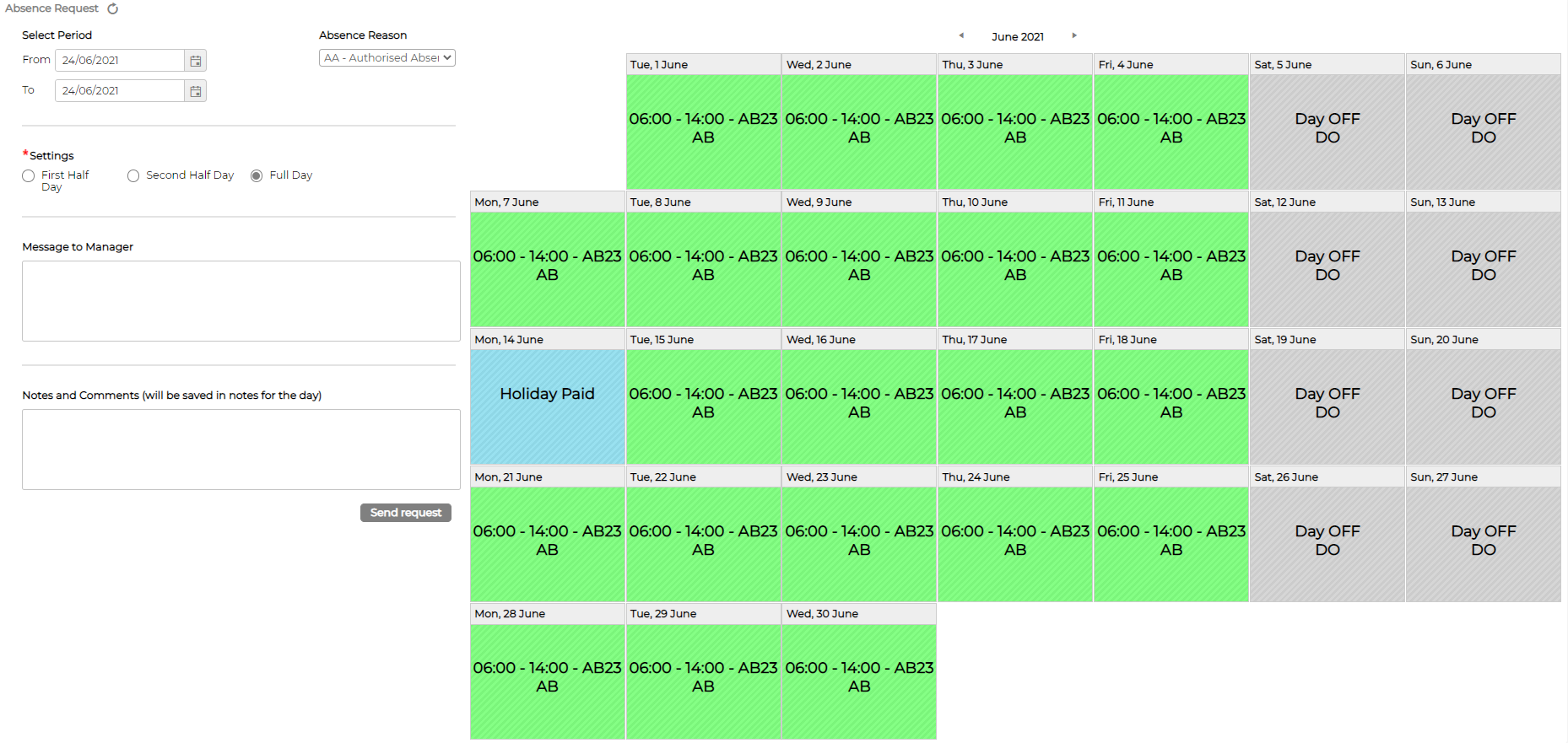
Request Absence Screen

Click on to request absence.
In both cases, the workflow is same
1. Select date range
2. Select absence reason
3. Select part of the day
4. Add message for Manager (Optional)
5. Add Notes and Comments (Optional)
6. Click request
Email notification gets sent the respective absence manager for them to take decision
Absence Balance
Request Absence screen also allows employees to view their Absence balances for current and past years
Please note: Respective Absence Calendar must be exist and employees must be allocated to it in order for the employees to see their Absence Balance!

Employees can also view the graphical scheduler at the bottom of the screen to see who else is on absence leave within their department and what are the chances their absence request will get approved!
Scheduler can be enabled/disabled from Menu - System setup - options - User Interface - Absence request setting section
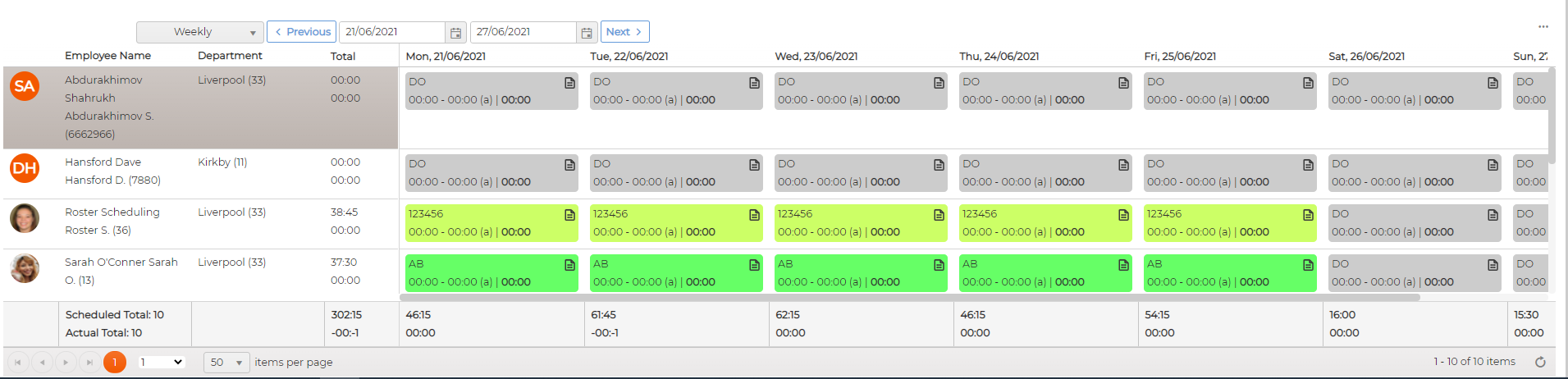
Requested absence status is visible within Menu - Scheduler - Request Absences
Further, employee can edit or delete the absence

Everything gets recorded electronically and the system updates screens and balances automatically based on manager decision.
The system can be setup for all or specific employees who can have access to GUI and can request absence only.
Employees can request absences either through Absence request Widget or via Menu - Scheduler - Request Absence screen
Before employee can request absence, Absence manager must be set and allocated to the respective employees
Absence Request Widget
User can simply enable/disable the widget on their home page and start requesting absence via the widget
Request Absence Screen
Click on
to request absence.In both cases, the workflow is same
1. Select date range
2. Select absence reason
3. Select part of the day
4. Add message for Manager (Optional)
5. Add Notes and Comments (Optional)
6. Click request
Email notification gets sent the respective absence manager for them to take decision
Absence Balance
Request Absence screen also allows employees to view their Absence balances for current and past years
Please note: Respective Absence Calendar must be exist and employees must be allocated to it in order for the employees to see their Absence Balance!
Employees can also view the graphical scheduler at the bottom of the screen to see who else is on absence leave within their department and what are the chances their absence request will get approved!
Scheduler can be enabled/disabled from Menu - System setup - options - User Interface - Absence request setting section
Requested absence status is visible within Menu - Scheduler - Request Absences
Further, employee can edit or delete the absence