
Change Password
Signed-in users can change their own password from the user menu. Click your user icon in the top right corner, then choose Change Password from the menu that drops down.
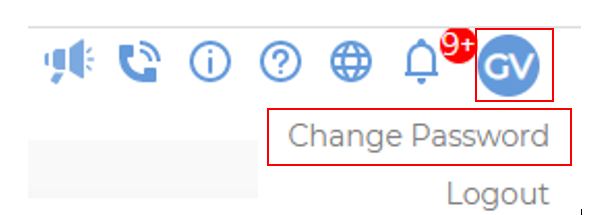
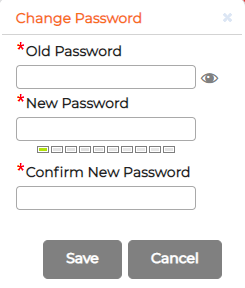
In the dialog, enter your Old Password, then your New Password, and type it again under Confirm New Password, then click Save.
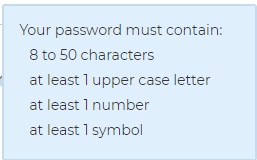
The new password has to meet all of these before the system will accept it:
- 8 to 50 characters
- at least one upper case letter
- at least one number
- at least one symbol
The strength bar under the New Password field fills in as your entry meets the rules.