EPOS Products
EPOS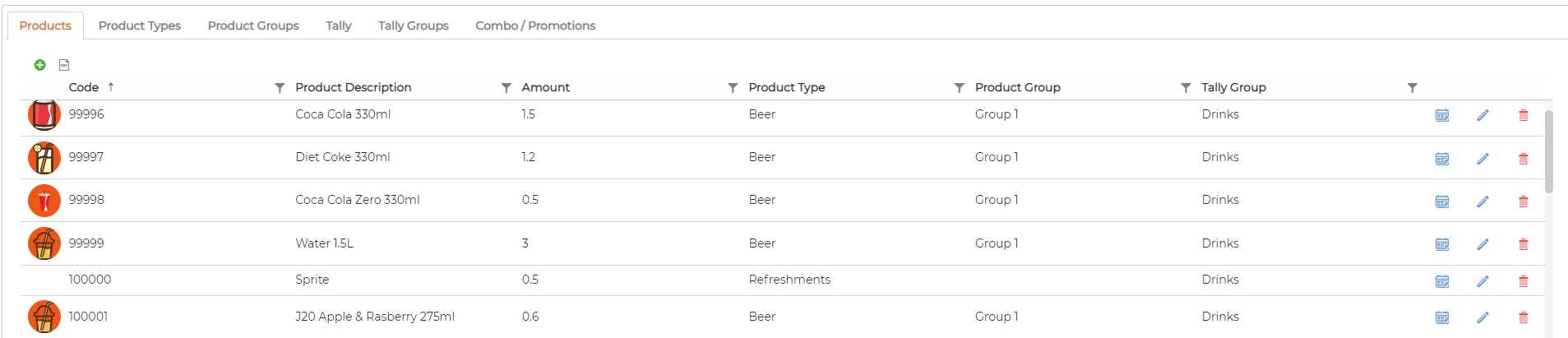
Add Products
Click on
 icon to add products manually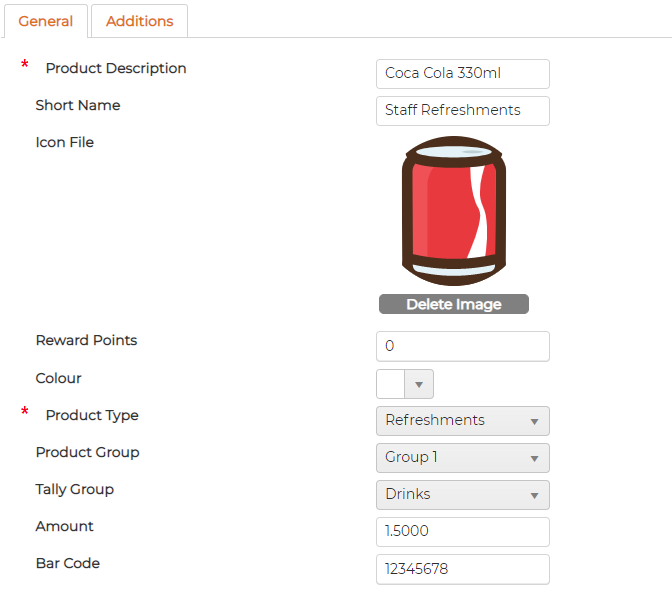
General Tab
- Product Description - Provide description for the product that will be visible on EPOS Till
- Short Name - Provide product short name
- Icon file - Upload picture of a product. Uploaded picture will be visible on EPOS
- Reward Points - Enter Reward points if necessary. When consumer buys the product, reward points will be added upon completing the transactions
- Colour - Pick and apply colour for the product button that appears on EPOS Till
- Product Type - select type from drop down list.
- Product Group - select group from drop down list
- Tally Group - select group from drop down list
- Amount - insert the chargeable amount
- Bar Code - Insert the bar code of the product so that when scanned at till, it gets identified quicker
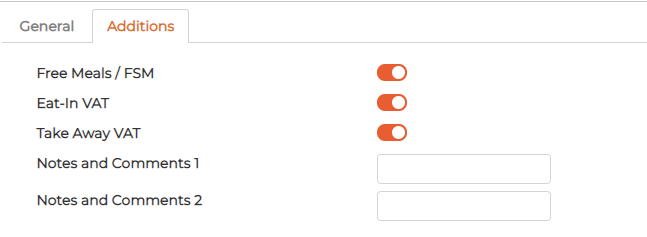
- Free Meals / FSM - Switch the key ON if the item is eligible for Free meals
- Eat-In VAT - Switch the key ON for VAT is to be charged for Eat-In
- Take Away VAT - Switch the key ON for VAT is to be charged for Take Away
- Notes and Comments 1 - add if required
- Notes and Comments 1 - add if required
Click on
 icon against the item to edit the product
Delete Product
Click on
 icon against the item to delete the product
Deleted item cannot be recoveredImport Products
Click on
 to import products in bulk. Follow the instructions provided for the template requirement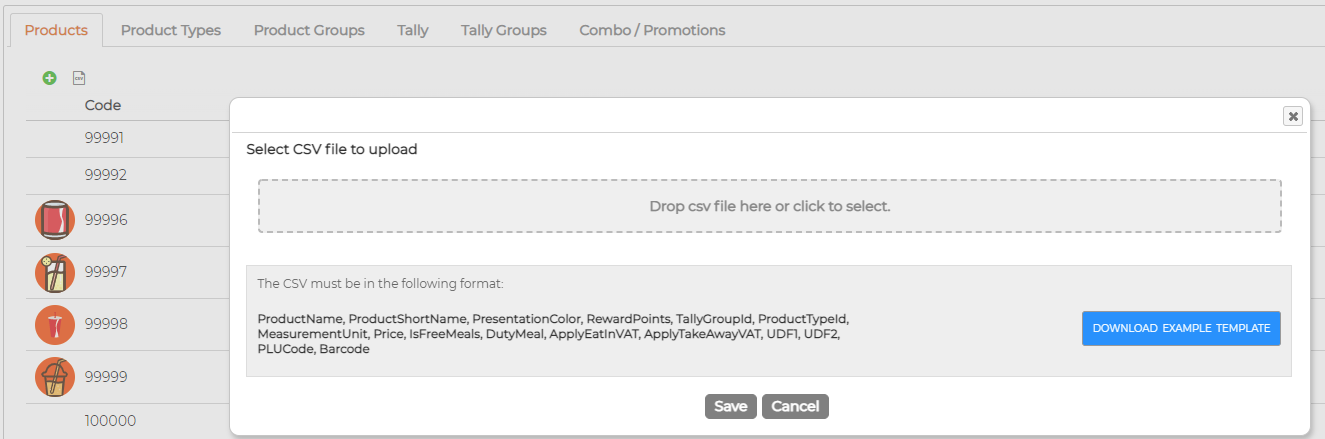
Product Purchase Limitation
Click on
 icon against the item to setup varies purchase limits if required
Click on
 icon to setup purchase limits
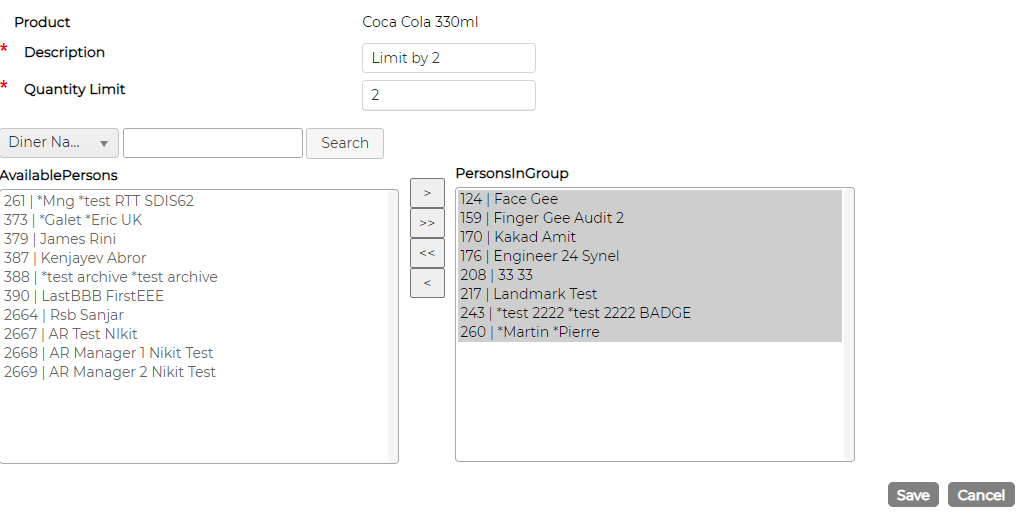
Give Description, specify limit and select the diners to apply the limitation.
In the example below, selected diner has limitation of buying the product Coca Cola 330ml at max 2 per day