
Advanced Reporting 2: Report Layout and Bands
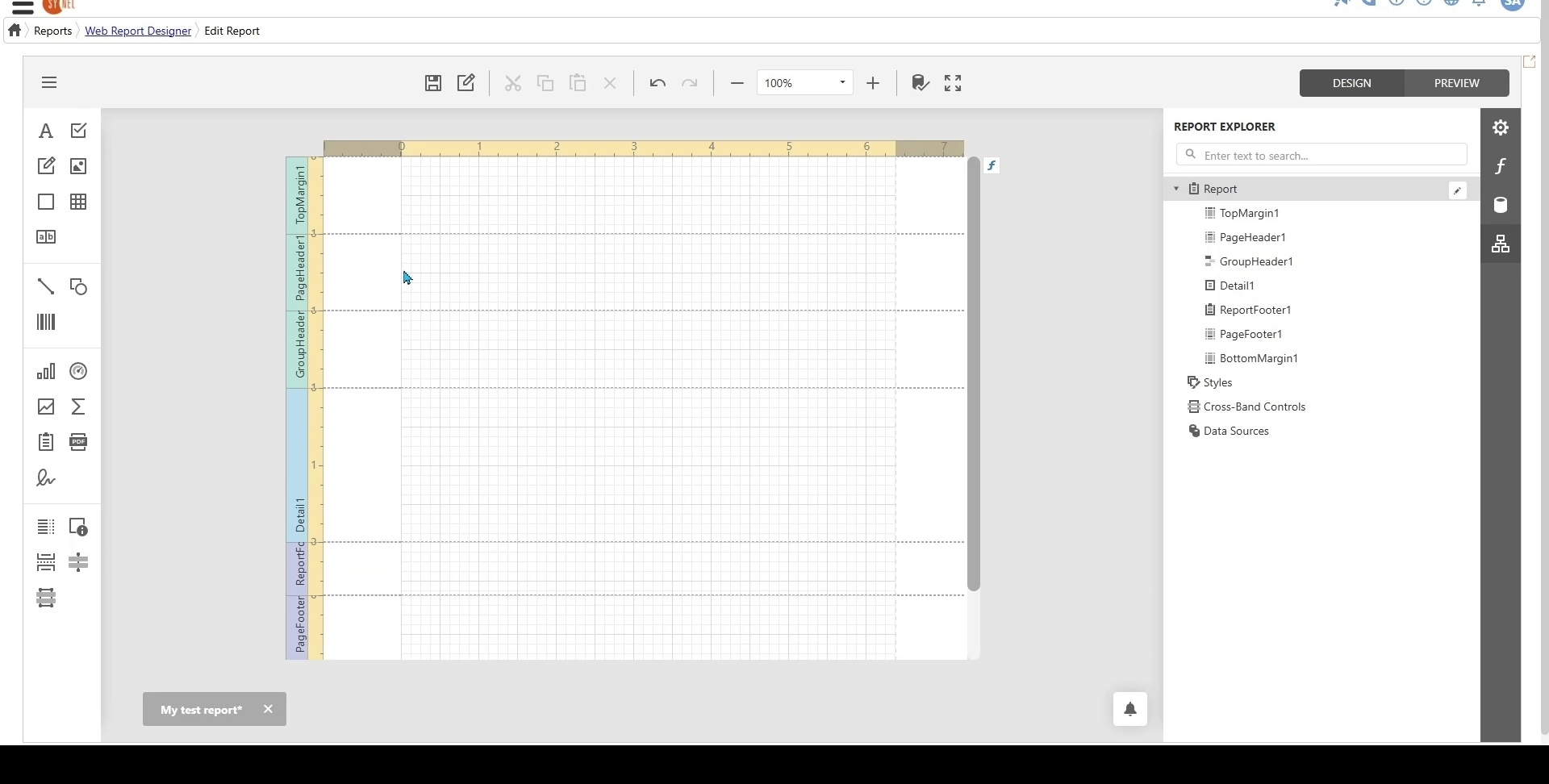
Every report contains three default bands:
Top Margin Band – Defines spacing at the top of the page.
Bottom Margin Band – Defines spacing at the bottom of the page.
Detail Band – The main content area where data is repeated for each record in the data source.
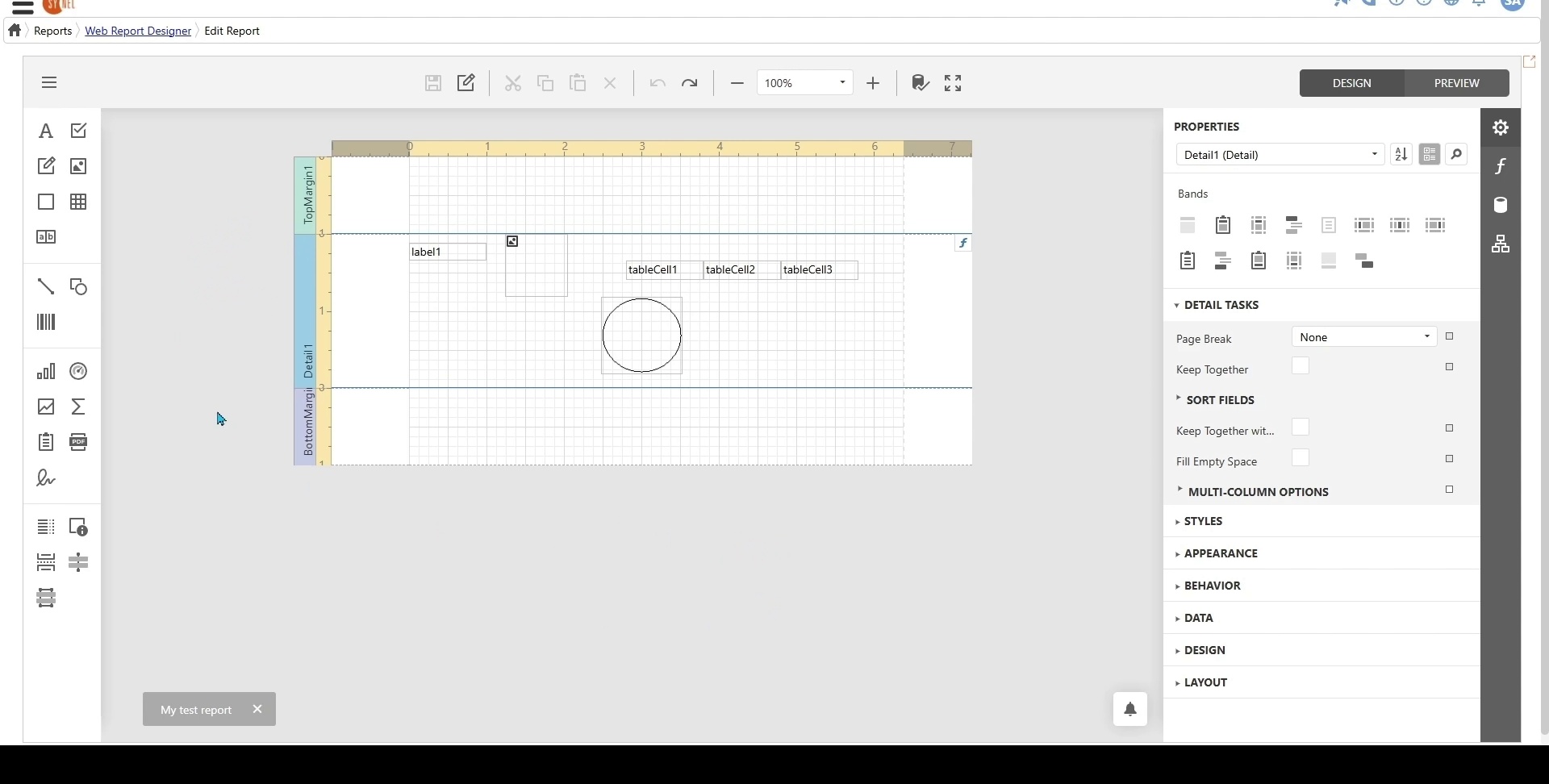
Adding Report Bands
To add a report band:
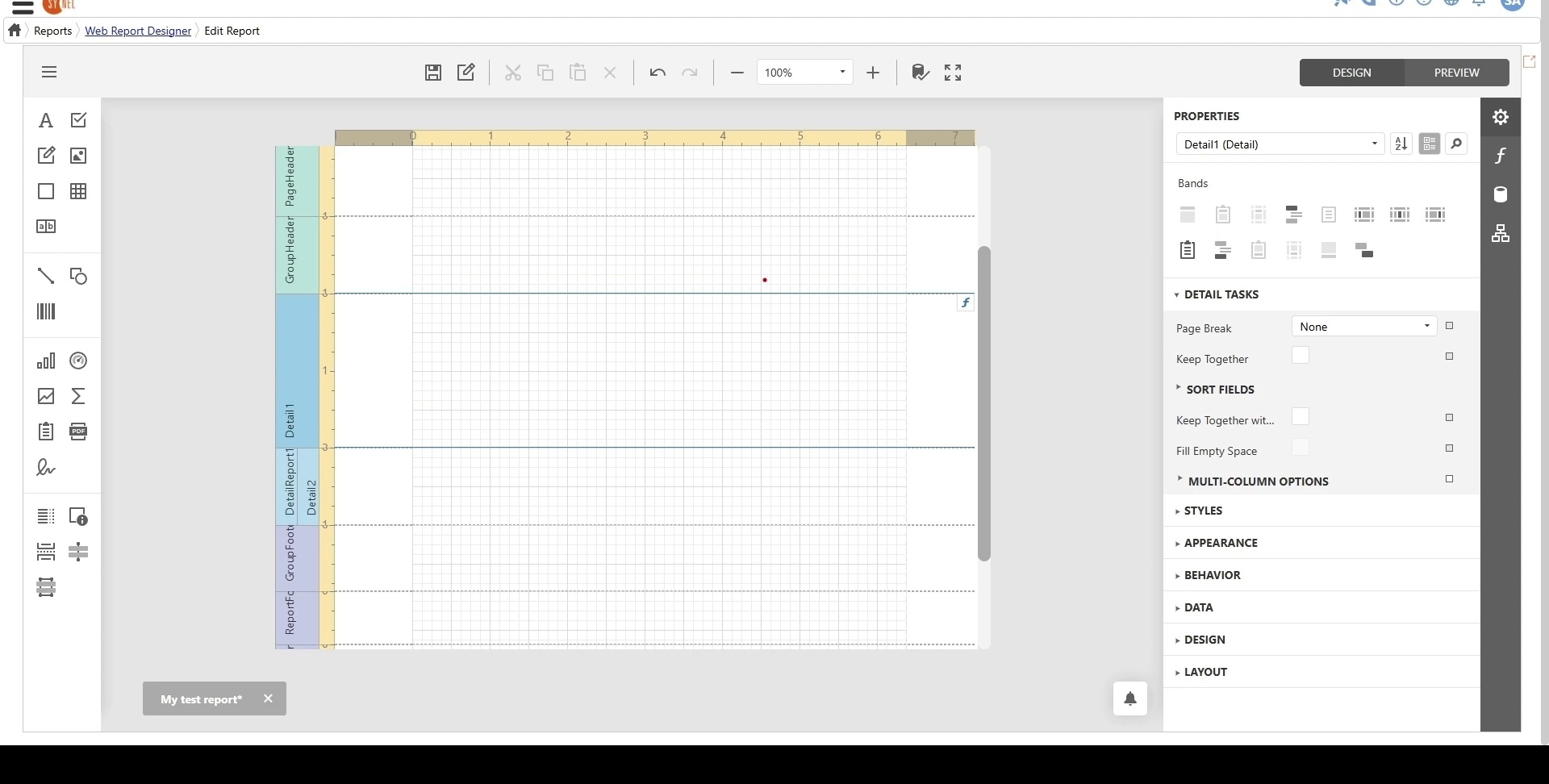
Select the entire report by clicking on a blank space outside the design surface or using the drop-down in the Properties Panel.
Navigate to the Bands section in the Properties Panel.
Choose from the available bands and click to add them.
Available bands include:
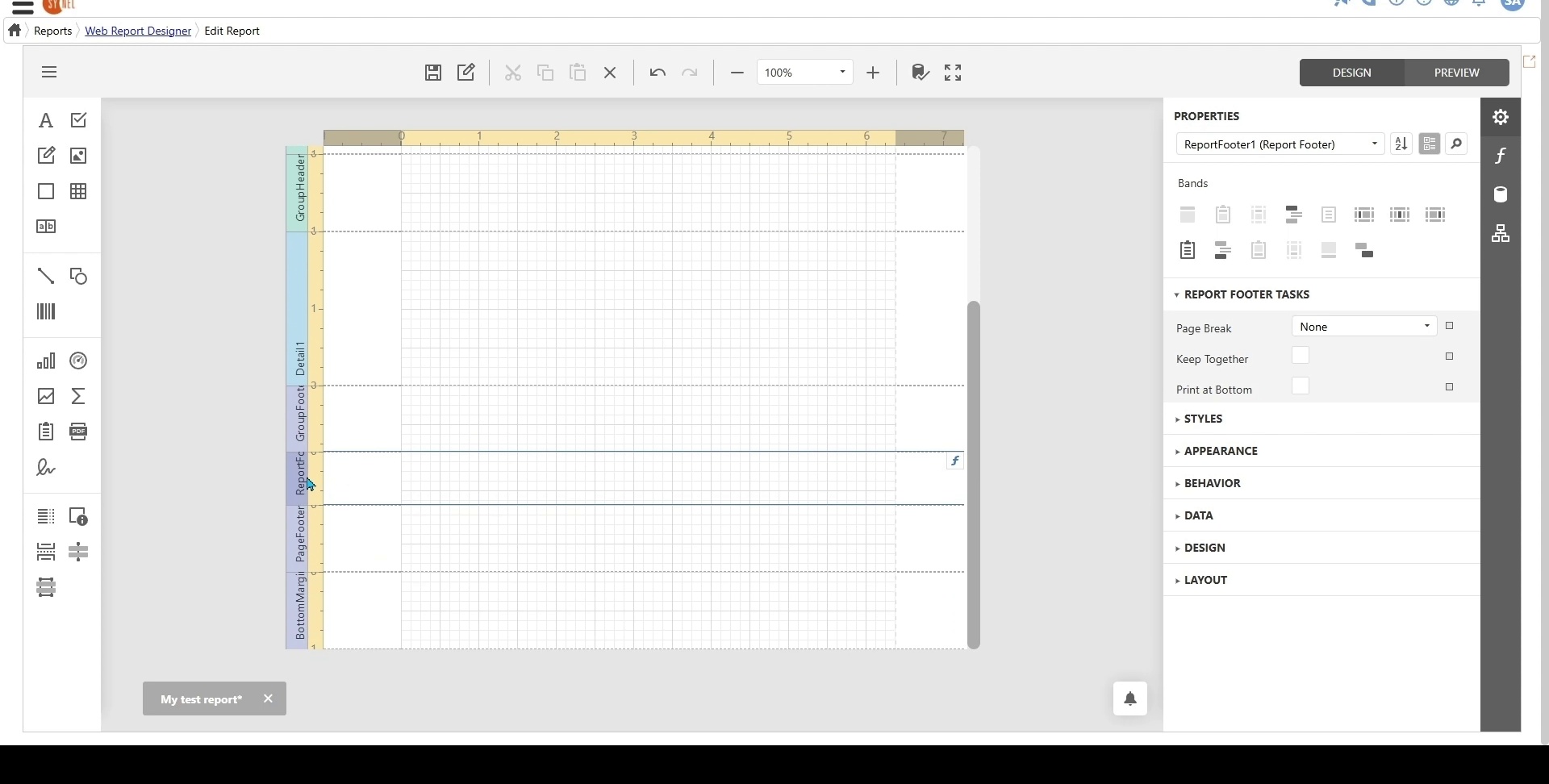
Report Header & Footer – Used for report title, parameters, summaries, or logos.
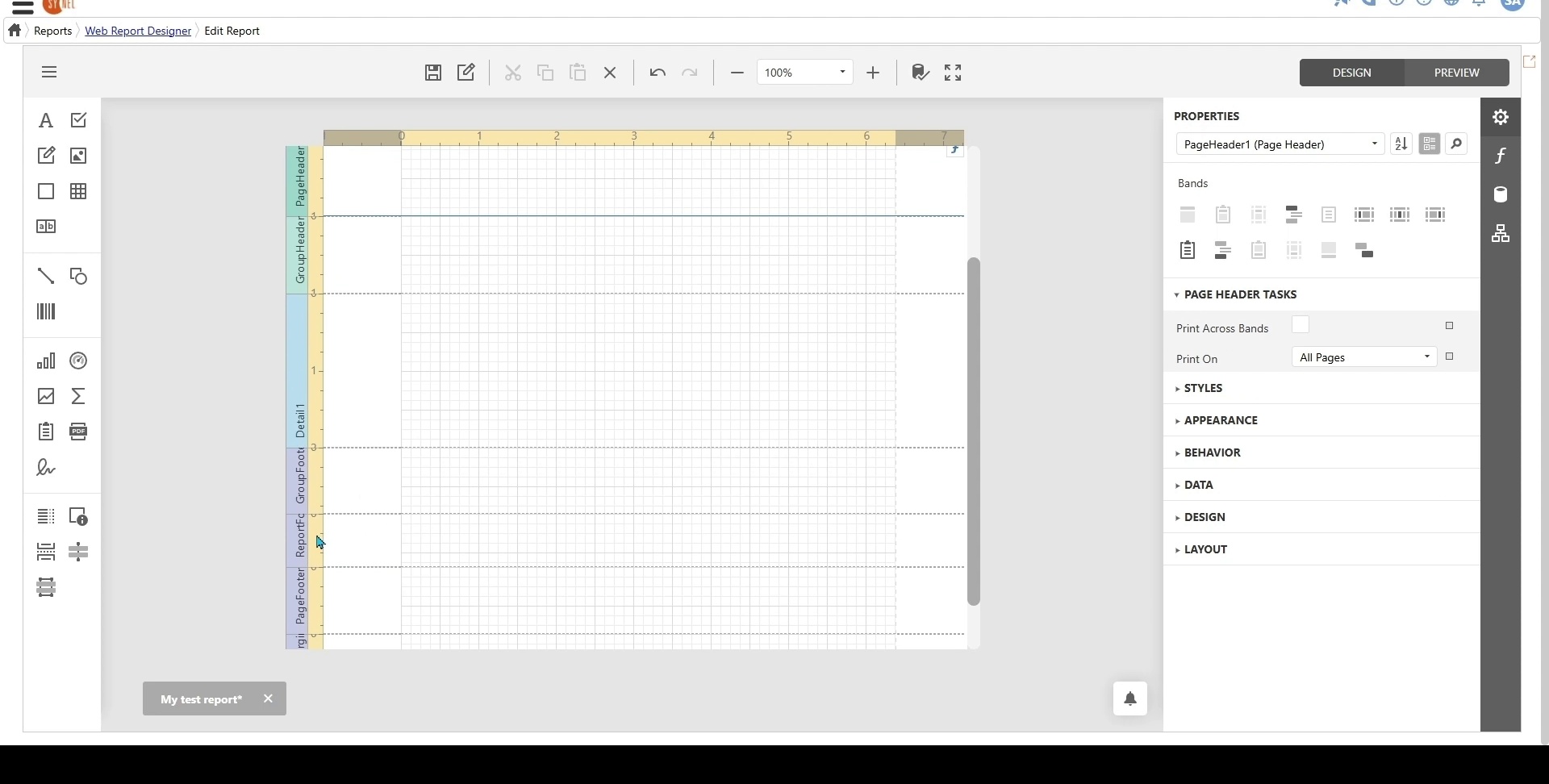
Page Header & Footer – Displays content on every page (e.g., page numbers, company name, or timestamps).
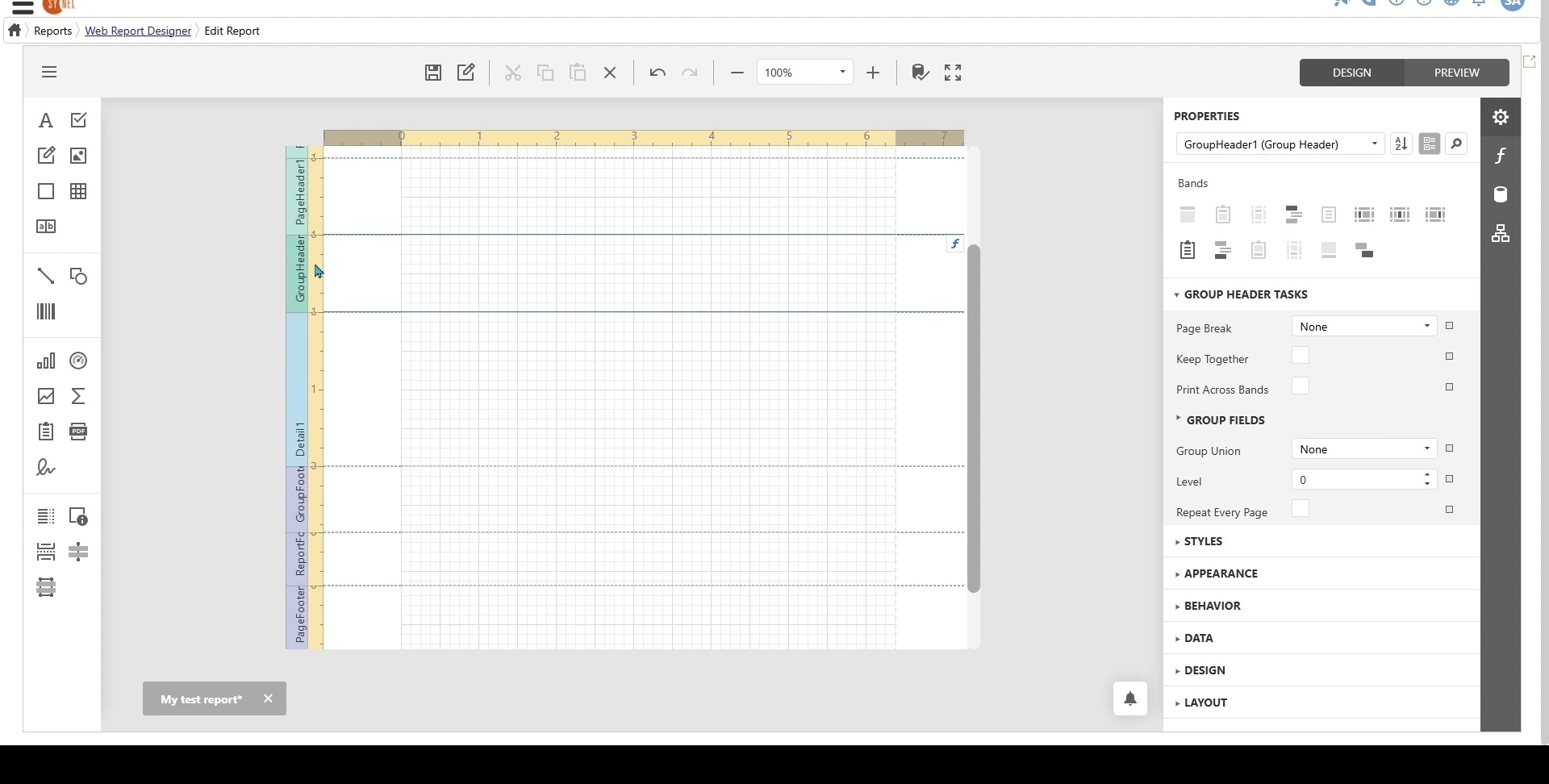
Group Header & Footer – Displays group-specific details such as department names and totals.
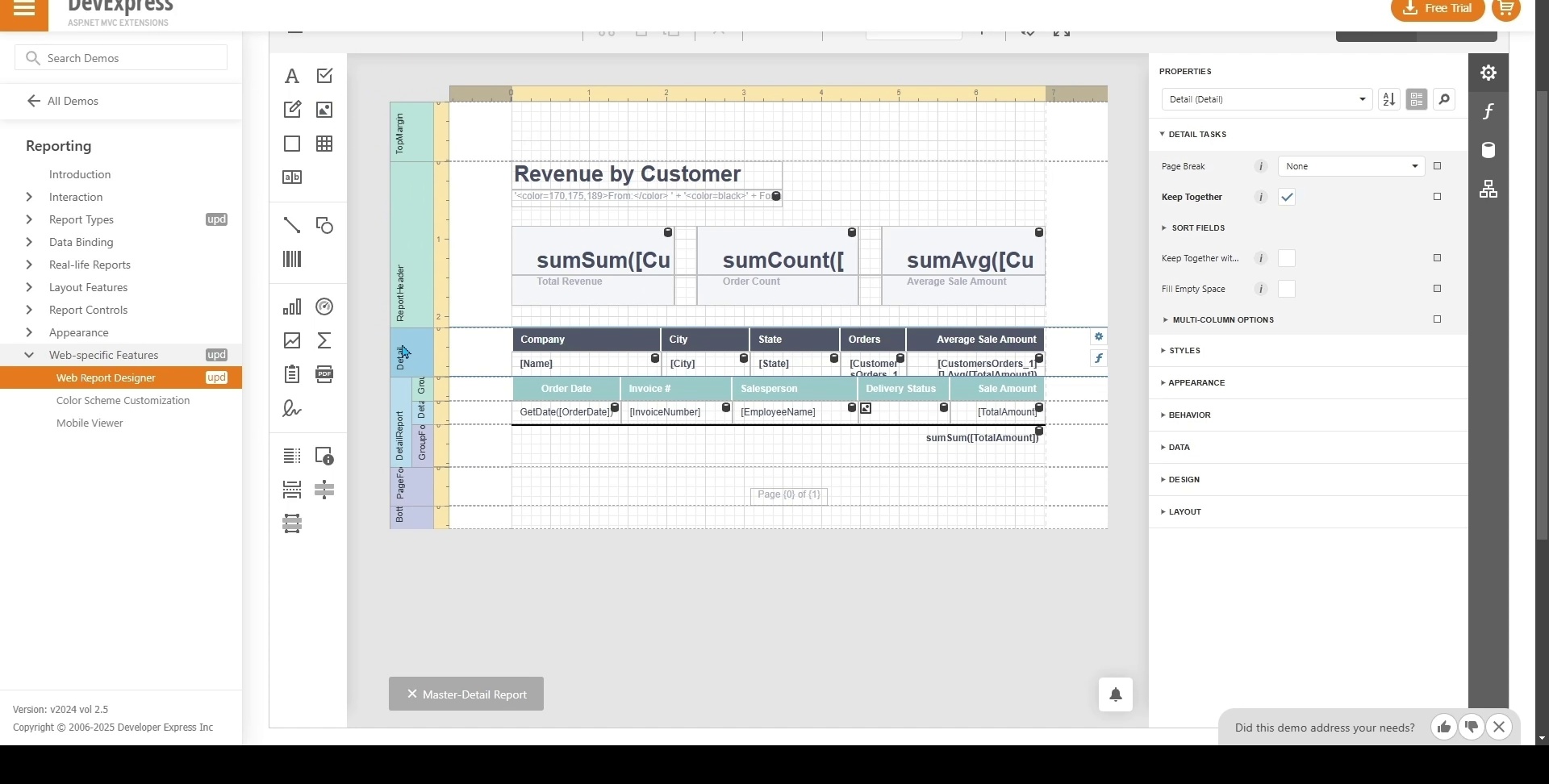
Detail Report Band – Used for master-detail reports.
Vertical Bands – Used for vertical layouts (Vertical Header, Vertical Detail, Vertical Total Band).
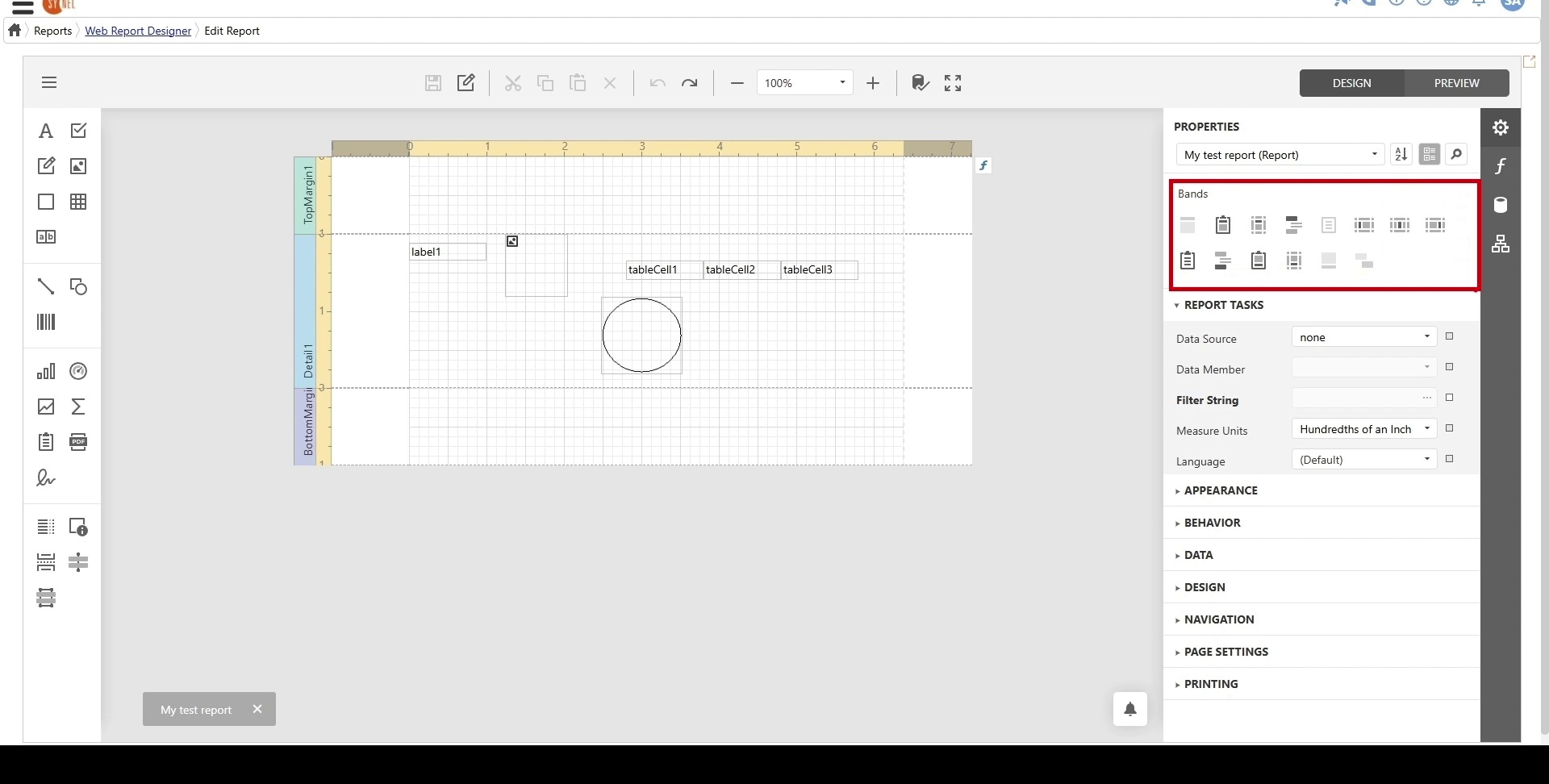
Using Report Bands
Report Header & Footer
Report Header: Typically includes the title, logo, and overall summaries.
Report Footer: Used for displaying report-wide totals.
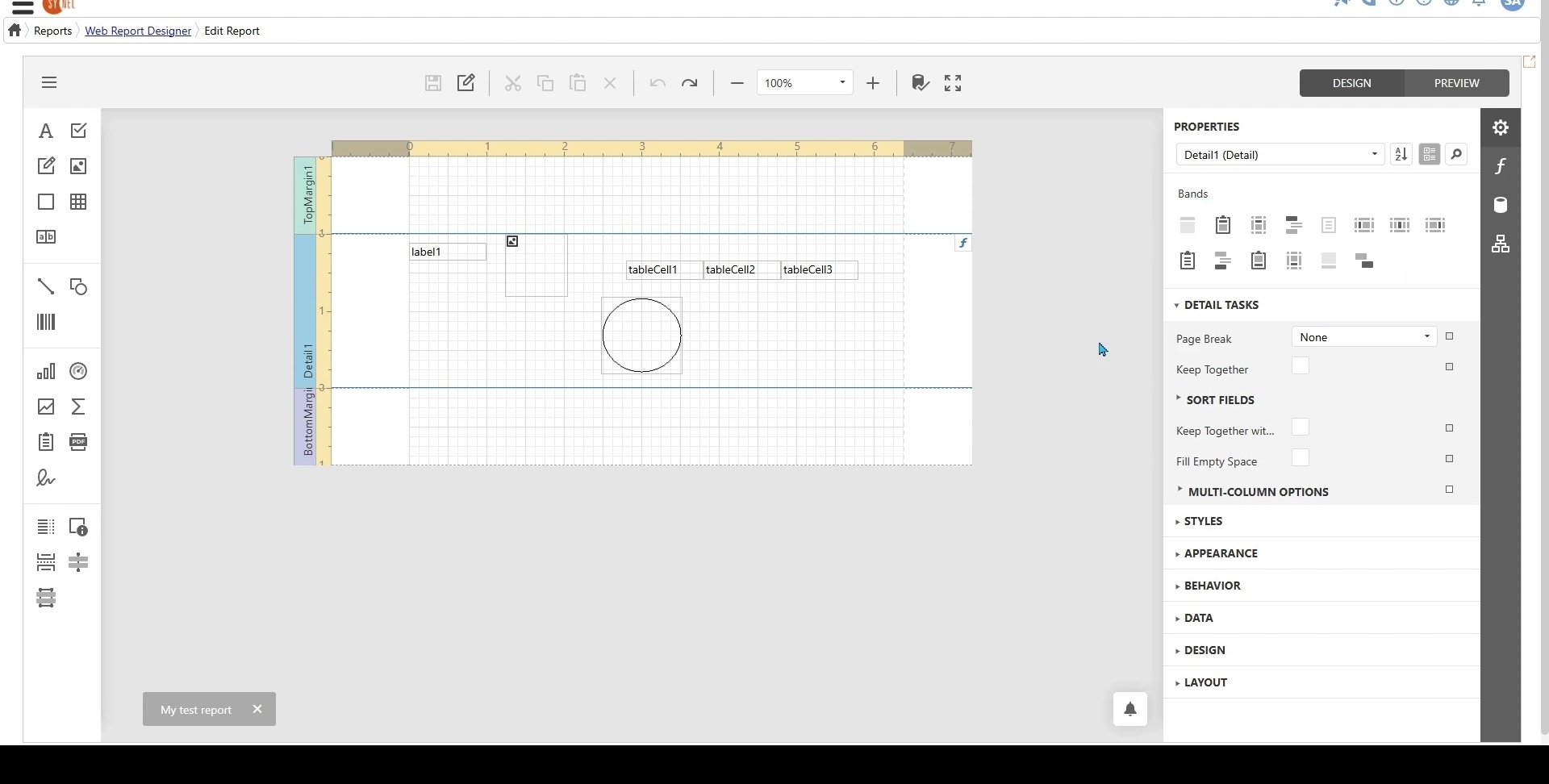
Page Header & Footer
Page Header: Appears at the top of every page, often used for page numbers, report titles, or company details.
Page Footer: Appears at the bottom of each page and typically contains pagination or footnotes.
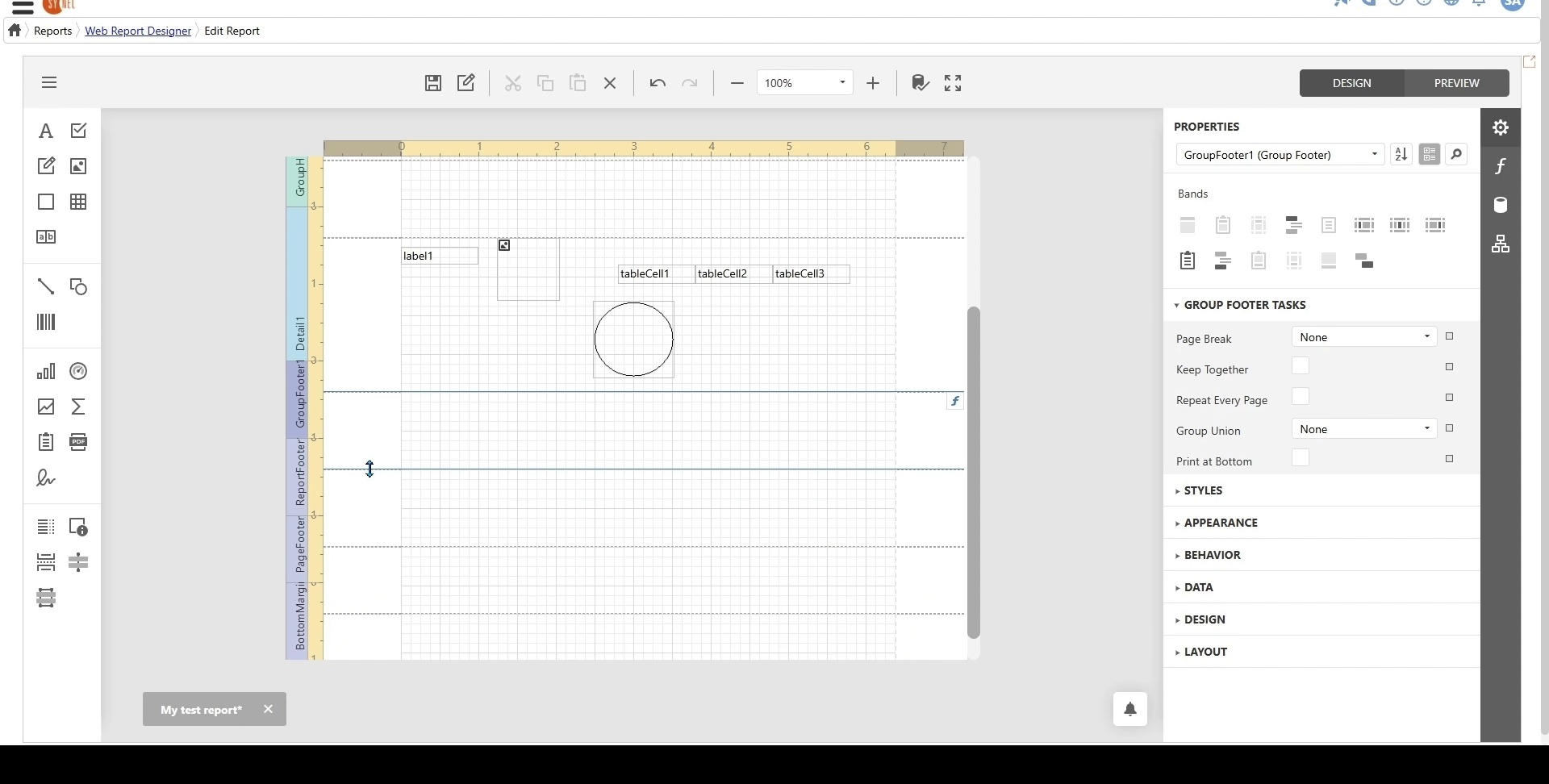
Group Header & Footer
Group Header: Used for organizing records into groups (e.g., department headers in an employee report).
Group Footer: Used for displaying summaries or totals for each group.
Multiple group headers and footers can be used to support hierarchical grouping (e.g., Organization → Department → Employee).
Detail Report Band (Master-Detail Reports)
Used when working with a master-detail relationship (e.g., companies and their orders).
The Detail Band displays master records, while the Detail Report Band contains associated child records.
Vertical Report Bands
Vertical Header, Vertical Detail, and Vertical Total Bands are used to create vertical layouts.
In contrast to a typical table layout, vertical reports display column headers on the side with corresponding data stacked below.
Deleting Report Bands
To delete a report band:
Click the band’s caption and select the delete icon.
Alternatively, go to the Report Explorer Panel, select the band, and delete it.
Adding Components to Report Bands
To demonstrate how components are rendered in a report, we add:
A label in the Report Header (Title: Test Report).
Page info in the Page Header (Displays current page/total pages).
A table in the Group Header (Table headers for data display).
A label in the Group Footer (Displays Total for Group).
A label in the Report Footer (Displays Total for Report).
Page info in the Page Footer (For pagination).
Previewing the Report
Switch to Preview Mode to check the layout:
The report title appears in the Report Header.
Page information is displayed in the Page Header & Footer.
Table headers are structured correctly in the Group Header.
Group and report totals appear in the Group Footer & Report Footer.
s.