
Software - TimeLOG Web / Synergy WF
Import Employees
System supports importing data from number of industrial standard file formats.
This document describes how to create Import File structure (Unicode Txt) using Microsoft Excel and import it using Synergy Workforce GUI
To import Employees data, go to Menu - System Setup - Import Data
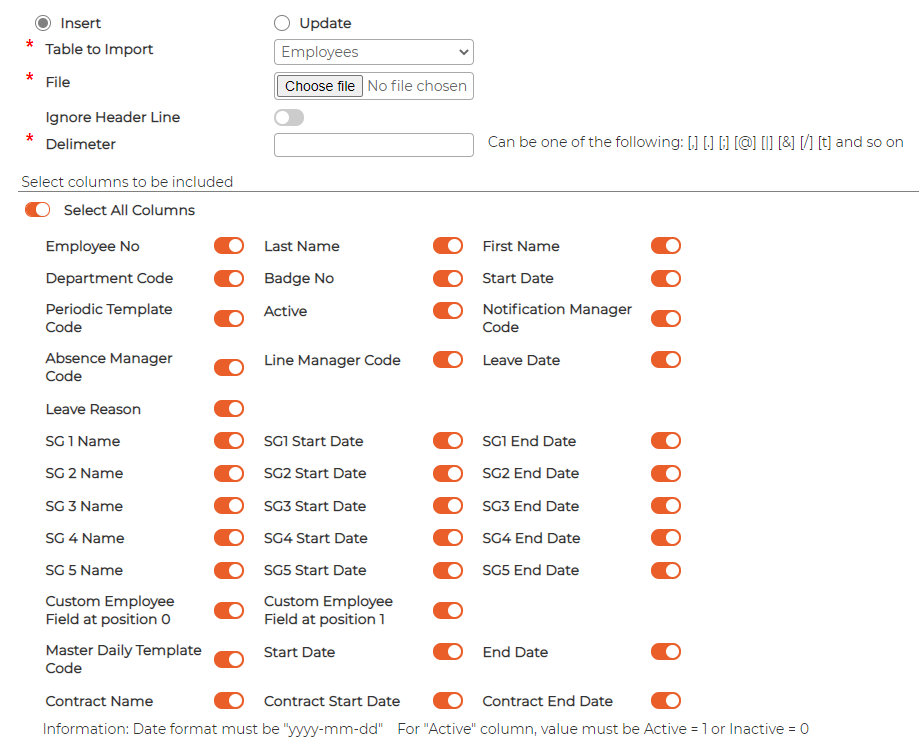
File Structure
Depending on the data required to import, User will need to create a file format in excel.
Example: Importing new employees with minimal data requires following columns in excel:
[Employee No] [Last Name] [First Name] [Department Code] [Badge No] [Start Date] [Periodic Template No] [Contract Name]
Create Import File
Open Microsoft Excel
Create the Column Headers and fill in the details for each respective columns.
1. Employee No – Refers to Employee number or Payroll no of an Employee.
Employee no Must be unique. Duplicated value in the file will cause import to fail!! 2. Last Name – Refers to Last name of an employee
3. First Name – Refers to First name of an employee.
4. Department Code – Refers to Department of an Employee. Department must exist within system prior to importing file!! Respective code can be found within Menu – Personnel Settings – Departments. 5. Badge no – Refers to Badge no of an Employee. Usually it is same as Employee no 6. Start Date – Refers to Employee start date in the business. Format must be “YYYY-MM-DD” 7. Periodic Template No – Refers to the Code of Periodic Template created within system. I.e. working week cycle of an employee.Periodic Template must exist within system prior to importing file!! Periodic Template cycle can be found within Menu - Work Rules – Periodic Templates. 8. Contract Name – refers to name (not code) of the Contracts created within system
Contracts can be found within Menu – Personnel Settings – ContractsSave a copy in standard Excel file Format to refer again if needed.
Next save the same file as Unicode Text (*.txt) to desired location on the computer
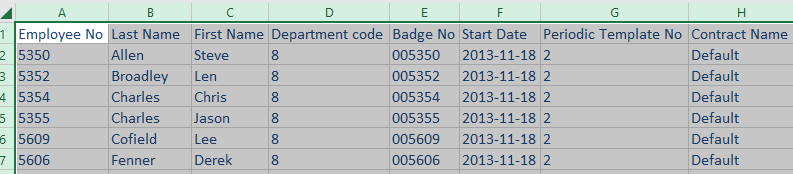
Go to Menu – System Setup – Import Data
Select Insert
Select Table to Import - Employees
Select Unicode text file to import
Switch ON to ignore header line if exists in the text file
Insert the delimiter depending on the file type created. In this case "t" for tab delimiter
Tick the boxes based on columns in the file
Click read file to verify the content before Importing to database
On Successful reading, bottom section should show all information in Green colour.
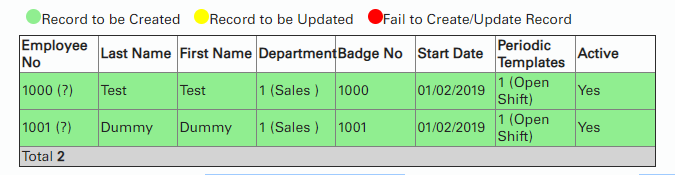
Scroll down the page to make sure there are no lines with red colour in it
If all looks good, click on Import button and wait until it finishes uploading data.This can take a while so please be patient. Browser will continue to show loading icon until the import has been completed.
This document describes how to create Import File structure (Unicode Txt) using Microsoft Excel and import it using Synergy Workforce GUI
To import Employees data, go to Menu - System Setup - Import Data
File Structure
Depending on the data required to import, User will need to create a file format in excel.
Example: Importing new employees with minimal data requires following columns in excel:
[Employee No] [Last Name] [First Name] [Department Code] [Badge No] [Start Date] [Periodic Template No] [Contract Name]
Create Import File
Open Microsoft Excel
Create the Column Headers and fill in the details for each respective columns.
1. Employee No – Refers to Employee number or Payroll no of an Employee.
Employee no Must be unique. Duplicated value in the file will cause import to fail!! 2. Last Name – Refers to Last name of an employee
3. First Name – Refers to First name of an employee.
4. Department Code – Refers to Department of an Employee. Department must exist within system prior to importing file!! Respective code can be found within Menu – Personnel Settings – Departments. 5. Badge no – Refers to Badge no of an Employee. Usually it is same as Employee no 6. Start Date – Refers to Employee start date in the business. Format must be “YYYY-MM-DD” 7. Periodic Template No – Refers to the Code of Periodic Template created within system. I.e. working week cycle of an employee.Periodic Template must exist within system prior to importing file!! Periodic Template cycle can be found within Menu - Work Rules – Periodic Templates. 8. Contract Name – refers to name (not code) of the Contracts created within system
Contracts can be found within Menu – Personnel Settings – ContractsSave a copy in standard Excel file Format to refer again if needed.
Next save the same file as Unicode Text (*.txt) to desired location on the computer
Go to Menu – System Setup – Import Data
Select Insert
Select Table to Import - Employees
Select Unicode text file to import
Switch ON to ignore header line if exists in the text file
Insert the delimiter depending on the file type created. In this case "t" for tab delimiter
Tick the boxes based on columns in the file
Click read file to verify the content before Importing to database
On Successful reading, bottom section should show all information in Green colour.
Scroll down the page to make sure there are no lines with red colour in it
If all looks good, click on Import button and wait until it finishes uploading data.This can take a while so please be patient. Browser will continue to show loading icon until the import has been completed.