EduReg2 Active Directory Setup
ER2Active Directory integration for EduReg2
- Locate the file \\Program Files (x86)\EduReg2\ER2 Web\web.config Edit and change web.config to set up Windows authentication and authorization
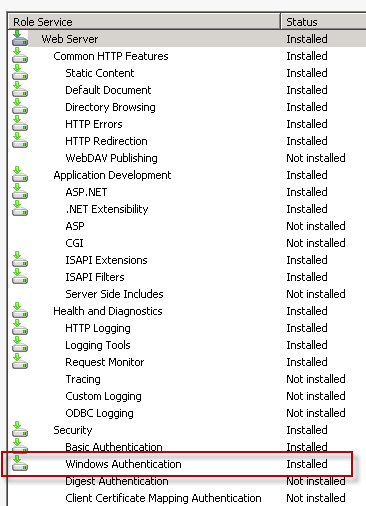
<authentication mode="Windows" /> <authorization> <deny users="?"/> </authorization> - Make sure that Windows Authentication is enabled for IIS on the server
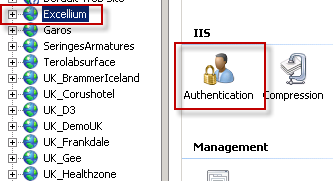
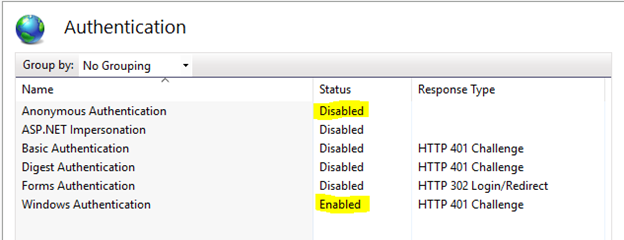
- Enable Windows Authentication and disable Anonymous access for corresponding site
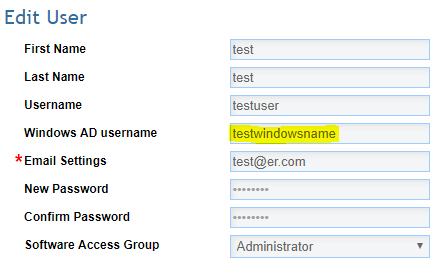
- Set the value for Windows username in System Setup > Software Security > Edit User screen. Please note that only username part is used, so DO NOT put "MyDomain\userName" or "username@MyDomain". Just use "username" instead:
- Set up Internet Explorer to support straight-though authentication. IE will try to send current credentials only to a site that is considered to be Local Intranet. Otherwise the user will be presented with a standard Windows prompt to enter username and password.
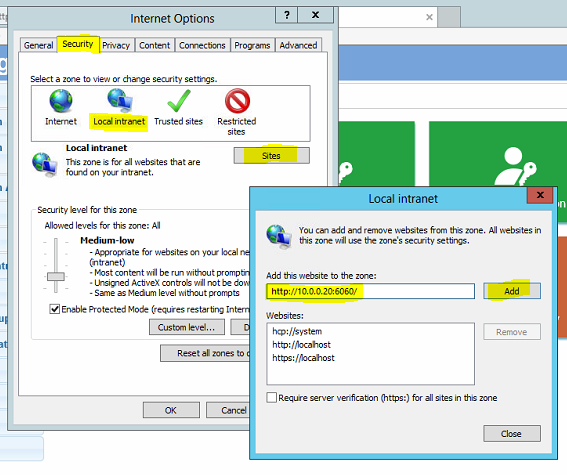
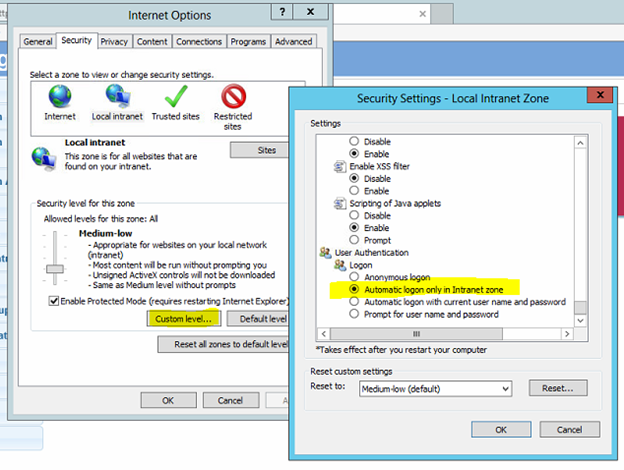
- a. From IE settings, go to Tools > Internet Options > Security > Local Intranet > Sites > Add and add the URL of the website. After go to Security > Custom Level and make sure that User Authentication > Logon is set to 'Automatic Logon only in Intranet Zone'. After save everything and close all screens and restart the website.
- b. If the aforementioned 'a' method did not help, go to Internet Options > Security > Trusted Sites > Sites and add the corresponding site URL to the list of websites. After go to Trusted Sites > Custom Level and check that User Authentication > Logon is set to 'Automatic logon with current user name and password'. After save everything and close all screens and restart the website.