
EPOS Product Combo/Promotions
EPOSScreen allows defining the promotions or discounts on items when bought together in combination

Add Combo/Promotions
Click on icon to add combo/promotion
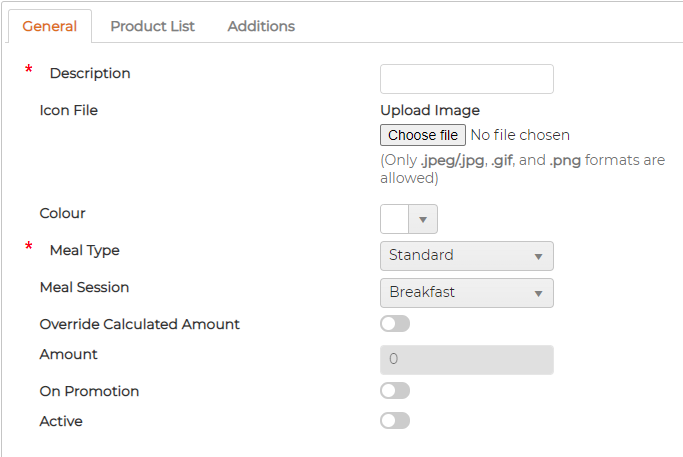
General Tab

Click on icon against the item to edit
Delete Product
Click on icon against the item to delete
Deleted item cannot be recovered
Add Combo/Promotions
Click on
icon to add combo/promotionGeneral Tab
- Product Description - Provide description
- Icon file - Upload picture
- Colour - Pick and apply colour for the product button that appears on EPOS Till
- Meal Type - select the meal type from drop down option
- Meal Session - select the meal session from drop down option
- Override Calculated Amount - Amount is automatically calculated from Product Items added in the tab Product List. Switch ON and insert override amount
- On Promotion - if yes, switch it on
- Active - Switch ON if active and in Use.
- Add the items as necessary to create combo
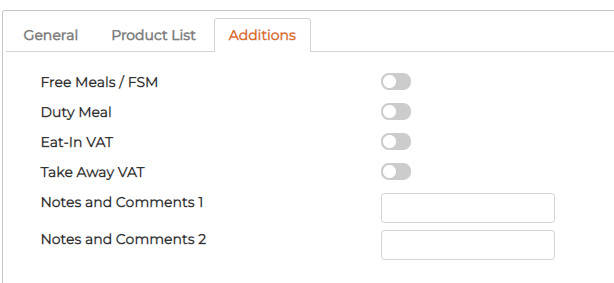
- Free Meals / FSM - Switch the key ON if the item is eligible for Free meals
- Eat-In VAT - Switch the key ON for VAT is to be charged for Eat-In
- Take Away VAT - Switch the key ON for VAT is to be charged for Take Away
- Notes and Comments 1 - add if required
- Notes and Comments 1 - add if required
Click on
icon against the item to edit Delete Product
Click on
icon against the item to delete Deleted item cannot be recovered