Software - TimeLOG Pro / Legacy
Installing TimeLOG 9 3 on a Windows 8 or Server 2012 PC
Installing TimeLOG 9.3 on a Windows 8 or Server 2012 PC.
Ignore the drivers that come on the install CD they won't work. Get the latest from Manufacturer's Website
You must then install in this order!
- Disable UAC
- Disable DEP
- install the NEW drivers
- plug in dongle and wait for the red light
- install License Manager
- say NO to update device drivers if prompted
- say YES to create firewall rules
- DO NOT OPEN TimeLOG YET
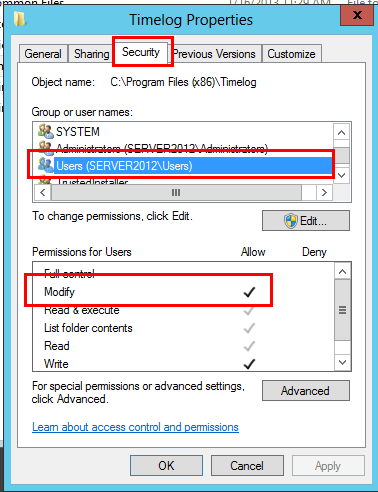
- Right click on the installation folder and choose properties
- Click on Security and set Users and relevant logons to include the "Modify" option.
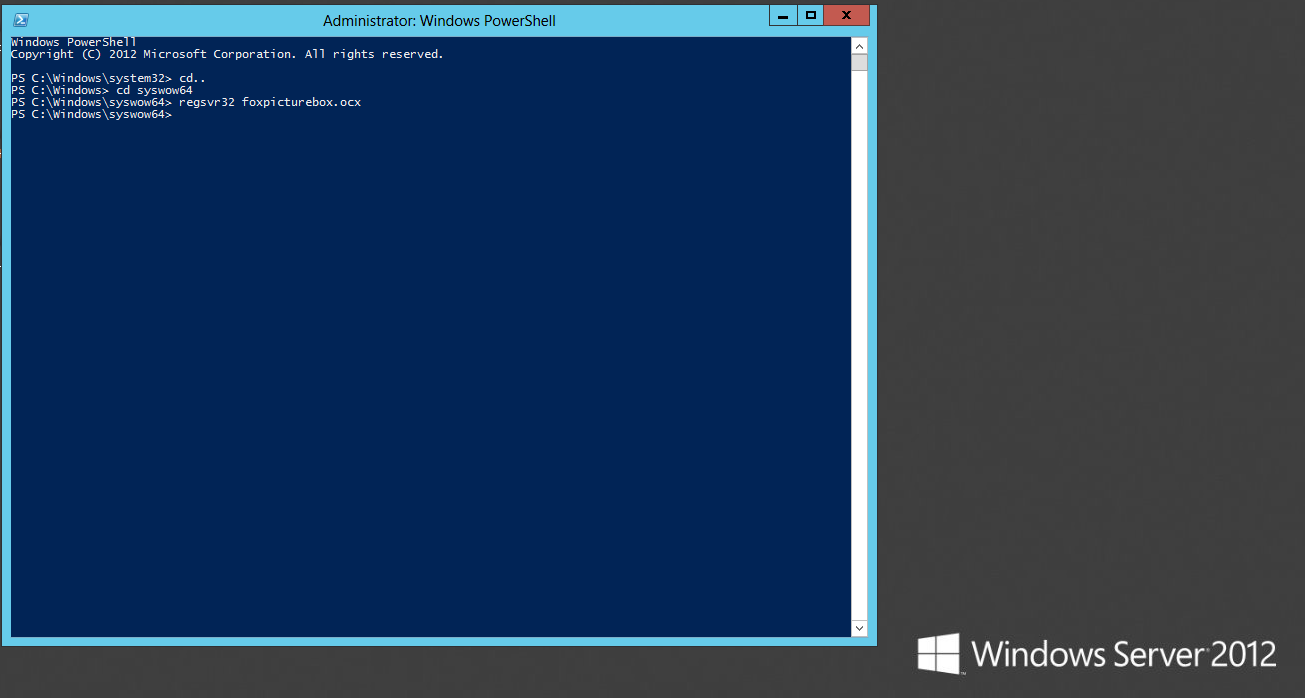
- Now right click on the Command prompt/Powershell Icon (Server 2012)
- Choose Run As Administrator
- For 32bit OS type
c:\windows\system32\regsvr32 c:\windows\system32\foxpicturebox.ocx - For 64bit OS type
C:\windows\syswow64\regsvr32 c:\windows\syswow64\foxpicturebox.ocx
After installing TimeLOG as per following instructions go back and modify nethasp.ini to include the server's ip address or your clients won't work!