
Schedule Activity
Go to Menu - Scheduler - Graphical Scheduler
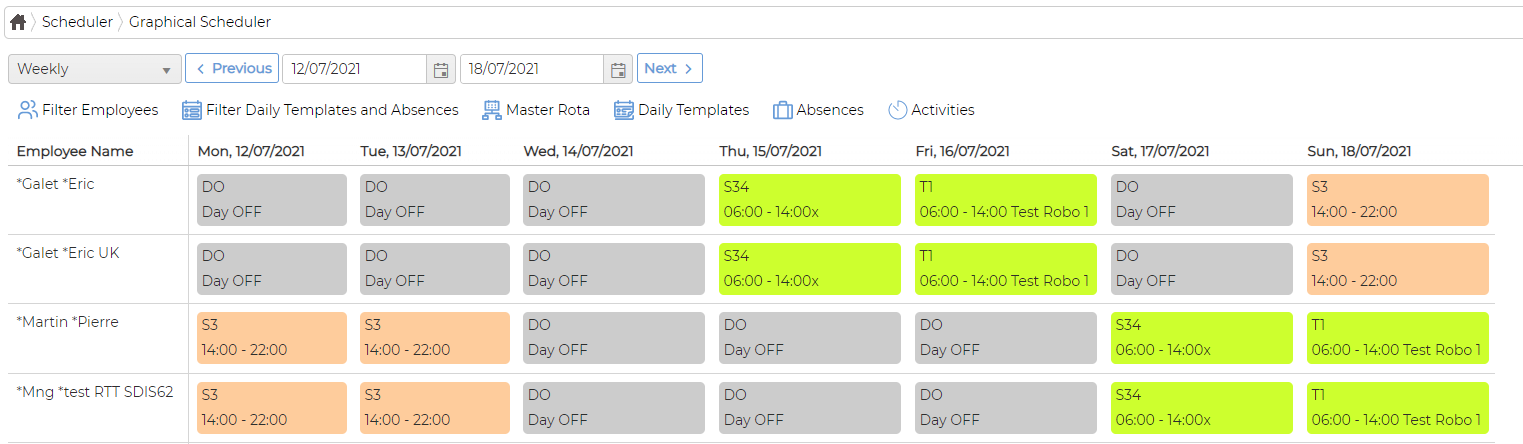
Schedule Activity Click on icon to schedule
Pick the activity from drop down list with start and end time

Select the relevant client, site and contact details.
Insert Job reference if necessary
Add Notes if necessary
Select support member (list of employees) if necessary who will be supporting the field person

Click against the field person on the respective day/date and save
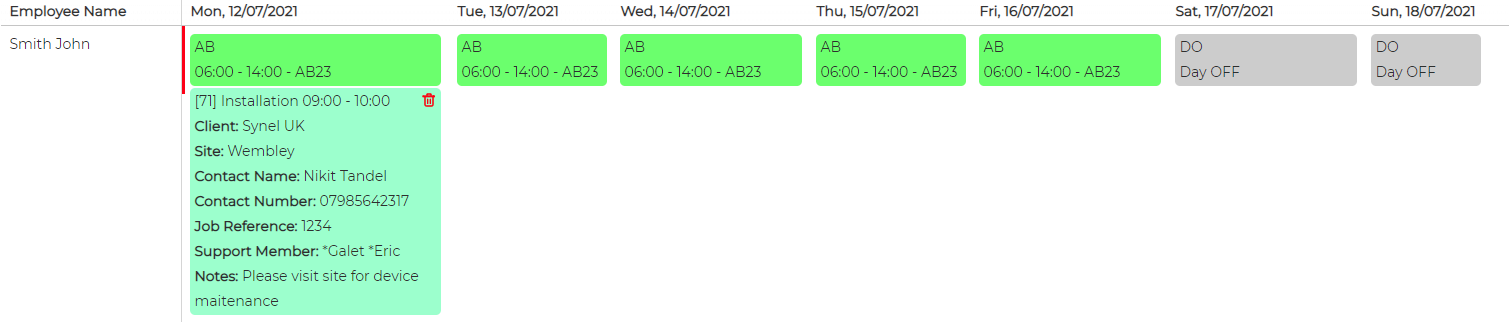
Similarly, you can schedule the same job to same or other employees on different dates,
To add another schedule activity, simply fill in the respective details and click against the employee and save it
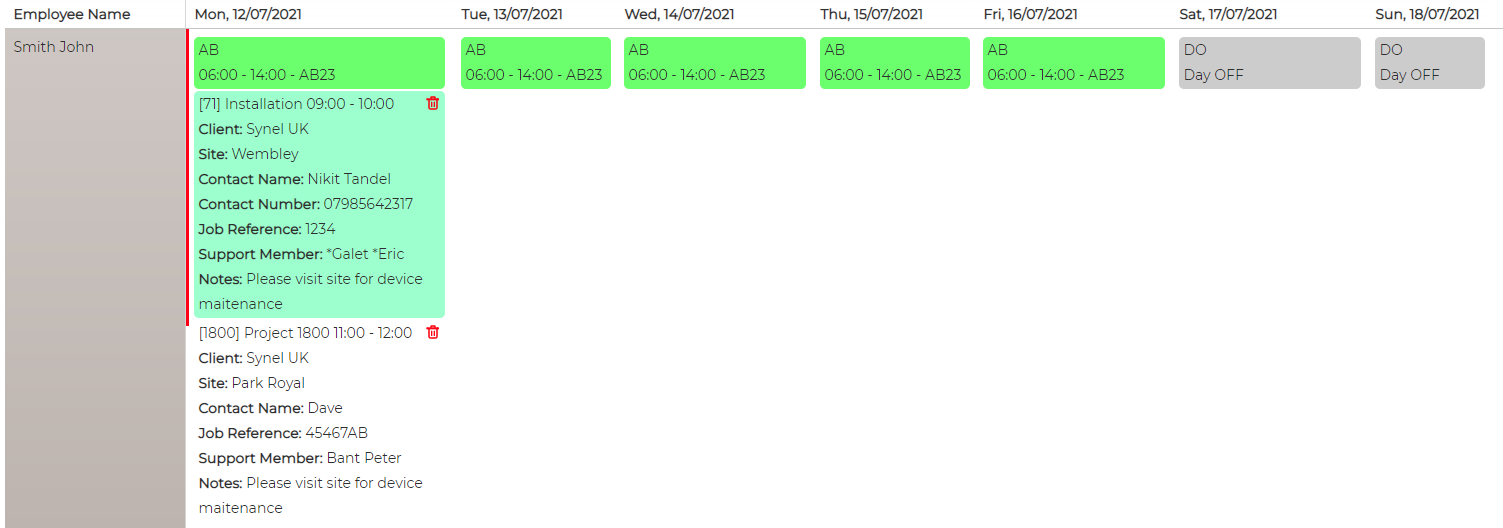
Upon save, email notification gets sent to the user updating about the scheduled Activity
Synergy App - Scheduled Activity will also get updated accordingly for the user
Edit Schedule
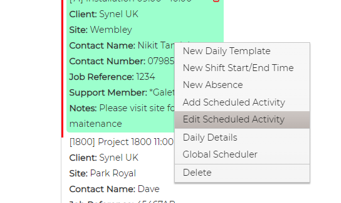
Right Click on the scheduled activity and click Edit Scheduled Activity.
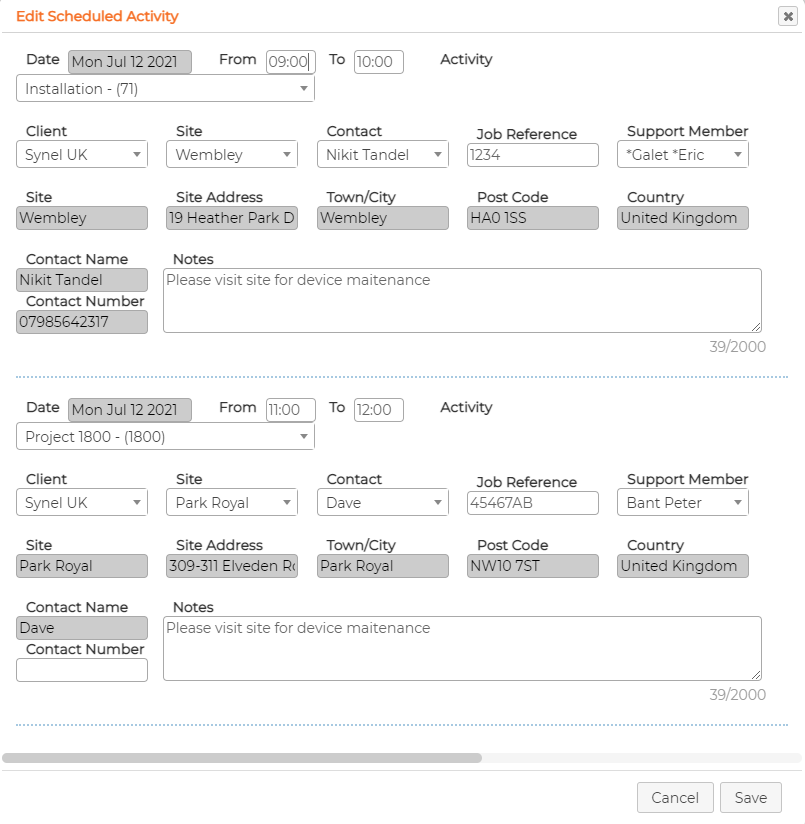
Change parameter as required and save it
Delete Activity
Click on icon against the item to delete.
Schedule Activity Click on
icon to schedule Pick the activity from drop down list with start and end time
Select the relevant client, site and contact details.
Insert Job reference if necessary
Add Notes if necessary
Select support member (list of employees) if necessary who will be supporting the field person
Click against the field person on the respective day/date and save
Similarly, you can schedule the same job to same or other employees on different dates,
To add another schedule activity, simply fill in the respective details and click against the employee and save it
Upon save, email notification gets sent to the user updating about the scheduled Activity
Synergy App - Scheduled Activity will also get updated accordingly for the user
Edit Schedule
Right Click on the scheduled activity and click Edit Scheduled Activity.
Change parameter as required and save it
Delete Activity
Click on
icon against the item to delete.