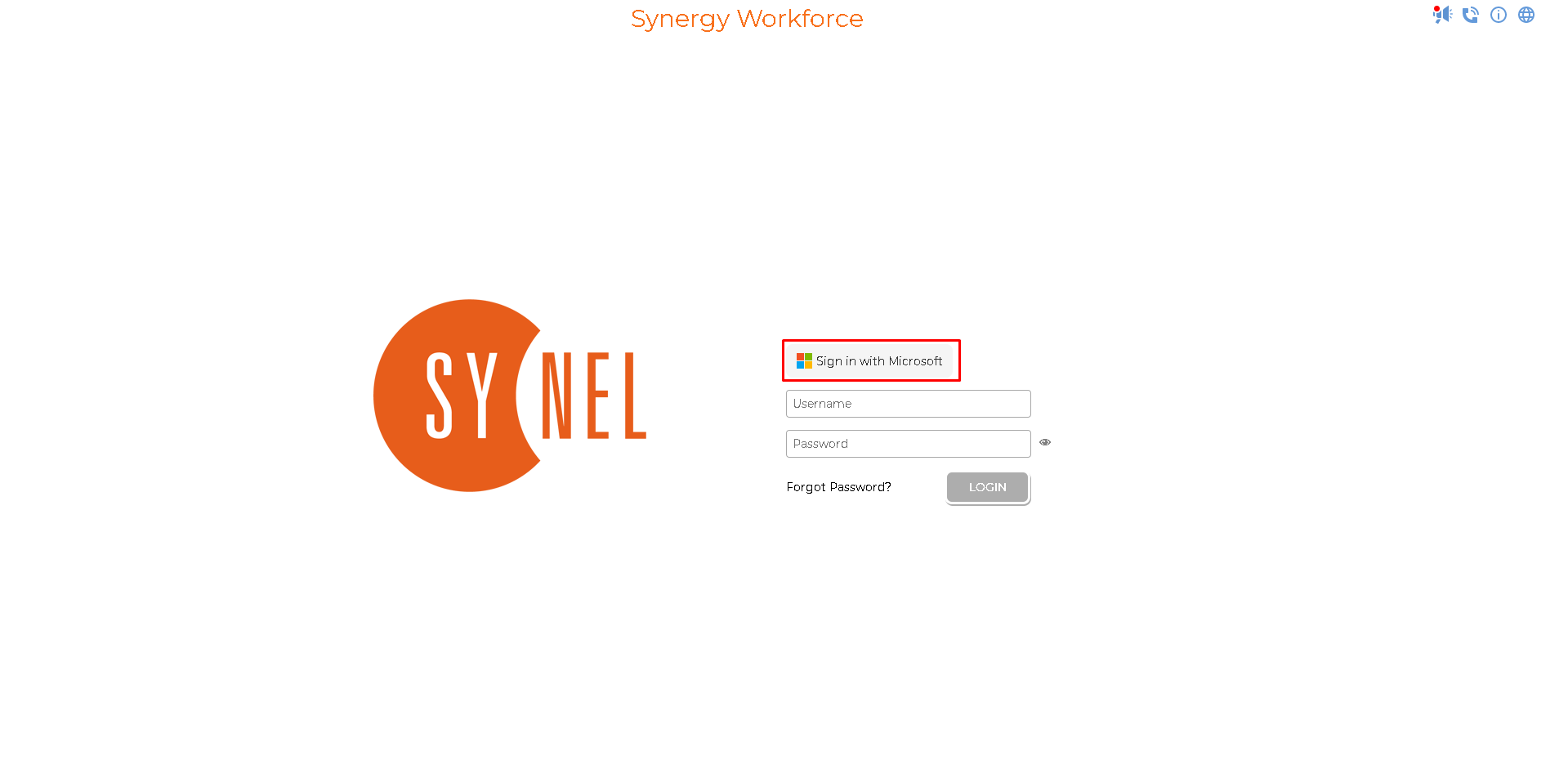
Setting Up Azure Single Sign On
SWFPrerequisites:
- Active user account with Azure AD Premium subscription.
- Active license in SWF with SSO enabled.
In order to test Azure SSO you need:
- Configure Azure AD SSO - to enable your users to use this feature.
- Configure SWF SSO - to configure the single sign-on settings on application side.
- Configure Azure AD SSO
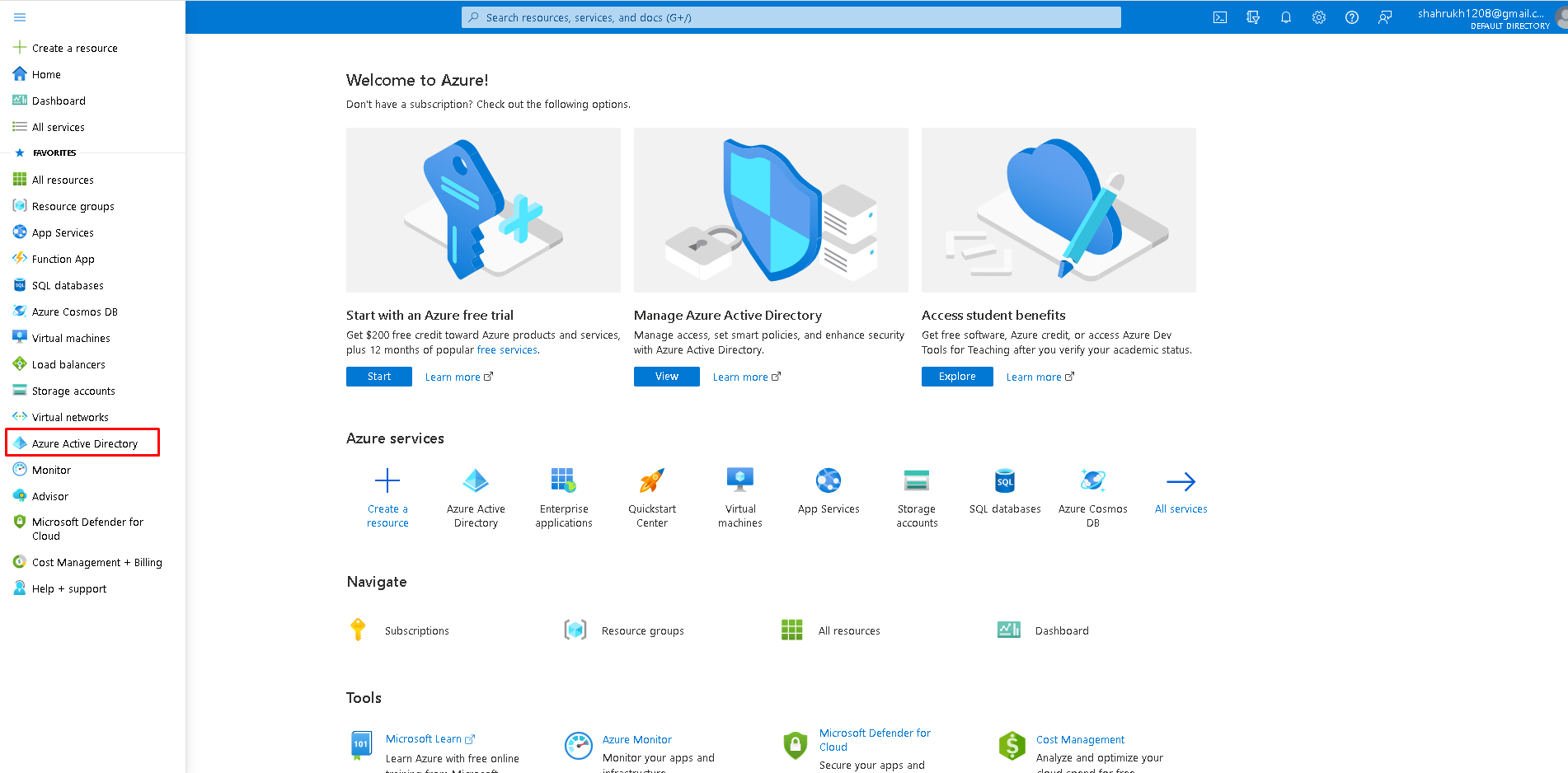
- Go to Microsoft Azure portal, click on menu and select Azure Active Directory.
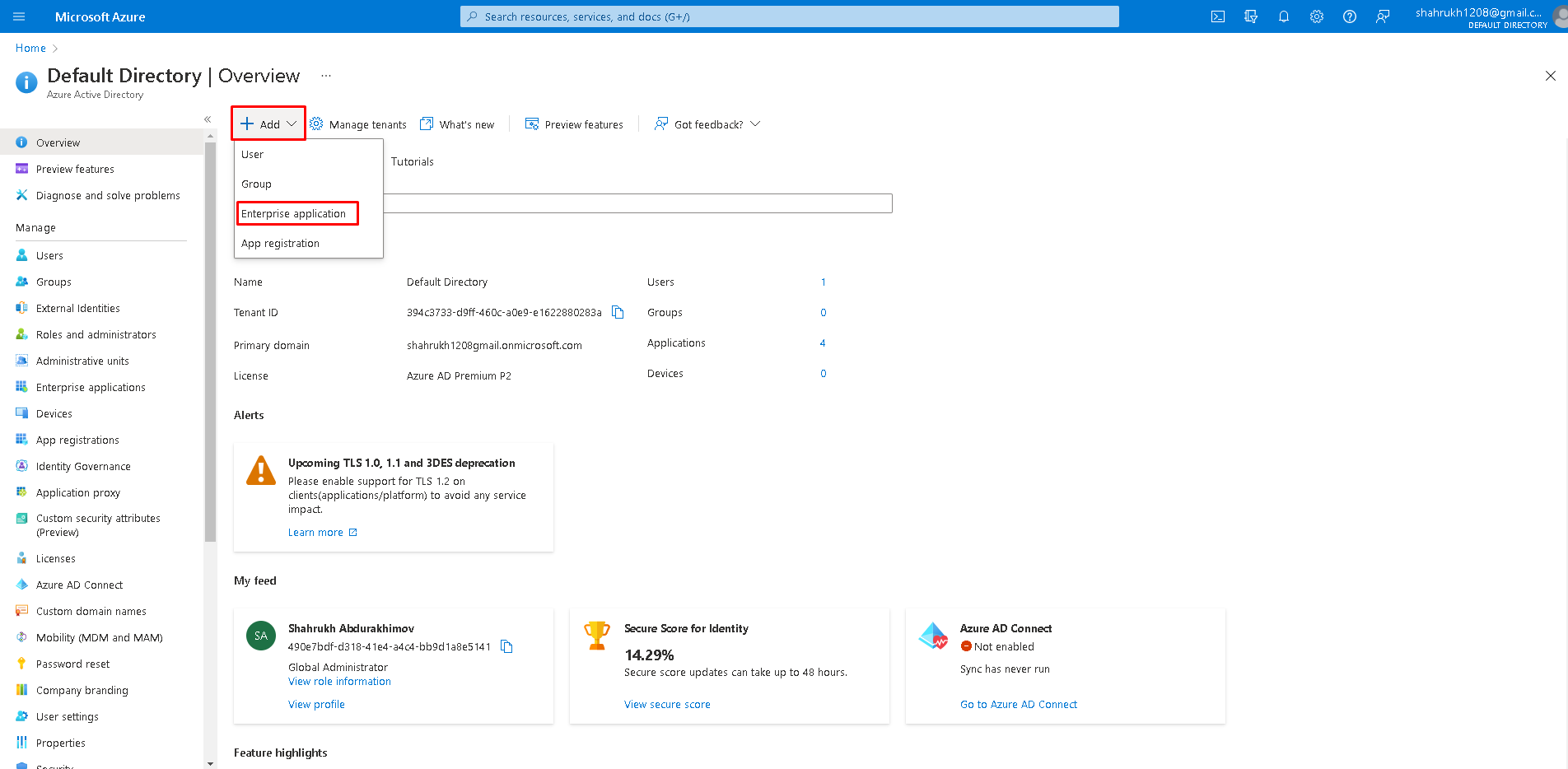
- Click on Add -> Enterprise application.
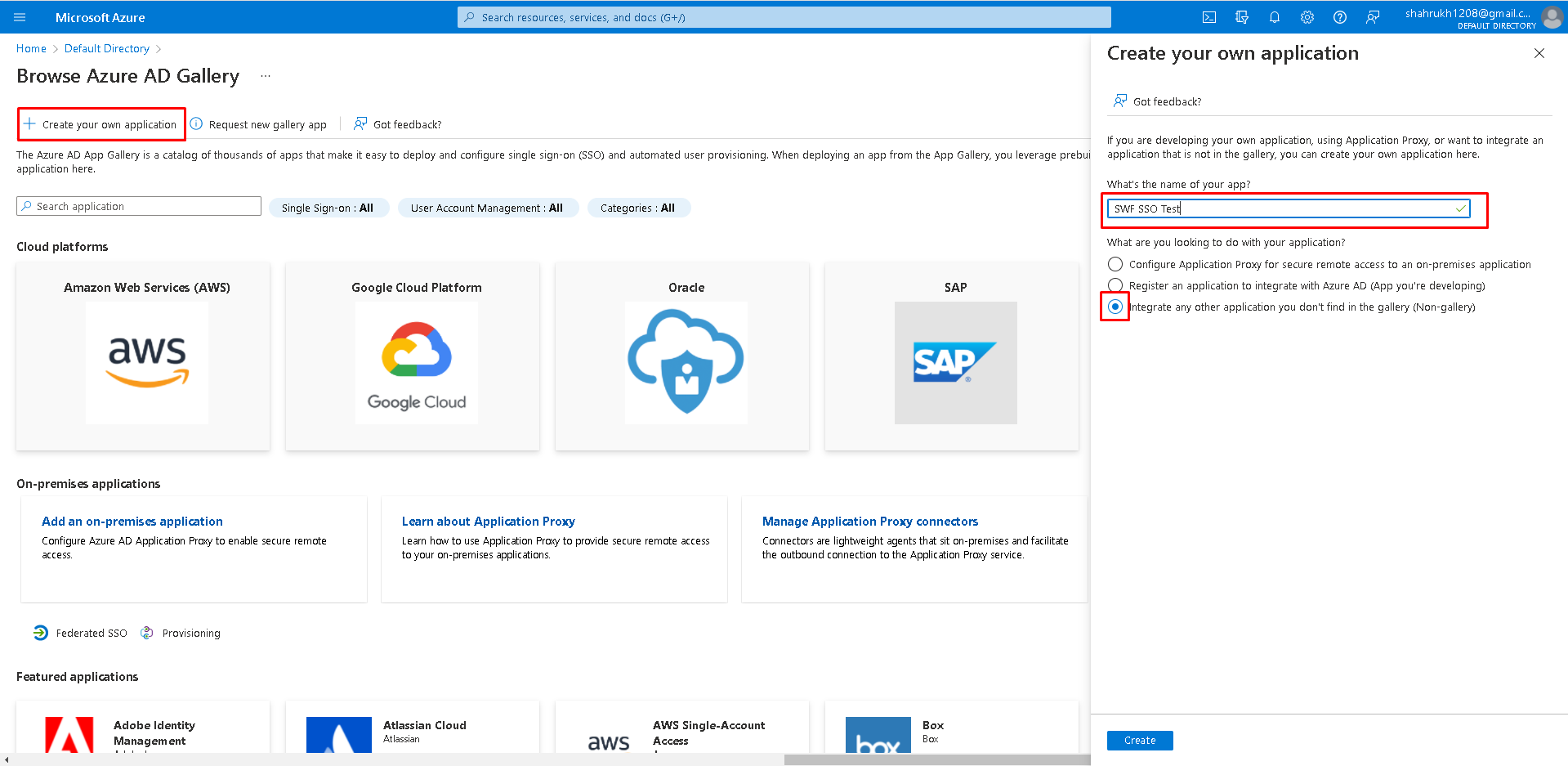
- Click on ‘Create your own application’. Type any name you want to call your application, select ‘Integrate any other application you don’t find in the gallery (Non-gallery)’. Then press ‘Create’.
- Click on ‘Set up single sign on’
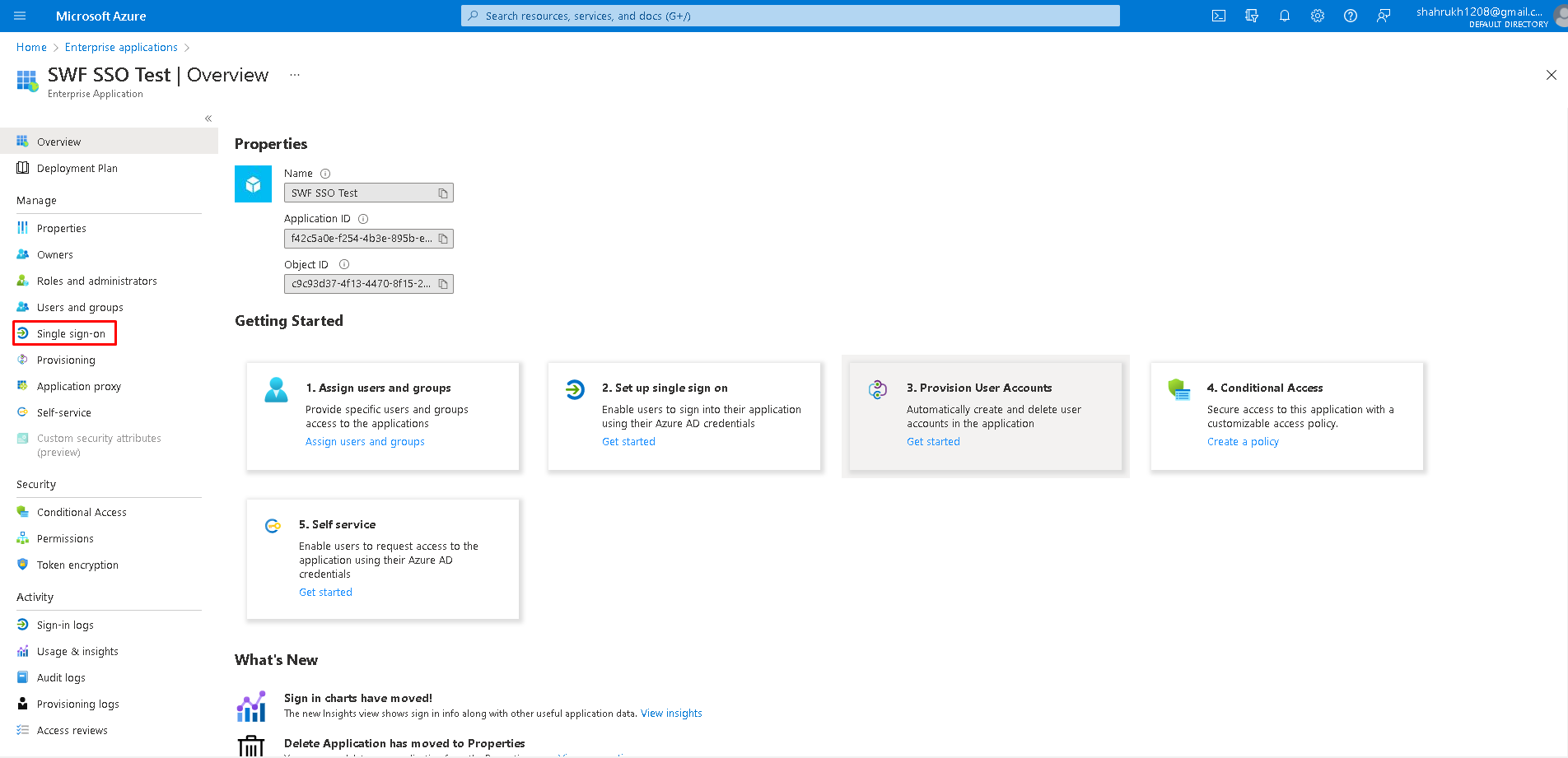
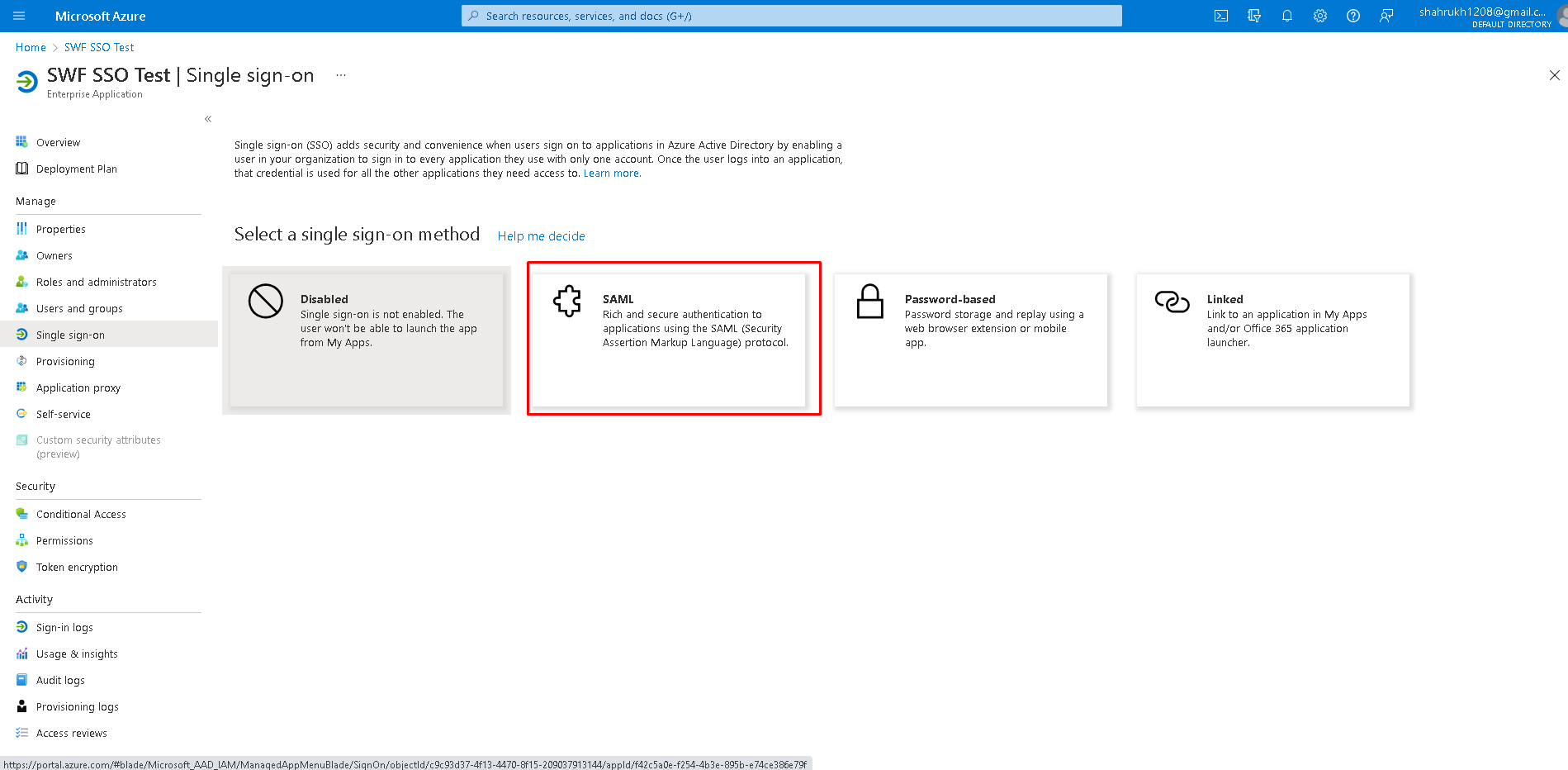
- Select ‘SAML’
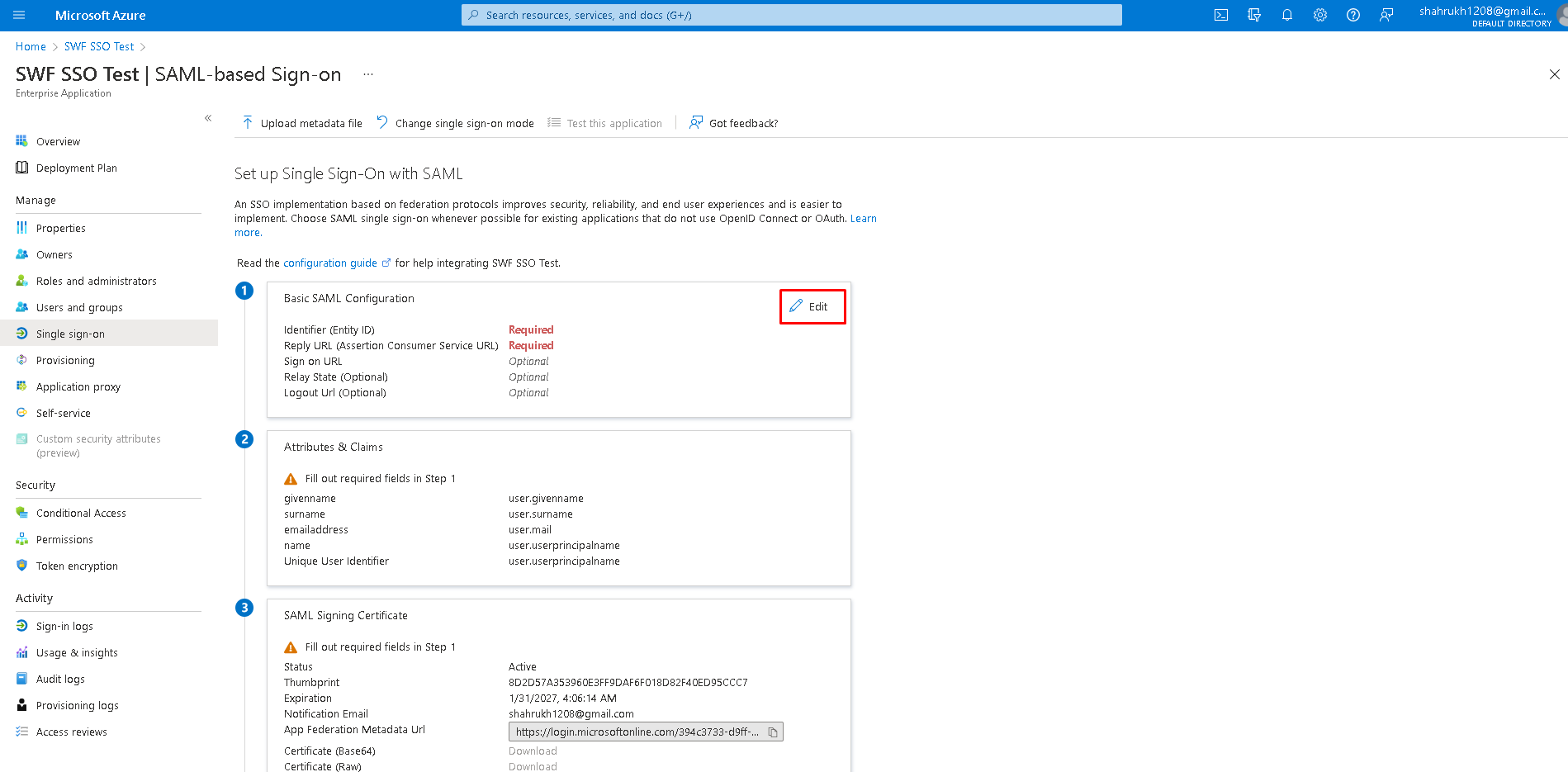
- Click on ‘Edit’ in ‘Basic SAML Configuration’
- Click on ‘Add identifier’
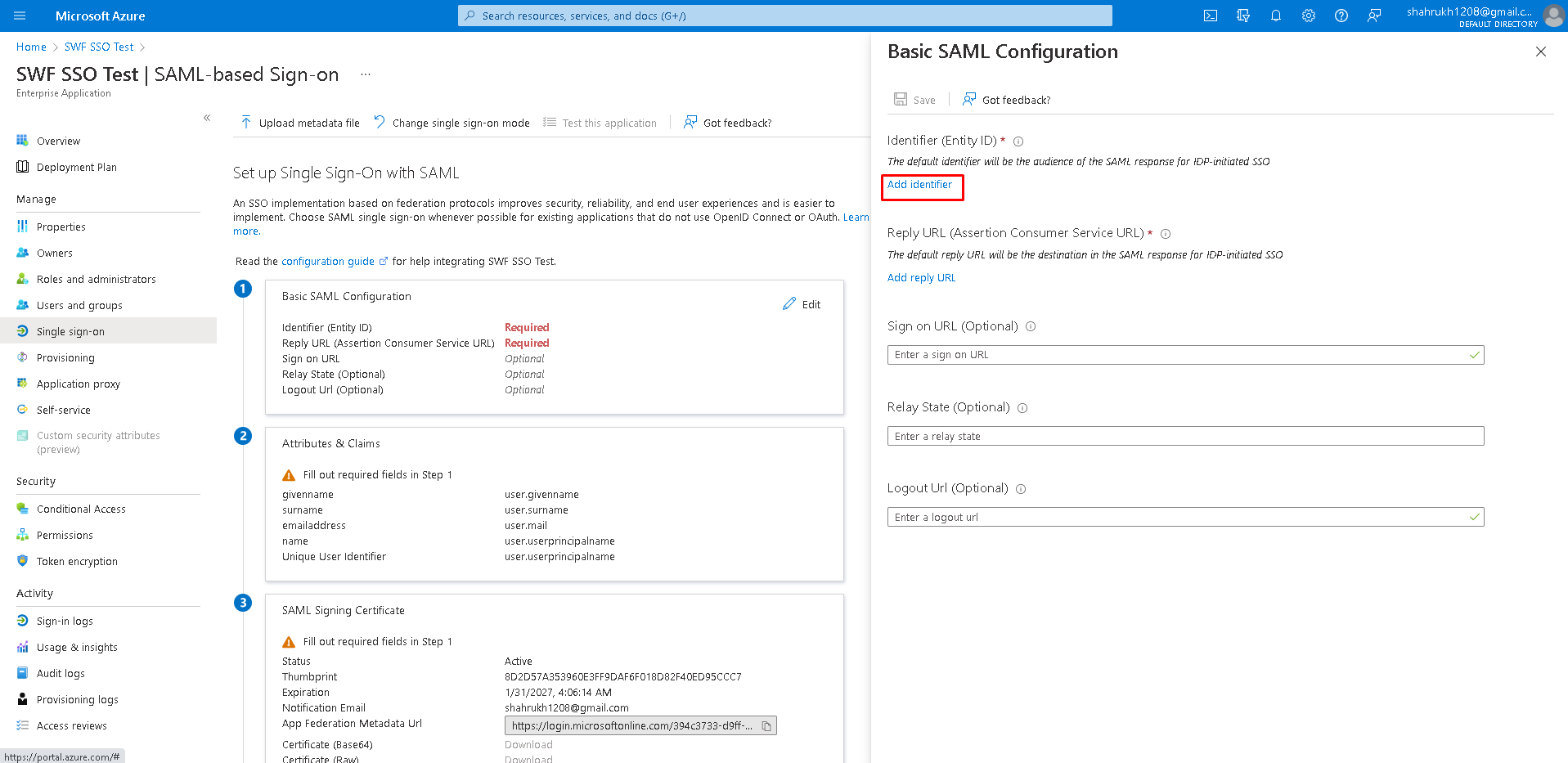
- Type your SWF site link (eg. ‘https://<CUSTOMER>.synel-saas.com/’).
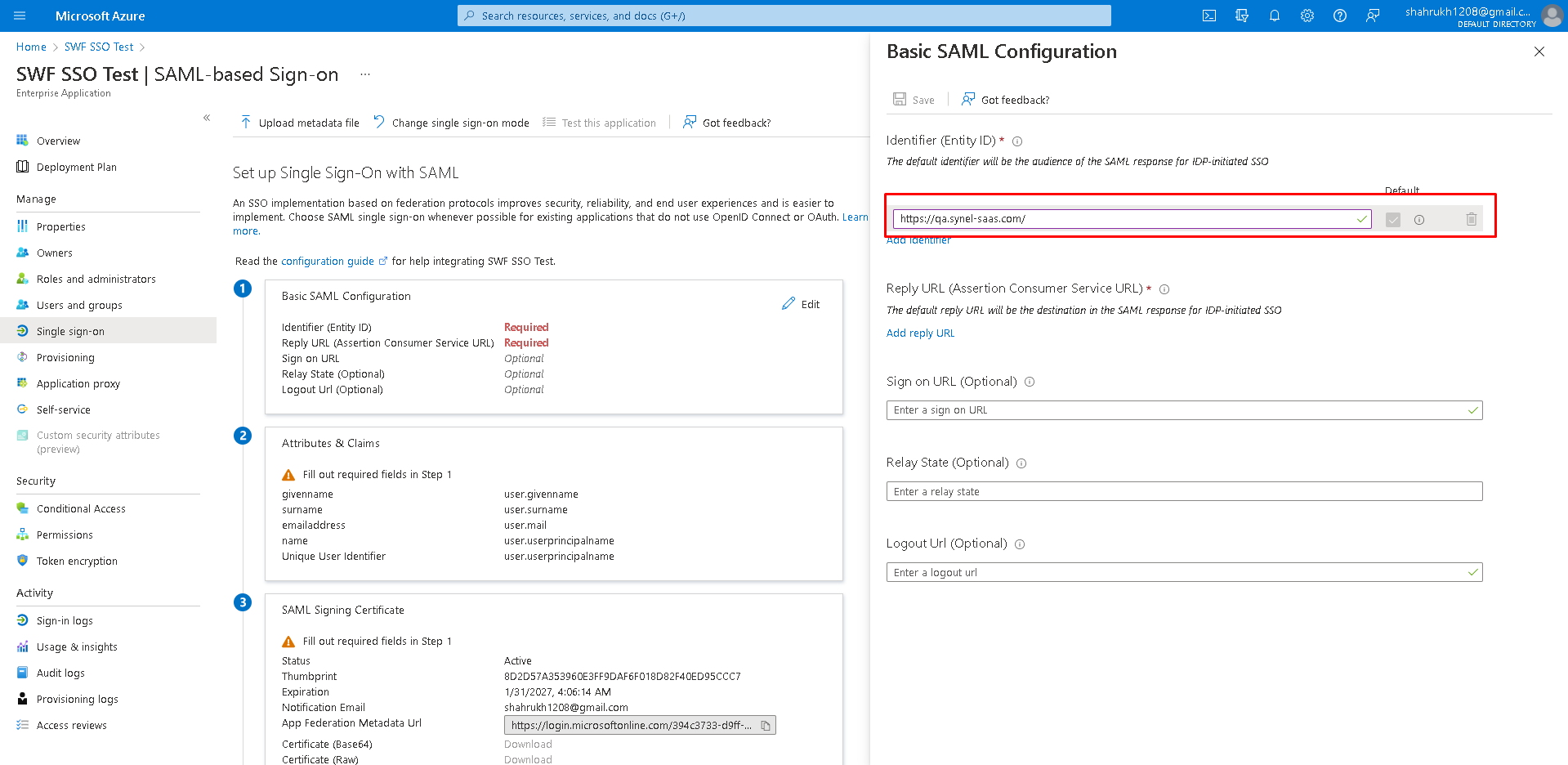
- Click on ‘Add Reply url’
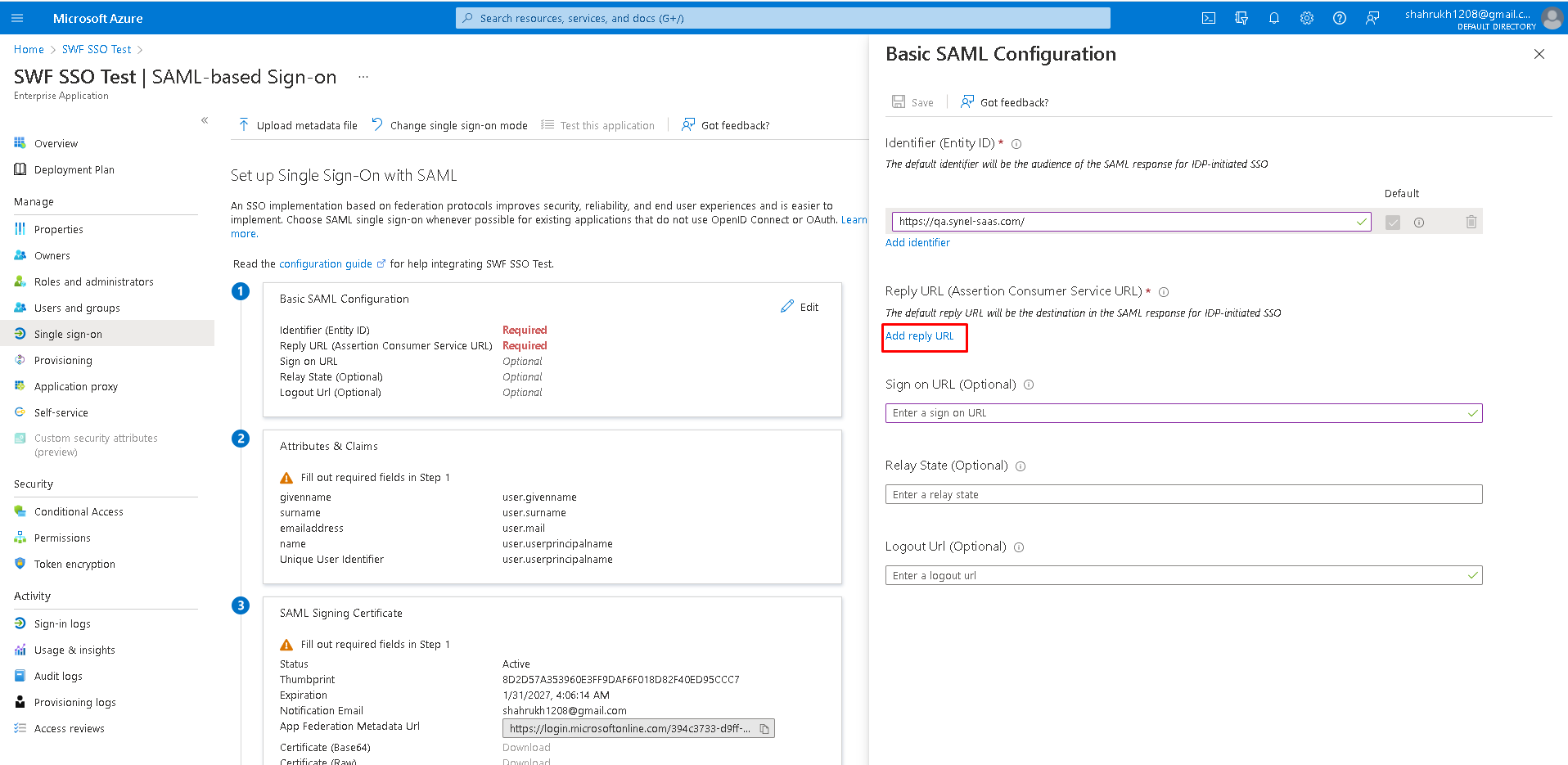
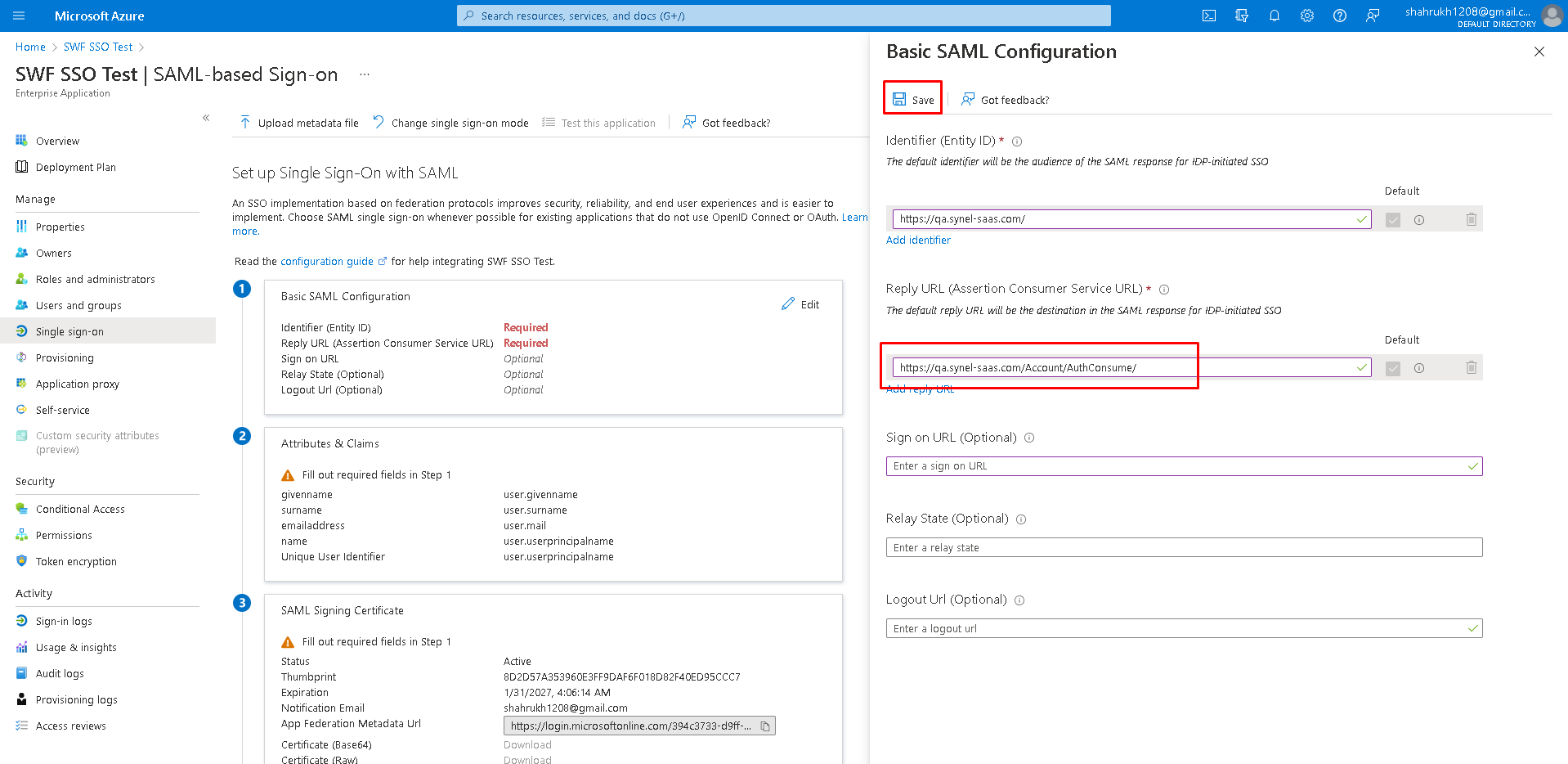
- Type link in form ‘https:// <CUSTOMER>.synel-saas.com/Account/AuthConsume/’ and click ‘Save’
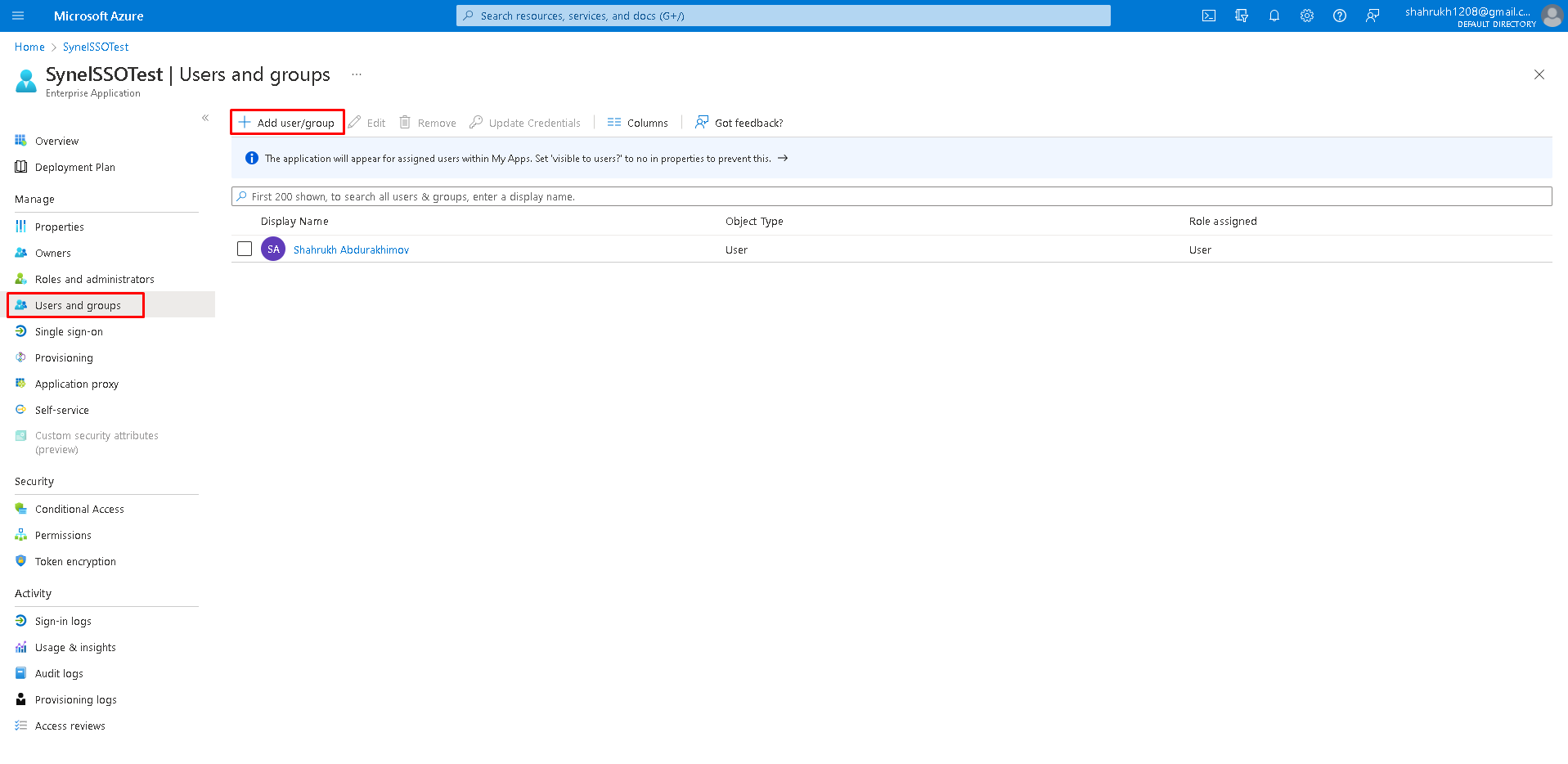
- Click on ‘Users and groups’. Then ‘Add user/group’ and add users to your enterprise application. Please, note that users can login ONLY if their email addresses in Azure AD correspond to those used for registration in SWF.
- Configure SWF SSO.
- Login as Administrator user to your SWF site.
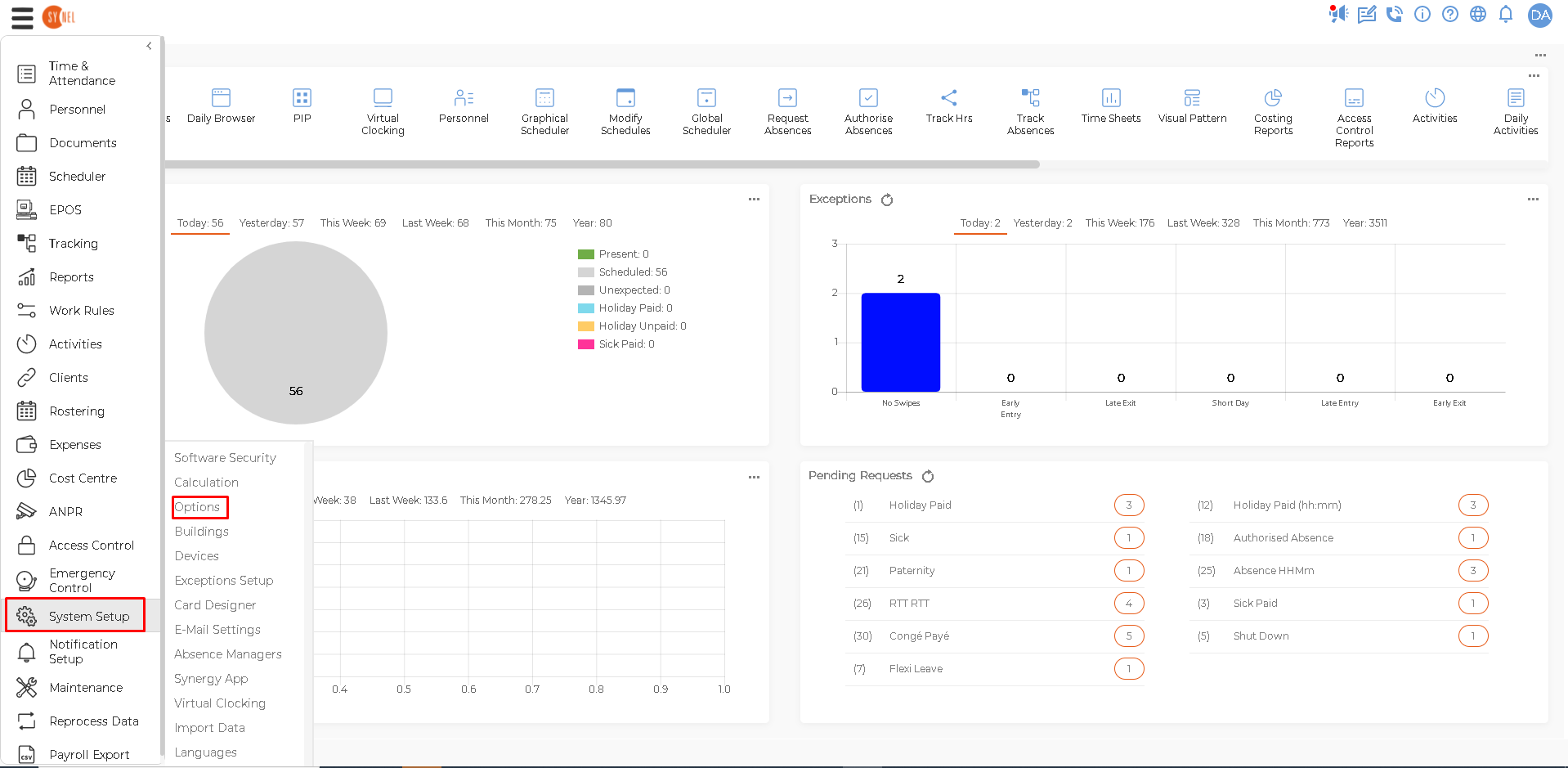
- Go to ‘System Setup’ -> ‘Options’
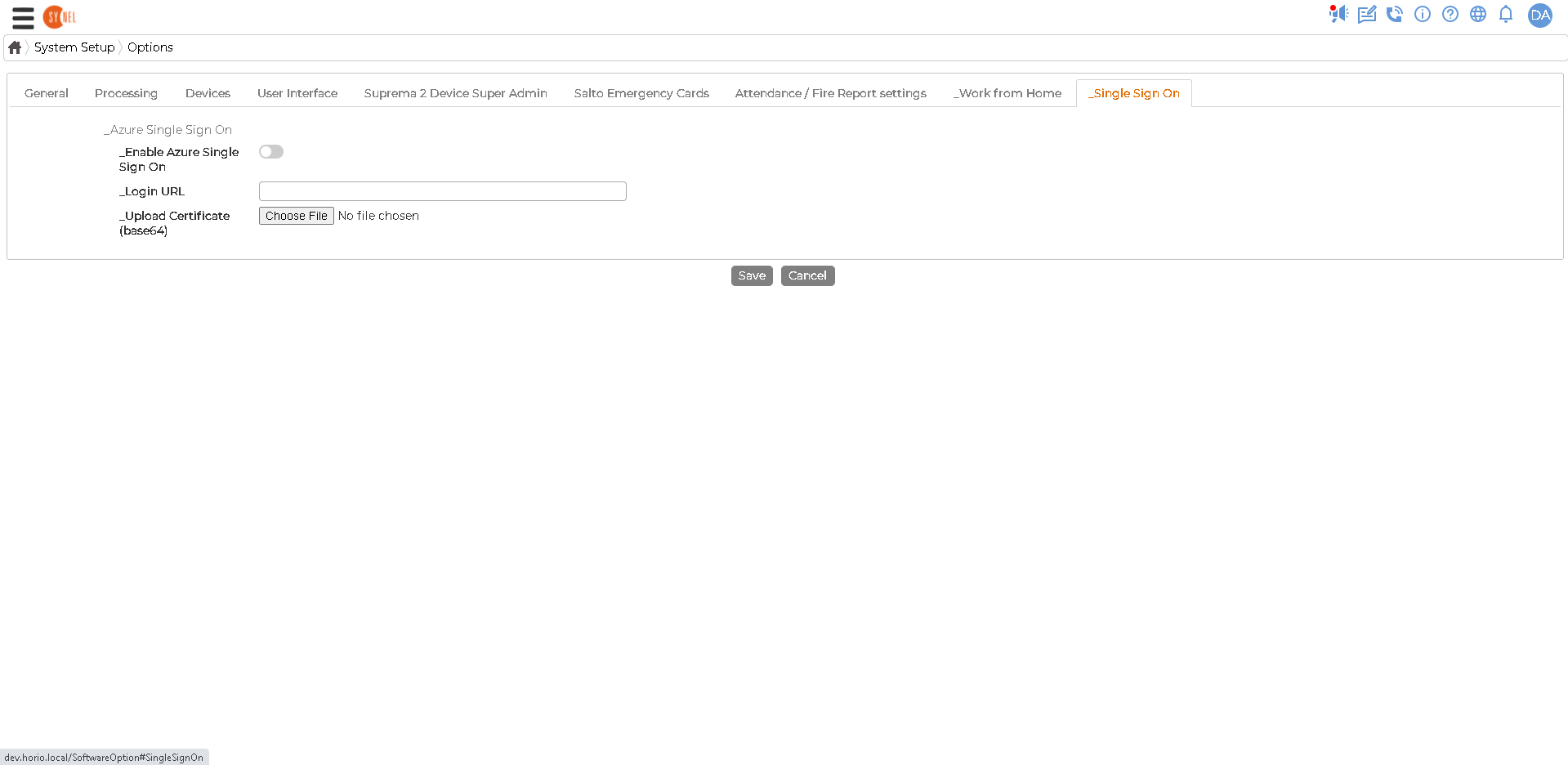
- Click on ‘Single Sign On’ tab.
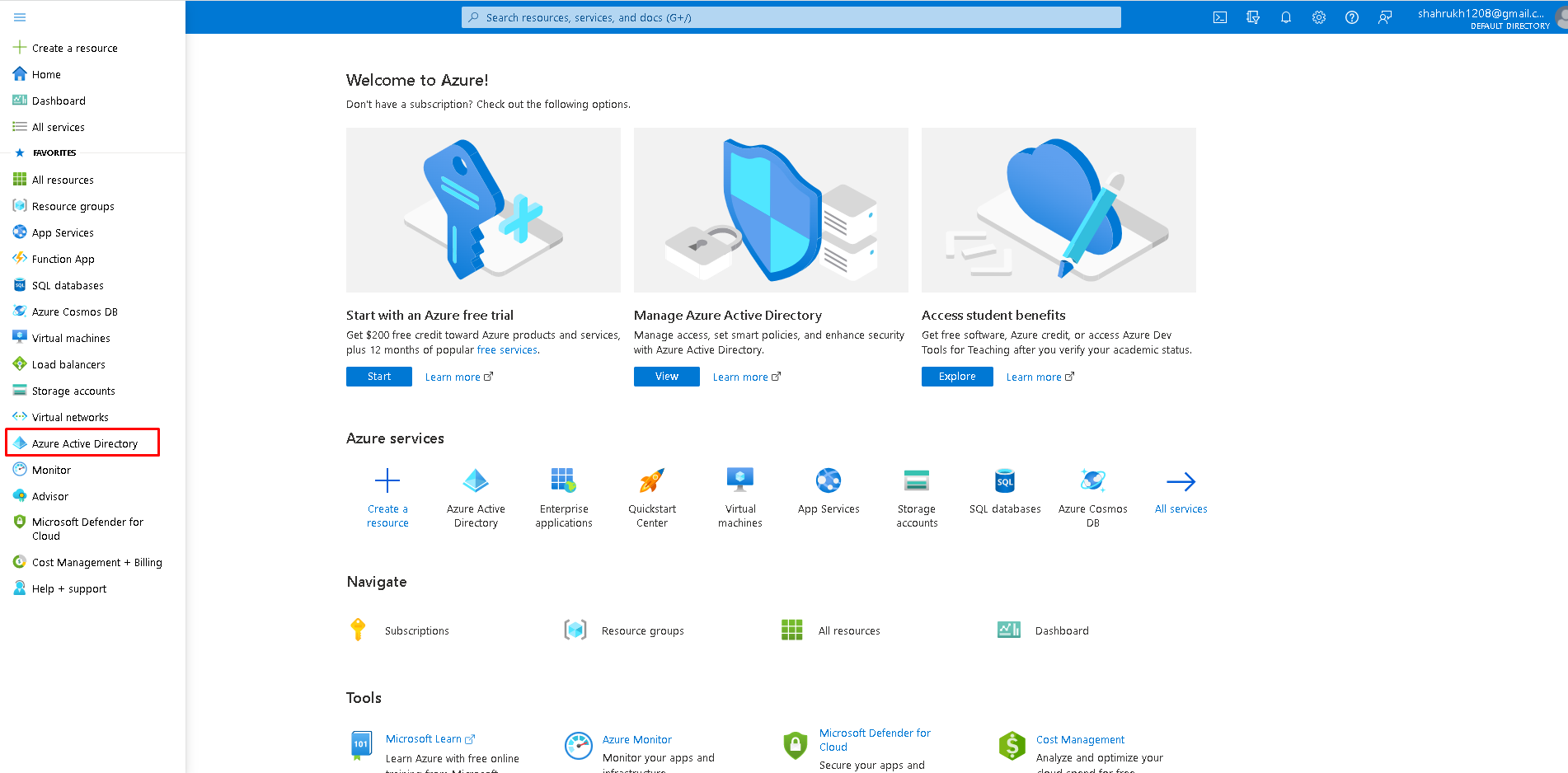
- Go to Microsoft Azure portal, click on menu and select Azure Active Directory.
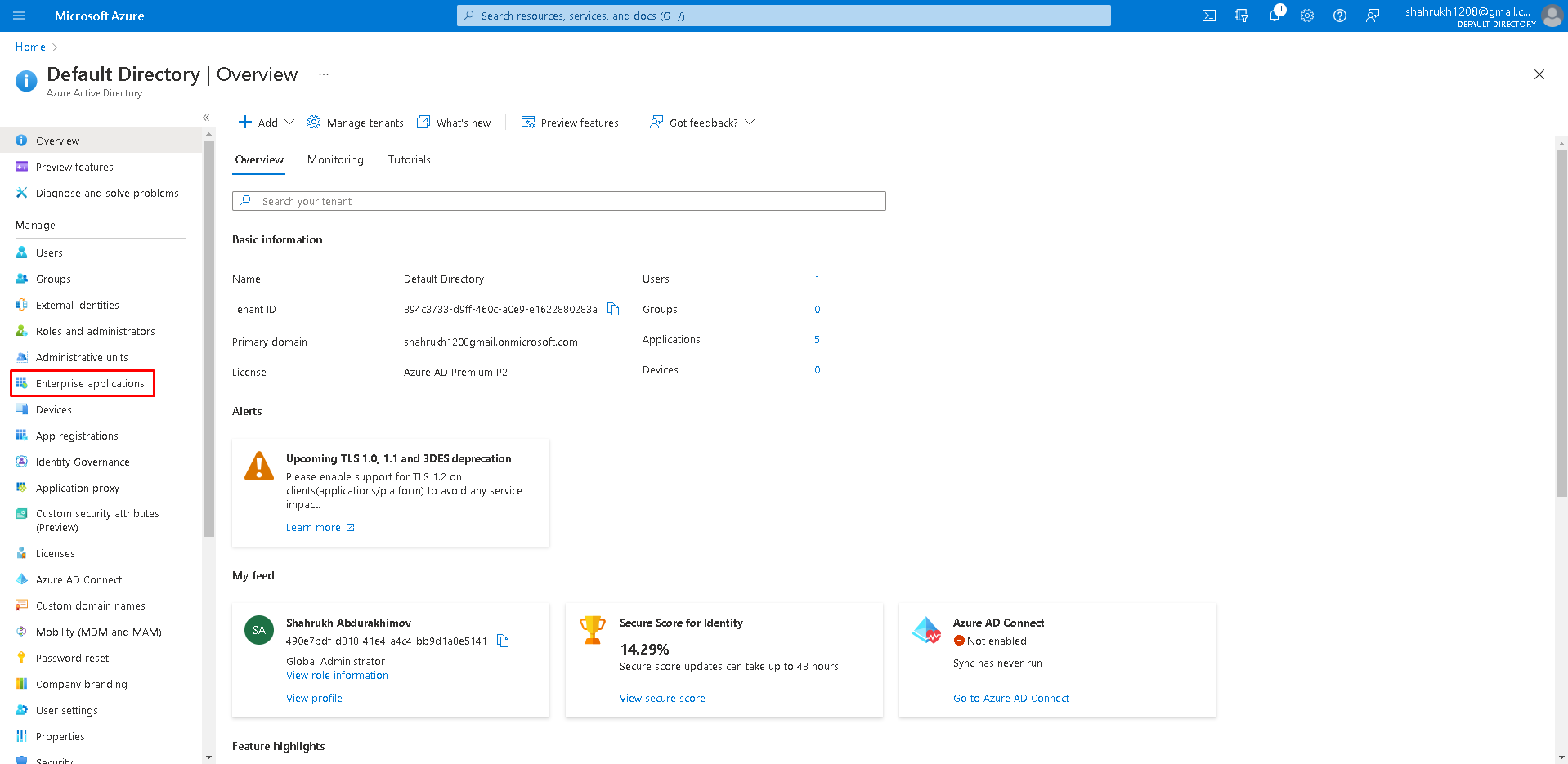
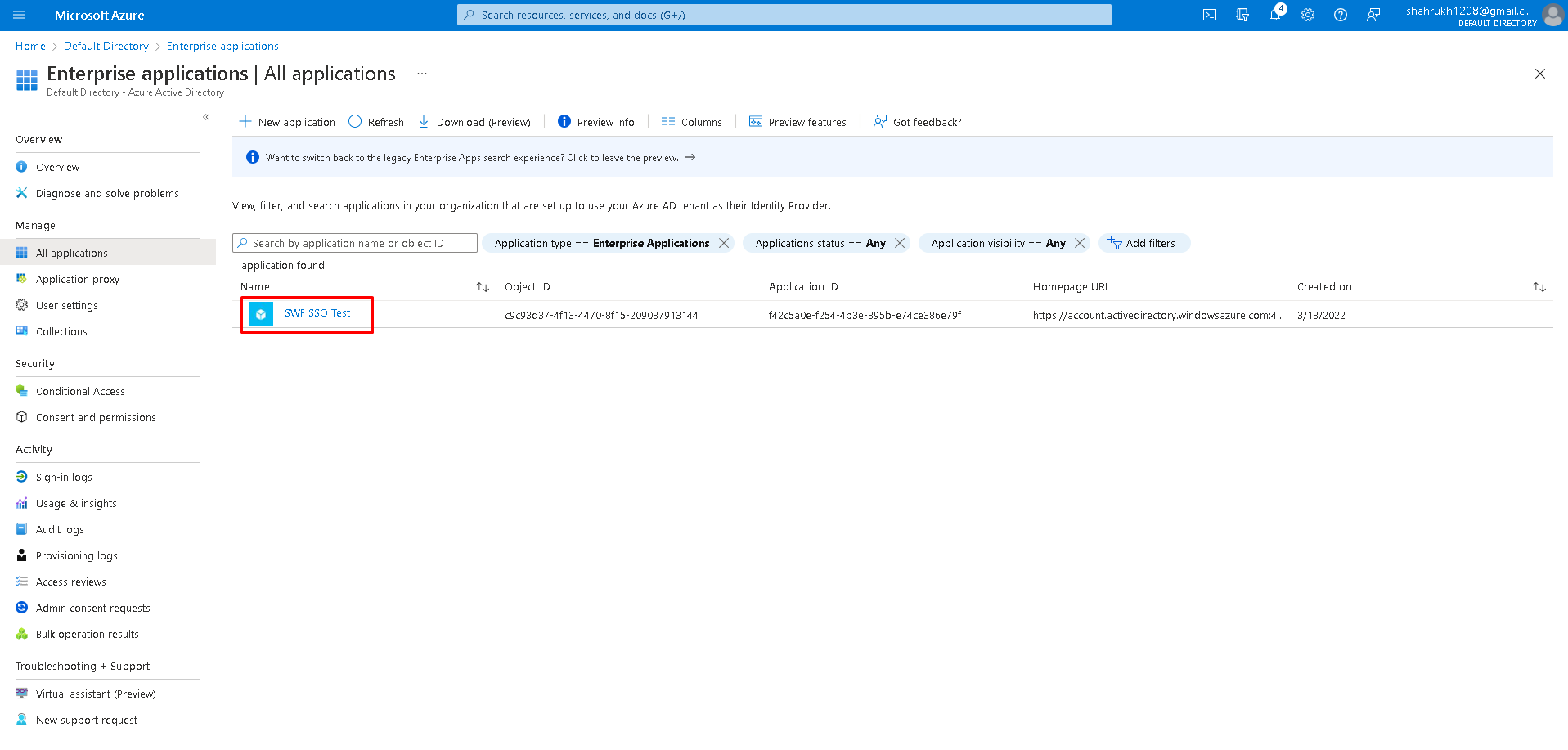
- Click on ‘Enterprise applications’
- Click on your enterprise application.
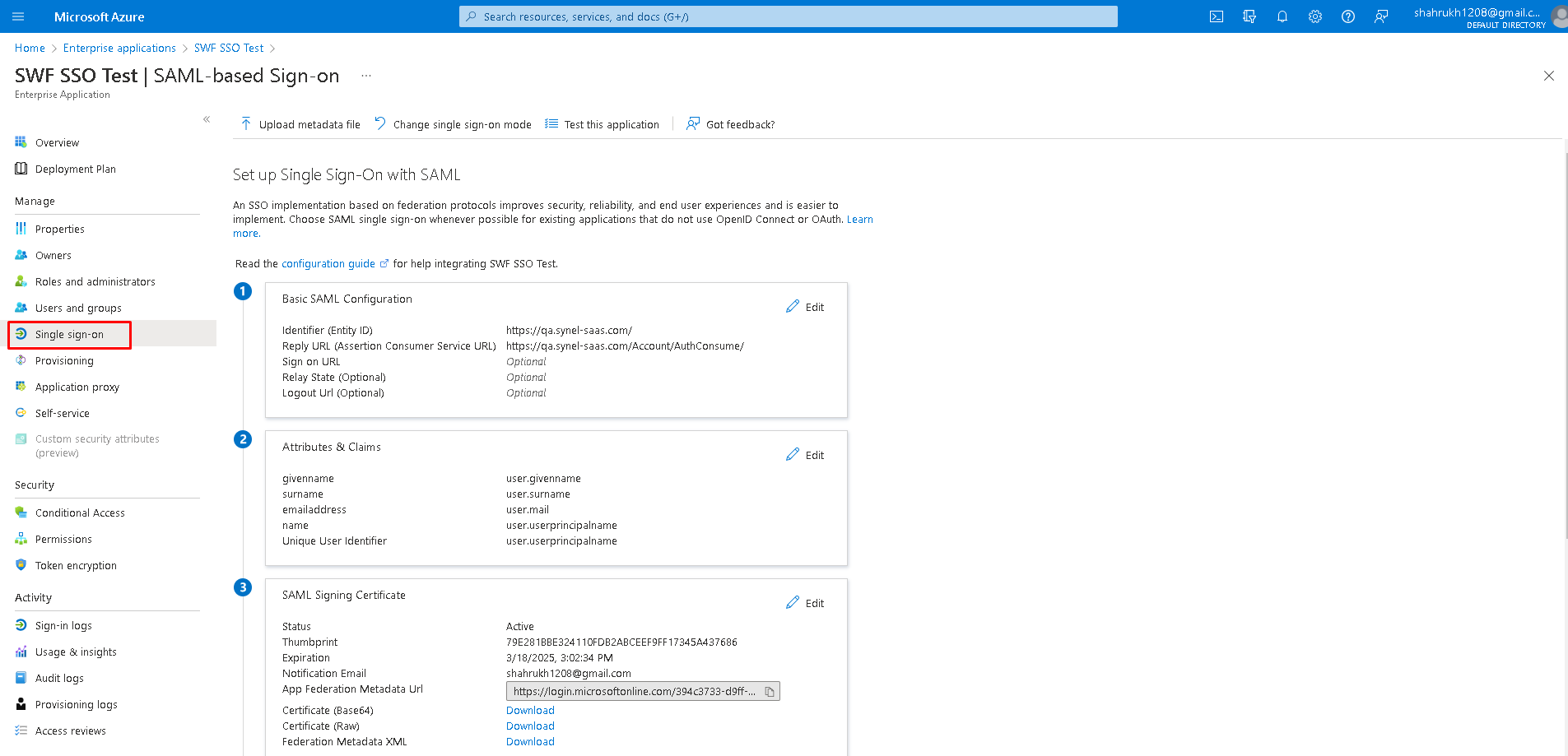
- Click on ‘Single sign-on’
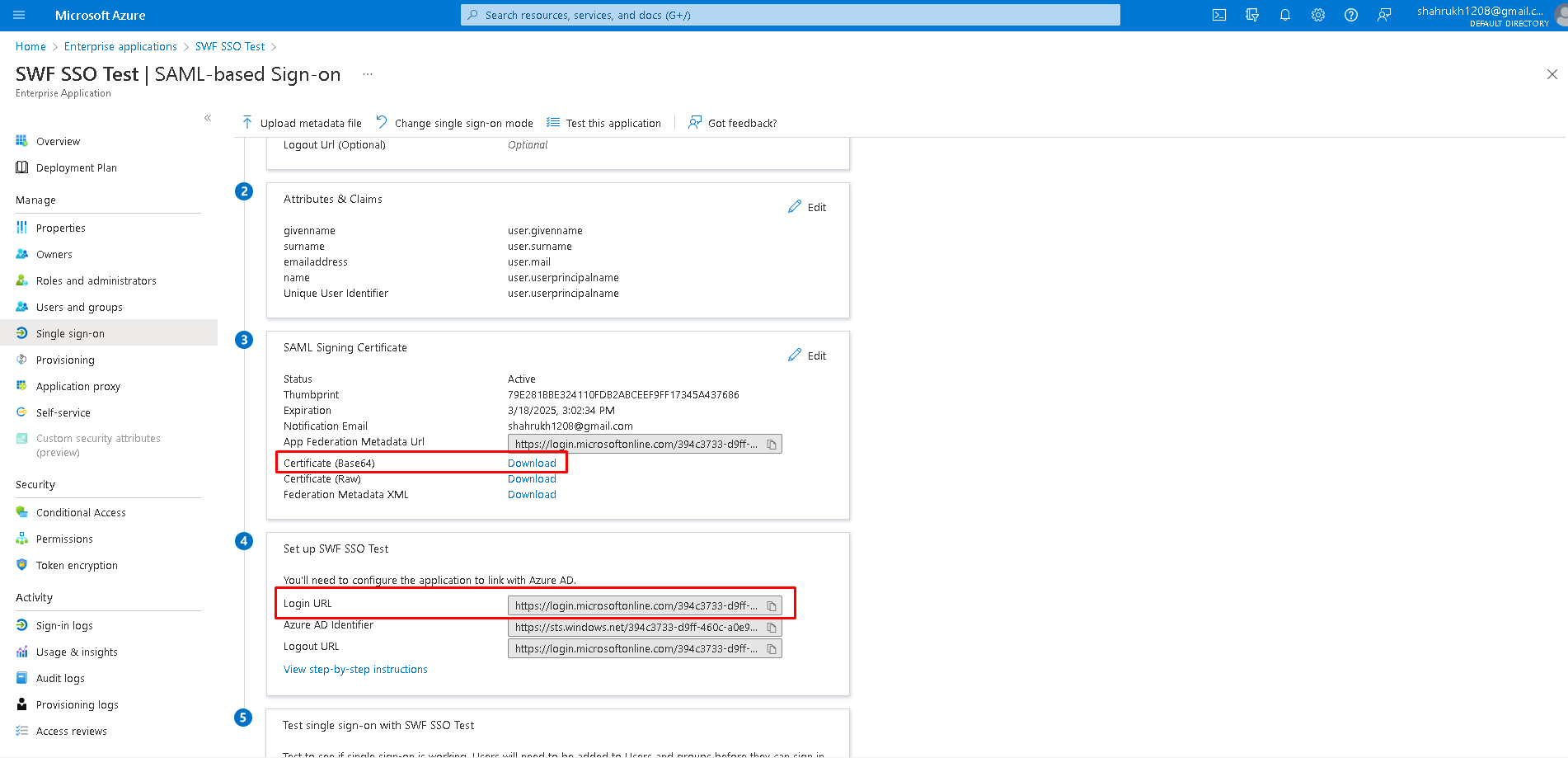
- Download ‘Certificate (Base 64)’ and copy ‘Login URL’
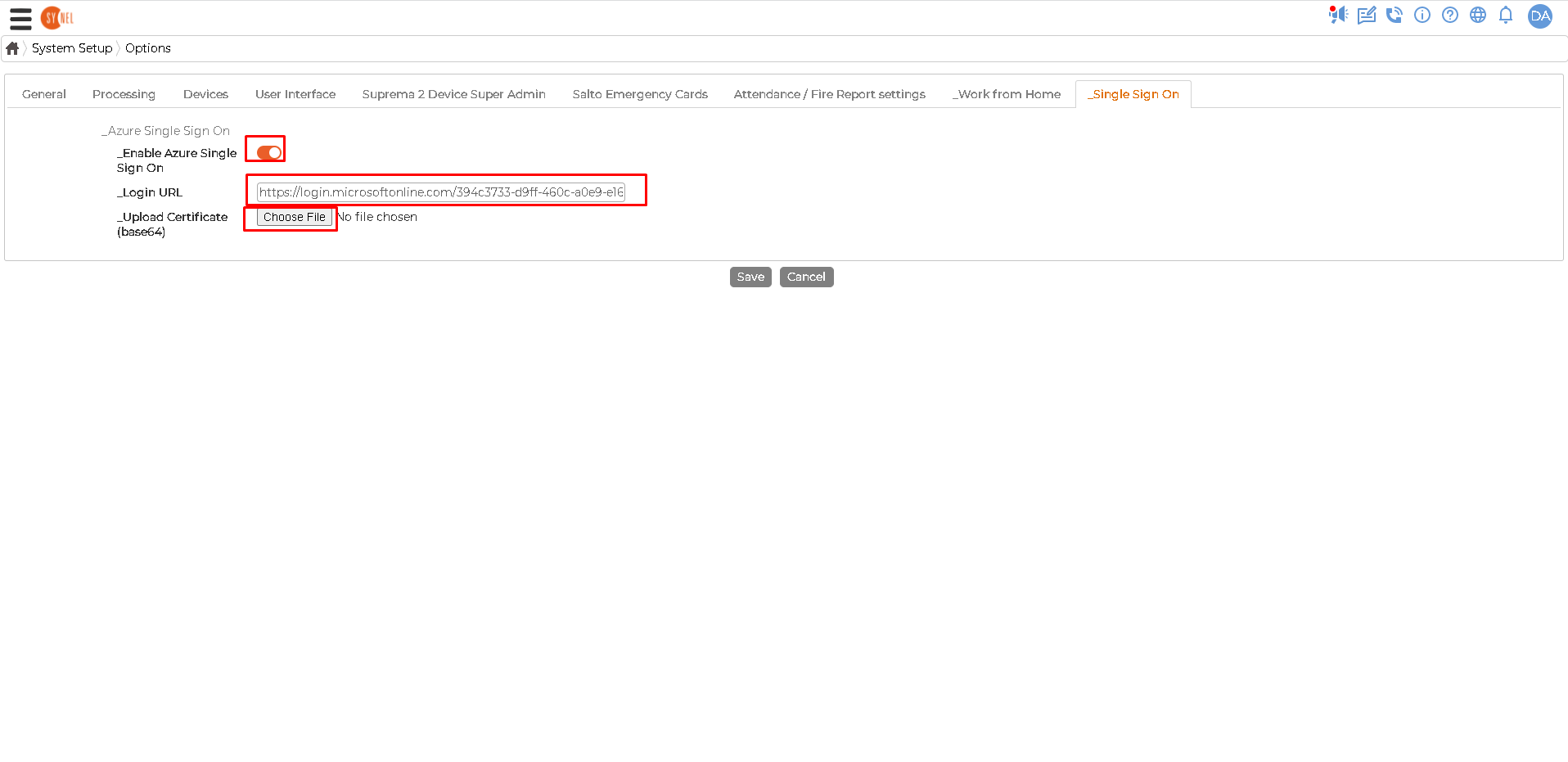
- Go back to SWF System Setup -> Options -> Single Sign On tab. Upload downloaded certificate, enter ‘Login URL’ you copied in step 8, enable Azure Single Sign On. Then save settings.
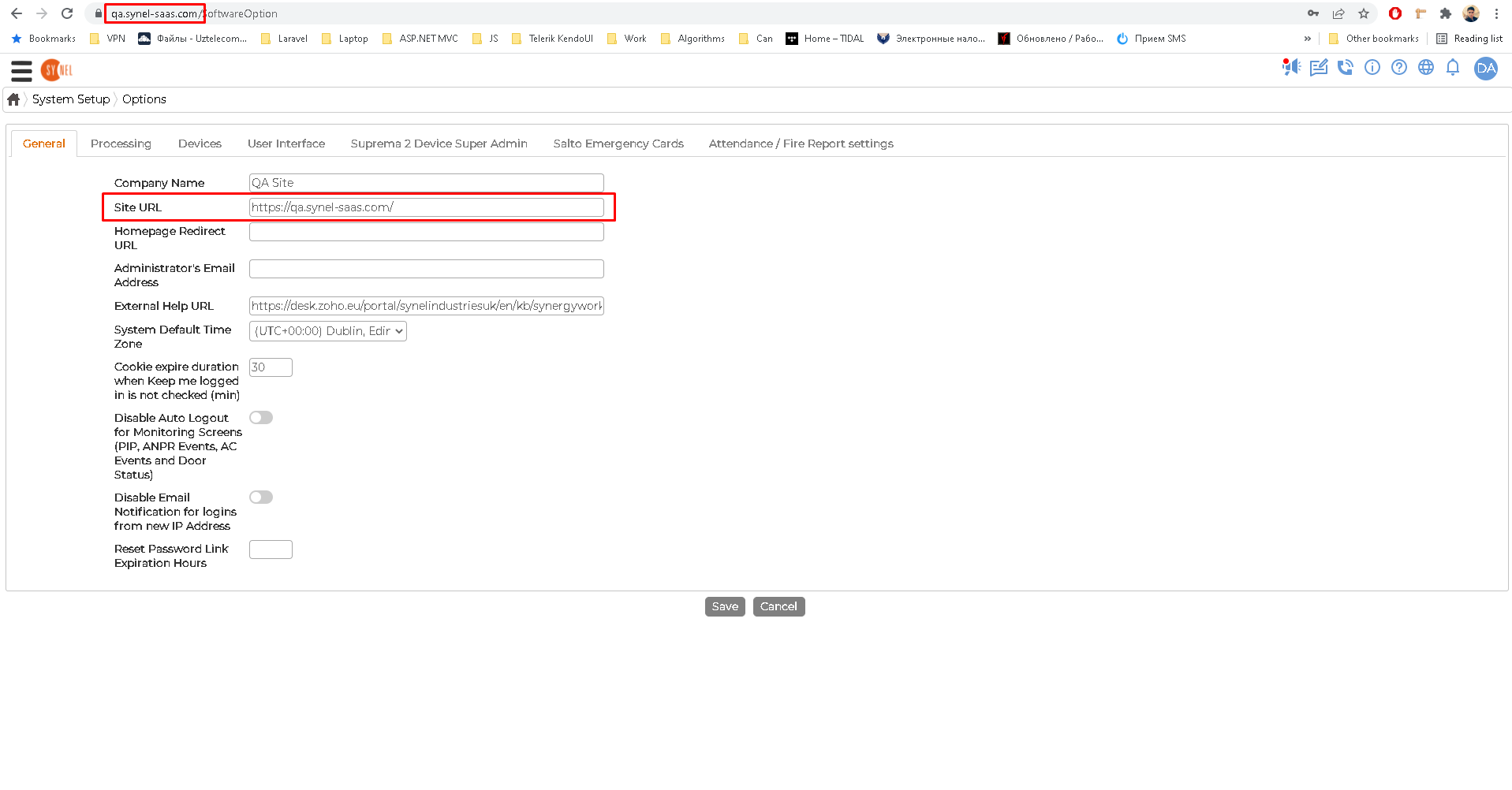
- Go to General tab, ‘Site URL’ has to match your current URL, otherwise SSO will not work.
After the setup is complete, go to your site and click on ‘Sign in with Microsoft’.