
Suprema Biomini Installation and Finger Enrolment Guide
Suprema1. Install Biomini device
Plug in USB Biomini device
Install drivers Sup_Fingerprint_Driver_v2.2.1.exe
Drivers can be downloaded from - https://drive.google.com/file/d/1CDHOLQnud5sVFc84ALcxhjNd1fq8mxqP/view?usp=sharing
2. Install Biomini Agent
Download the respective items from
BioMini Plus 2 Web Agent 3.8.0.2326 - https://drive.google.com/file/d/1uAO_nja0qAb66yXcLmXBjQUq3tO65VTf/view?usp=sharing
BioMini Web Agent 3.7.0 - https://drive.google.com/file/d/1rxAoIbepHLB_w-sm6ixtPs4Yi_oydTu2/view?usp=sharing
Extract and copy respective Web Agent Folder to the C:\ or any drive of your selection
Set folder permissions to Read, Write & Modify for respective users.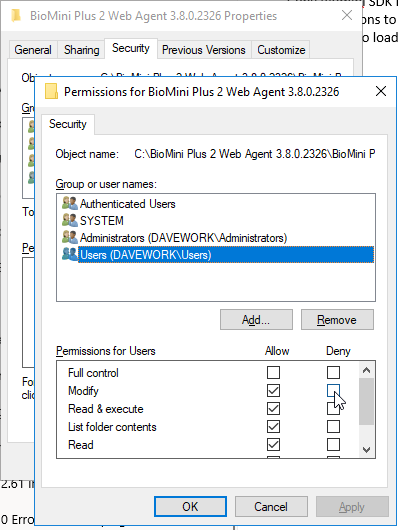 Double click on agent to be executed (you may need to run it as Administrator) and live it running in the task bar.
3. Setup Finger Enroller device in Synergy Workforce
Add and configure a new "Finger Enroller" device within Synergy Workforce with a dummy IP Address
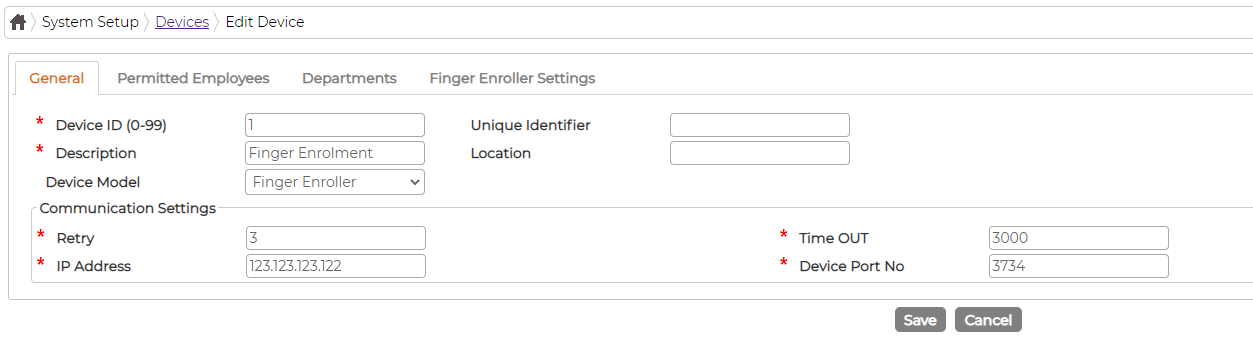
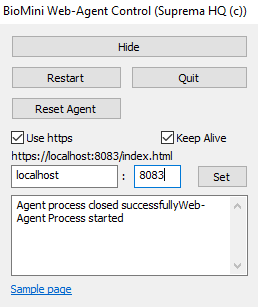
Ensure following values from the AgentCtrl.exe matches with those in Finger Enroller settings tab:
a. Enroller Agent protocol
b. Agent Domain
c. Agent Port
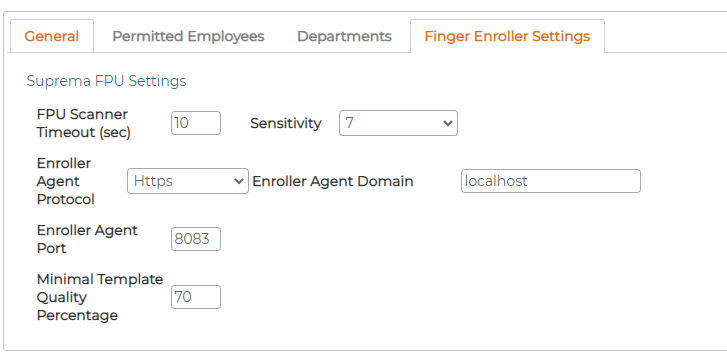
Additional setup the value as desired
a. Scanner timeout (sec) = default 10 seconds
b. sensitivity = default 7
c. Template quality percentage = minimum 70%; higher the better
4. Enrol Finger Templates
Users now has now 2 options to enrol finger templates from:
1. Personnel screen:

2. Menu - Maintenance - Finger Templates

In both cases, screen for enrolment will look same
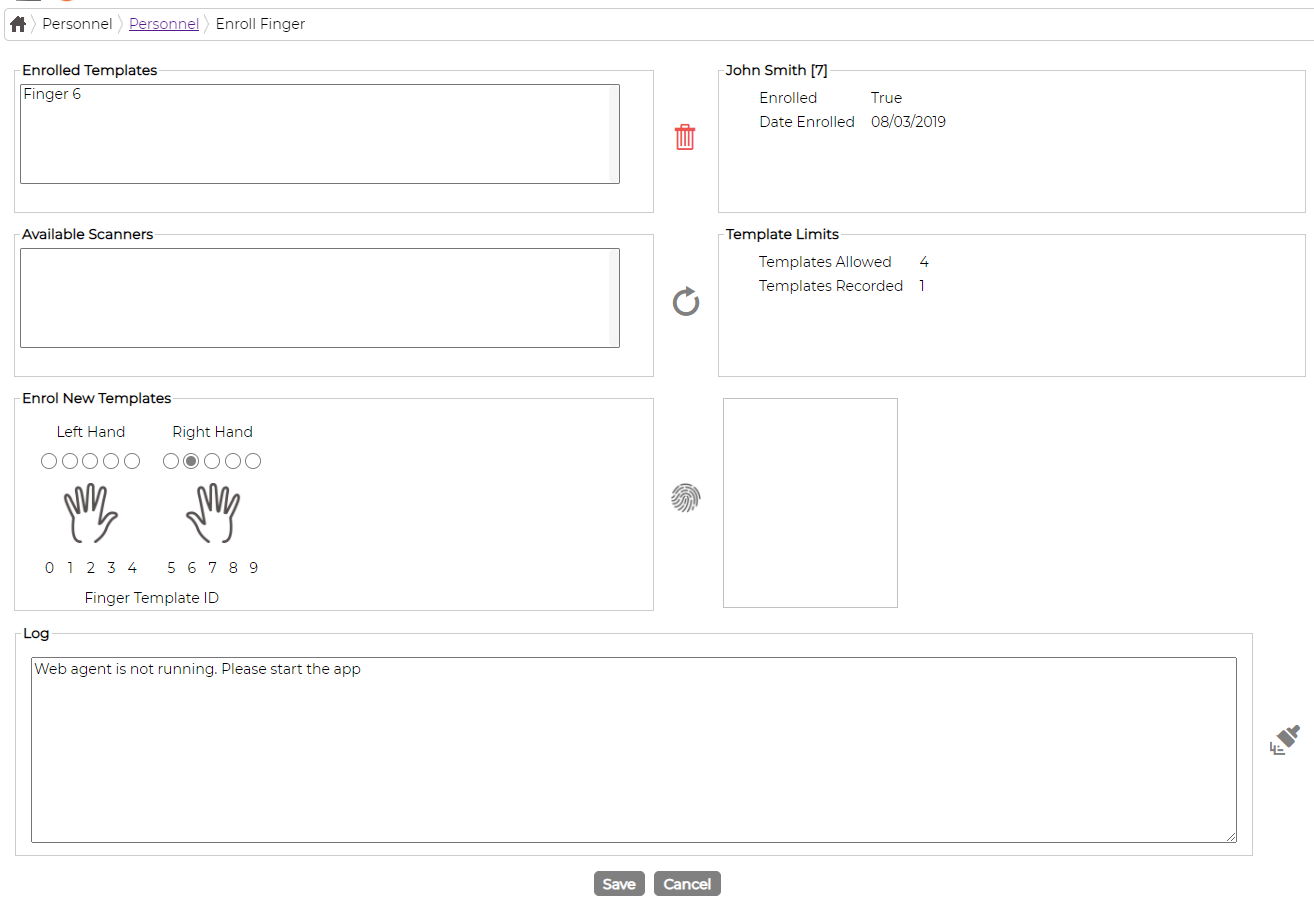
When the screen loads there should be a device listed under Available Scanners.
If nothing appears, check the settings again.
If successful, select the finger and click on enrol icon to start finger enrolment
Once enrolled, click on save
Plug in USB Biomini device
Install drivers Sup_Fingerprint_Driver_v2.2.1.exe
Drivers can be downloaded from - https://drive.google.com/file/d/1CDHOLQnud5sVFc84ALcxhjNd1fq8mxqP/view?usp=sharing
2. Install Biomini Agent
Download the respective items from
BioMini Plus 2 Web Agent 3.8.0.2326 - https://drive.google.com/file/d/1uAO_nja0qAb66yXcLmXBjQUq3tO65VTf/view?usp=sharing
BioMini Web Agent 3.7.0 - https://drive.google.com/file/d/1rxAoIbepHLB_w-sm6ixtPs4Yi_oydTu2/view?usp=sharing
Extract and copy respective Web Agent Folder to the C:\ or any drive of your selection
Set folder permissions to Read, Write & Modify for respective users.
Double click on agent to be executed (you may need to run it as Administrator) and live it running in the task bar.3. Setup Finger Enroller device in Synergy Workforce
Add and configure a new "Finger Enroller" device within Synergy Workforce with a dummy IP Address
Ensure following values from the AgentCtrl.exe matches with those in Finger Enroller settings tab:
a. Enroller Agent protocol
b. Agent Domain
c. Agent Port
Additional setup the value as desired
a. Scanner timeout (sec) = default 10 seconds
b. sensitivity = default 7
c. Template quality percentage = minimum 70%; higher the better
4. Enrol Finger Templates
Users now has now 2 options to enrol finger templates from:
1. Personnel screen:
2. Menu - Maintenance - Finger Templates
In both cases, screen for enrolment will look same
When the screen loads there should be a device listed under Available Scanners.
If nothing appears, check the settings again.
If successful, select the finger and click on enrol icon to start finger enrolment
Once enrolled, click on save