
EPOS Accounts Diners
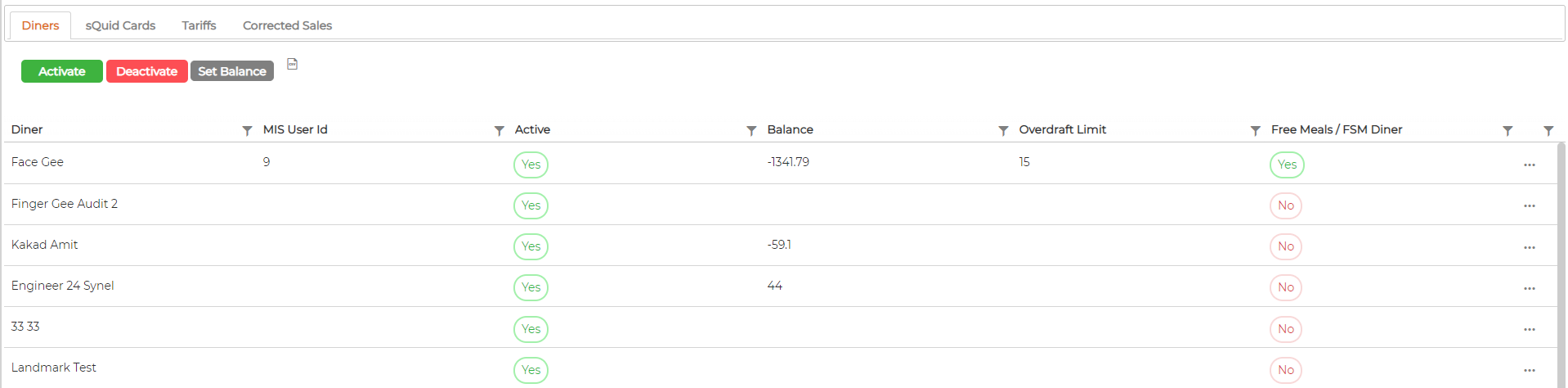
EPOSScreen will display all the Active Diners and their respective parameters
Activate Button
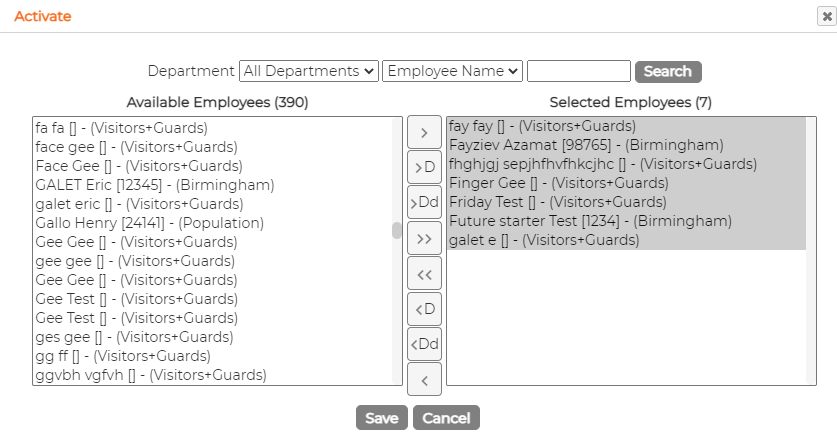
Button allows selected employees to become an Active Diner in the system
Deactivate Button
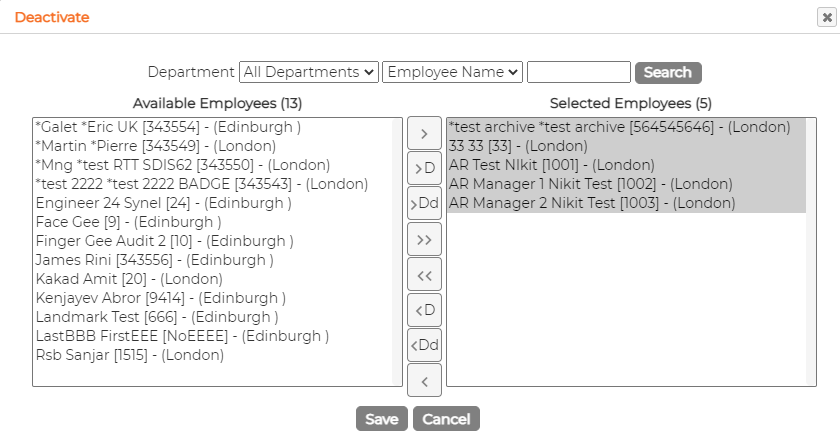
Button allows to deactivate any active Diner in the system
Set Balance Button
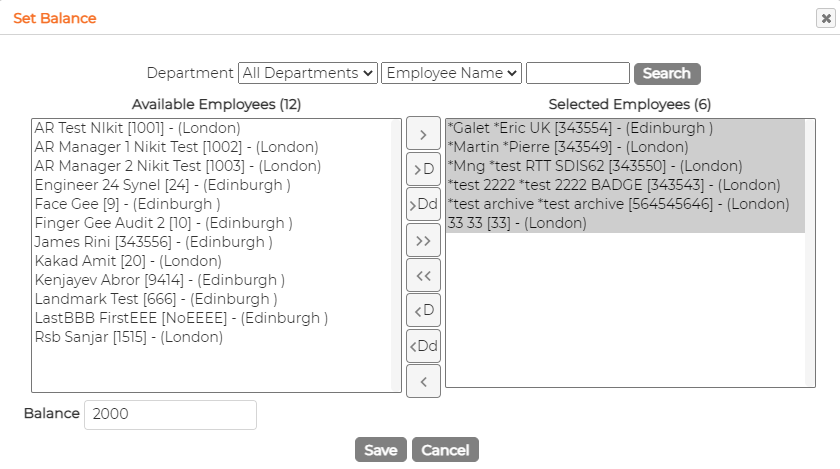
Button allows setting up the balances of selected Active Diners
Import Balance
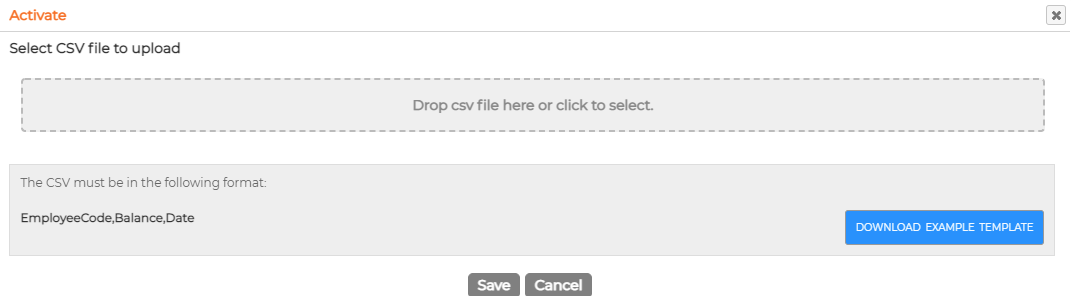
Click on to import Balance for active Diners in bulk. Follow the instructions provided for the template requirement
Edit Diners
Click on icon and then
  icon against the Active Diner to edit further settings
General Tab
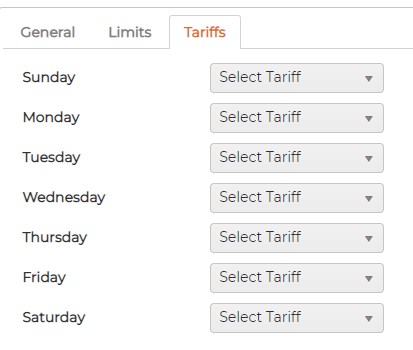
Select Tariffs for each specific day if required
Tariffs are set on another screen

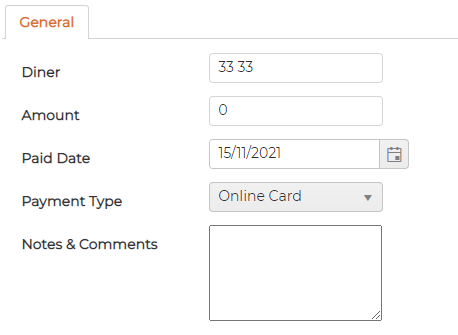
Add Payment
Click on icon and then
  icon against the Active Diner to add payment manually if required
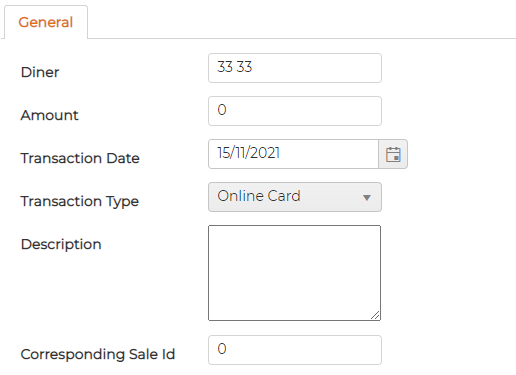
Add Sales Correction
Click on icon and then
  icon against the Active Diner to add Sales Correction manually if required
Activate Button
Button allows selected employees to become an Active Diner in the system
Deactivate Button
Button allows to deactivate any active Diner in the system
Set Balance Button
Button allows setting up the balances of selected Active Diners
Import Balance
Click on
to import Balance for active Diners in bulk. Follow the instructions provided for the template requirementEdit Diners
Click on
icon and then icon against the Active Diner to edit further settingsGeneral Tab
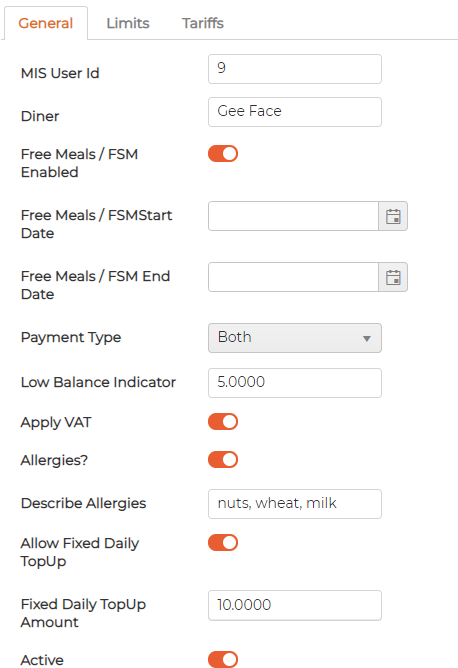
- Enable Free Meals if applicable with Start and End Date
- Select Payment Type applicable to Diner
- Insert Low Balance Indicator amount
- Switch ON VAT if applicable to Diner
- Switch ON Allergies and specify allergies if applicable
- Switch ON to allow fixed Daily TopUp and specify amount if required
- Switch OFF Active button if no longer a Diner
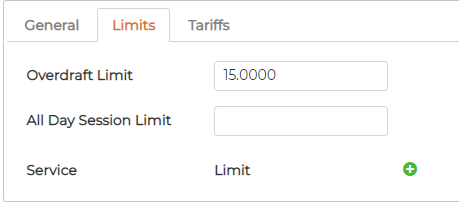
- Specify limits if applicable by either All Day Session or by individual Services
Select Tariffs for each specific day if required
Tariffs are set on another screen
Add Payment
Click on
icon and then icon against the Active Diner to add payment manually if requiredAdd Sales Correction
Click on
icon and then icon against the Active Diner to add Sales Correction manually if required